Make a prescription on your phone and send it on WhatsApp, free
Paper prescriptions get lost. The patient folds it into a pocket, the chemist keeps it, and a week later someone calls the clinic asking which tablet it was. A prescription sent on WhatsApp stays in the patient's chat, the pharmacist can read every word, and you keep a copy on the patient's file.
FindClinica is a prescription app for Android that does exactly this, and you don't pay for it. Below is every step in the order you'll do it the first time: sign in, add a doctor, add the patient, write the prescription, press Send. Give it ten minutes the first time. After that a prescription takes a minute or two.
Updated
What you need before you start
An Android phone with WhatsApp on it, a Google account to sign in with, and the patient's mobile number (the one they use for WhatsApp). No printer, no letterhead, no computer.
You can write the prescription with no signal at all. You only need internet at the moment you press Send, because the prescription image is made on our server.
Step 1: Install FindClinica and sign in with Google
Install FindClinica from Google Play and open it. Tap Continue with Google and choose your Google account. There is no separate password to remember.
One account can be signed in on one phone at a time, so use the phone you keep with you in the clinic.
Step 2: Add your details and your clinic's name
The first time you sign in, the app asks for your title (Dr. is already picked), your name and your mobile number. The PMDC number is optional here. Tap Submit and the home screen opens.
Now set the top of your prescription. Open the menu, tap Settings, then your name at the top of the list (Edit Personal Data). Tap Edit, write your clinic's name in Hospital, add the Address and PMDC number, and tap Save. The clinic name is the bold first line of every prescription and it also goes in the WhatsApp message, so it's worth the extra minute.
The profile picture on that screen is printed faintly across the middle of the prescription, like a watermark. A clinic logo looks better there than a selfie.
Step 3: Add a doctor
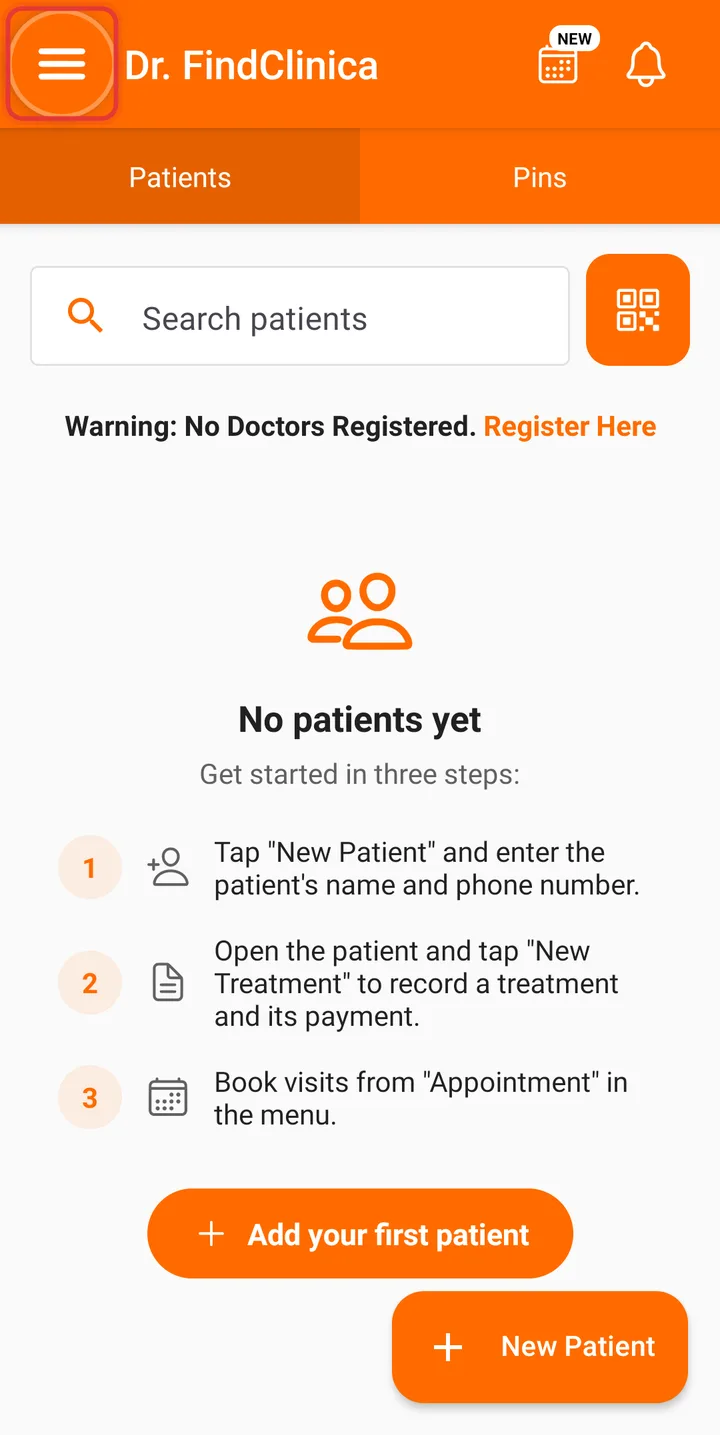
Until you do, the home screen shows Warning: No Doctors Registered. Visits and appointments are recorded under a doctor, so add yourself even if you work alone. If two of you see patients, add both.
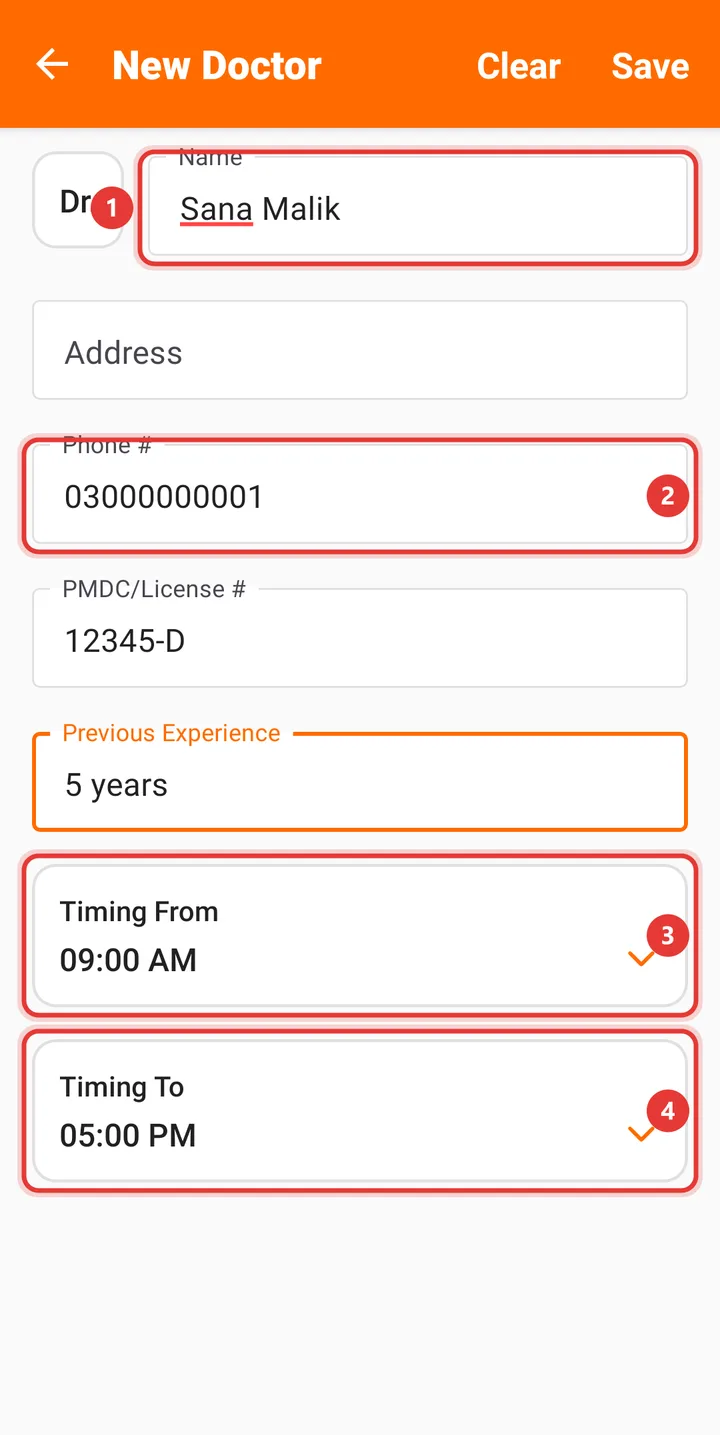
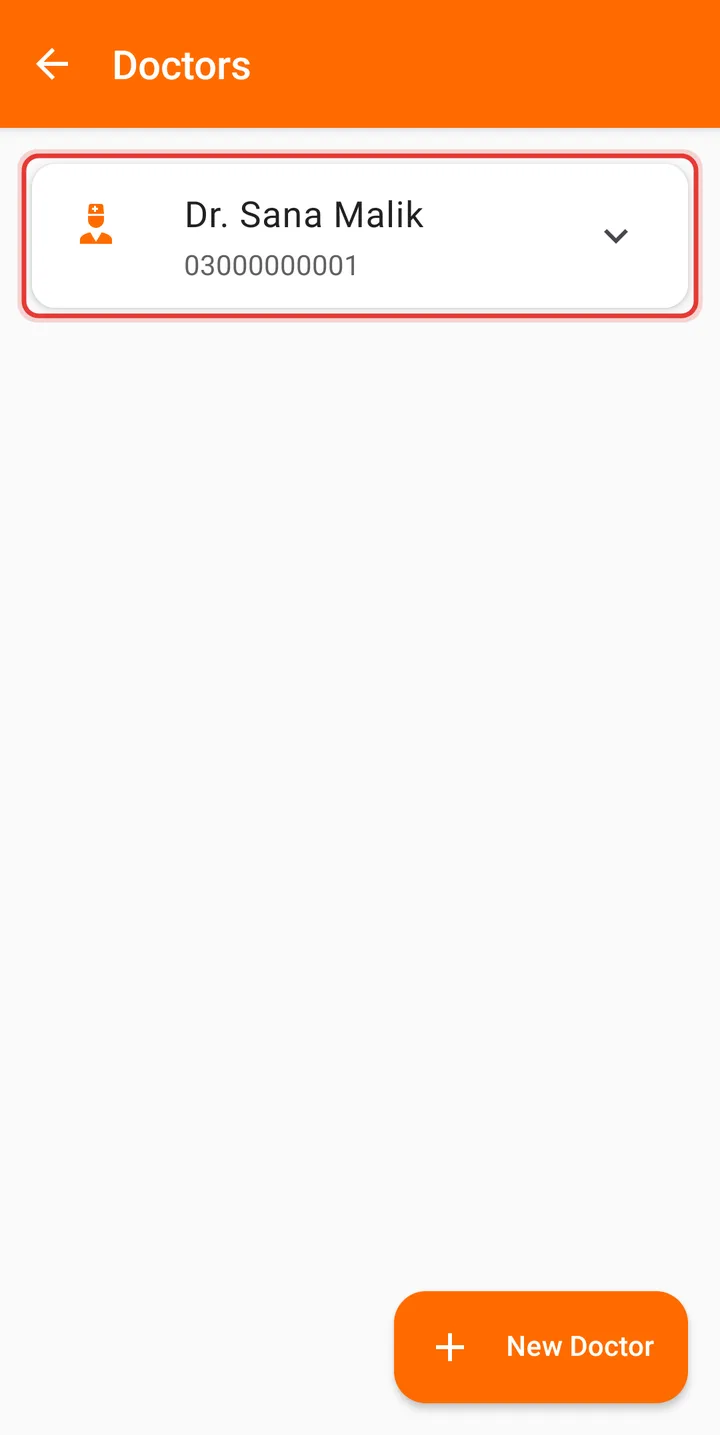
Tap Register Here on that warning, or go through the menu, Settings and Doctors. Tap New Doctor and type the name, then the phone number, PMDC/License # and your clinic timing. Only the name is required. "Dr." is already picked in the small box on the left, so type the name without it, or you'll end up as Dr. Dr. Sana. Tap Save and the doctor appears in the list.
Step 4: Add the patient
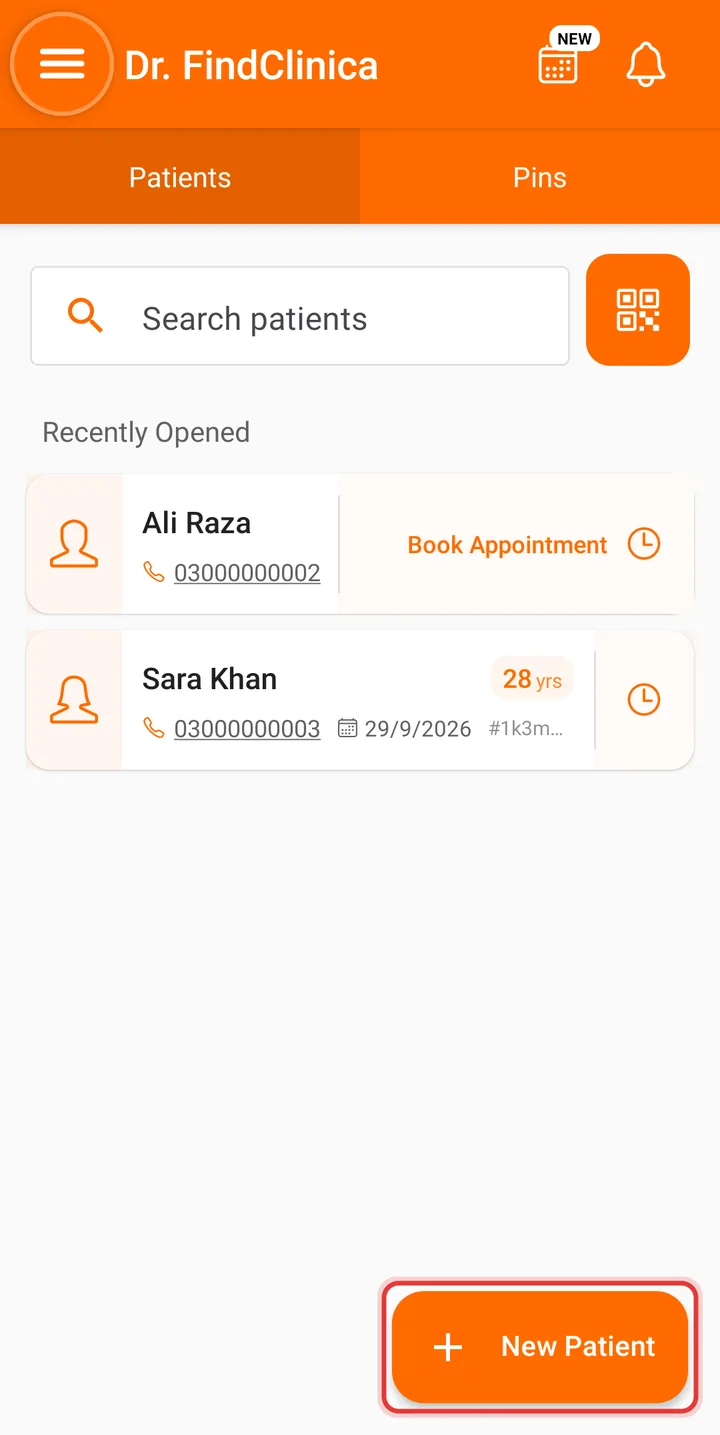
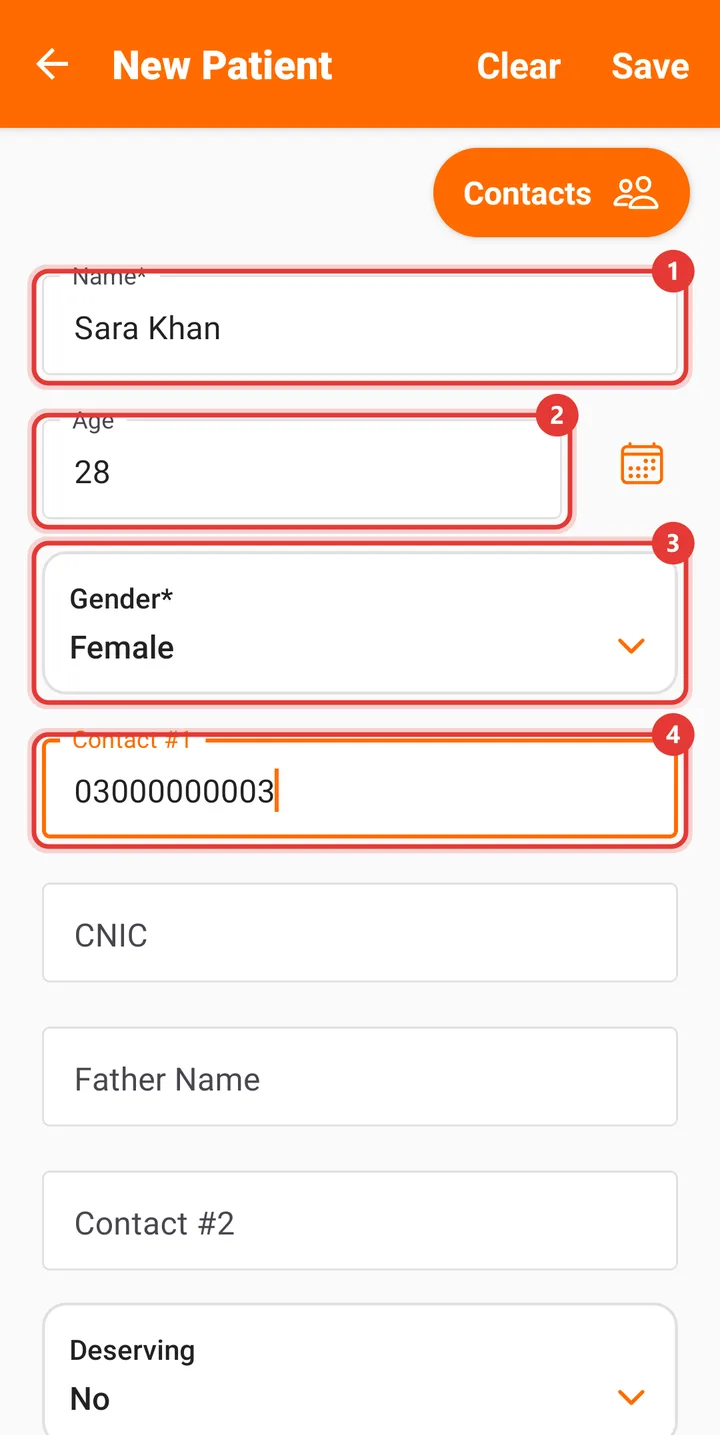
Back on the home screen, tap New Patient at the bottom right. Name, age and gender are required. Put the patient's WhatsApp number in Contact #1, because that's the number the WhatsApp button uses at the end. If the patient is already saved in your phone, the Contacts button fills in the name and number for you.
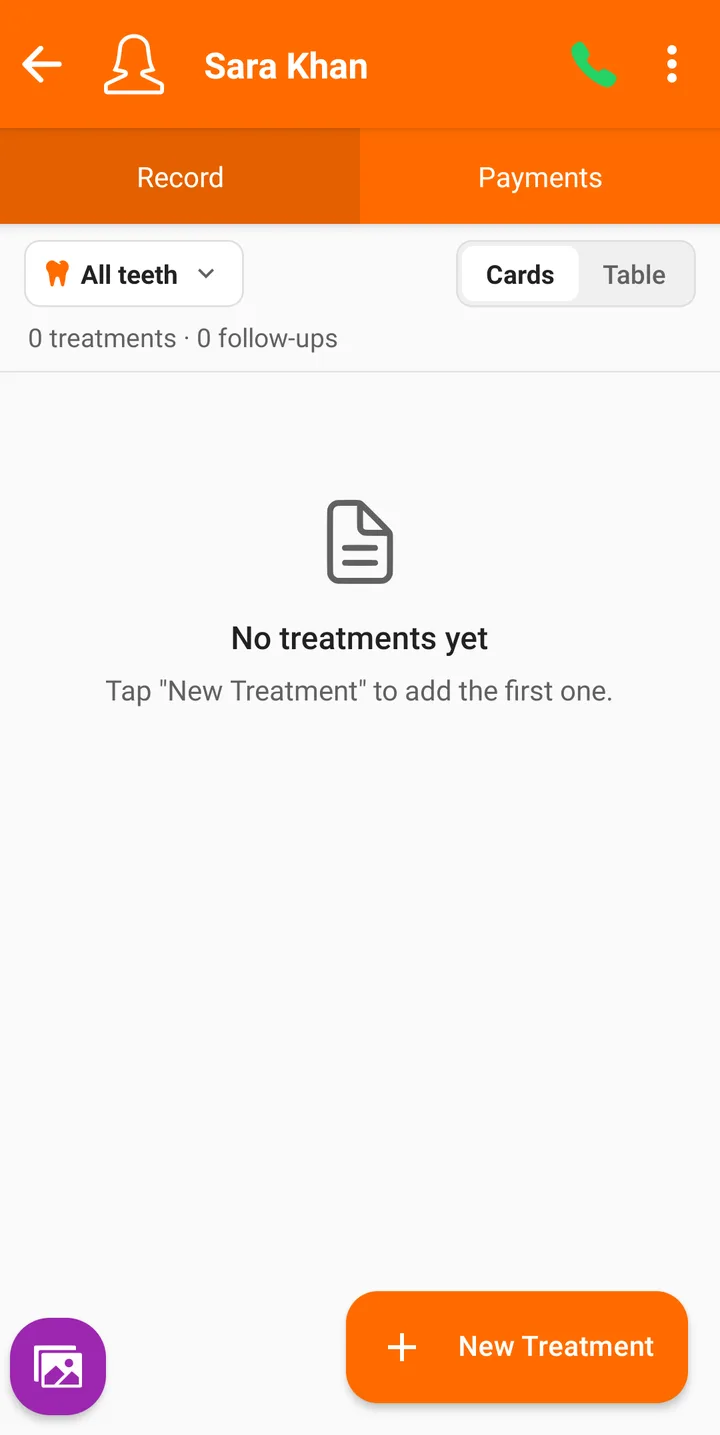
Tap Save and the patient's file opens.
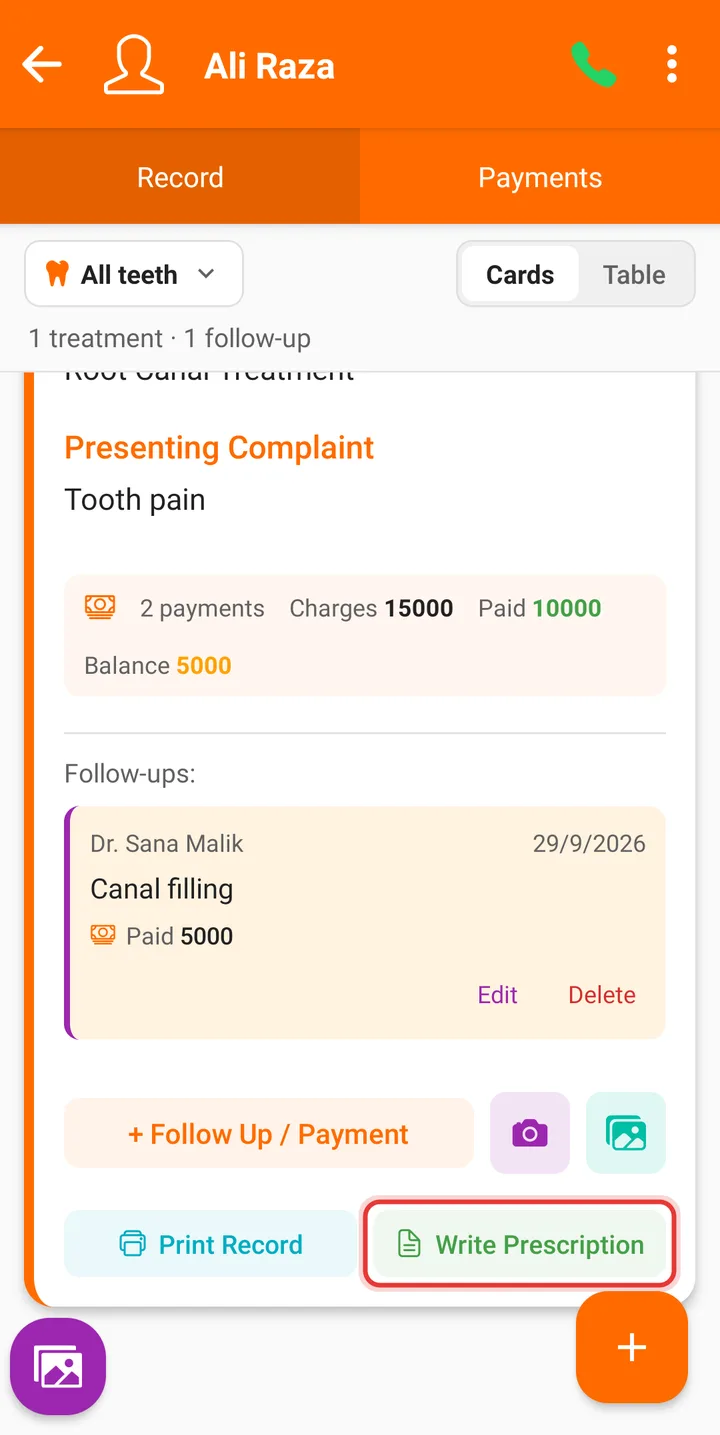
Step 5: Tap Write Prescription
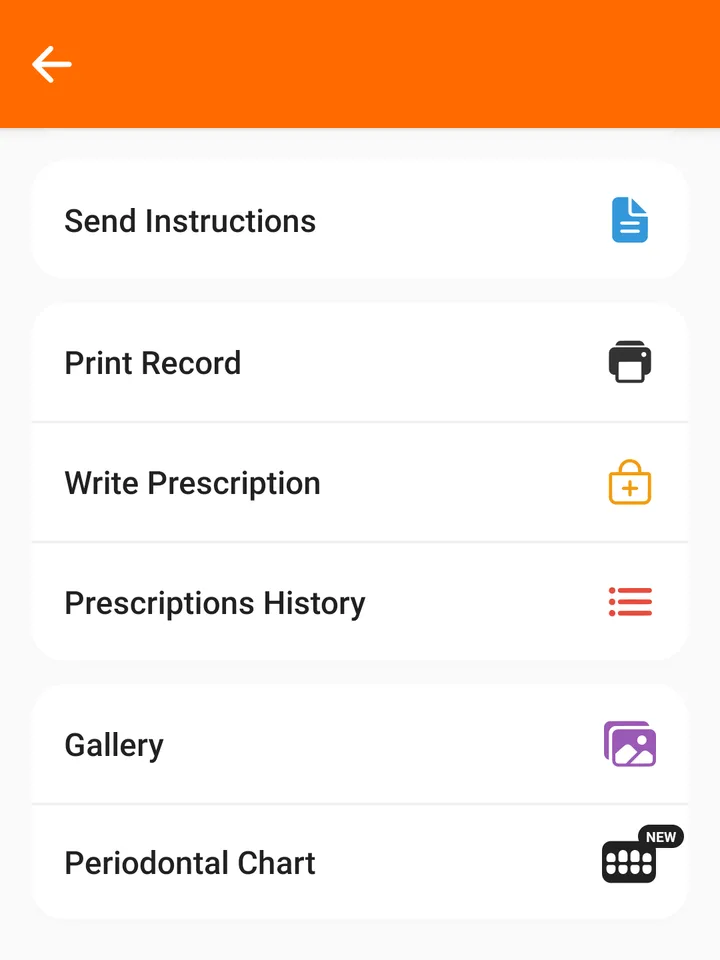
On the patient's file, tap the three dots at the top right and choose Write Prescription. You don't need to save a visit first. If you do record visits, the same button also sits at the bottom of each visit card.
Step 6: Add the medicines
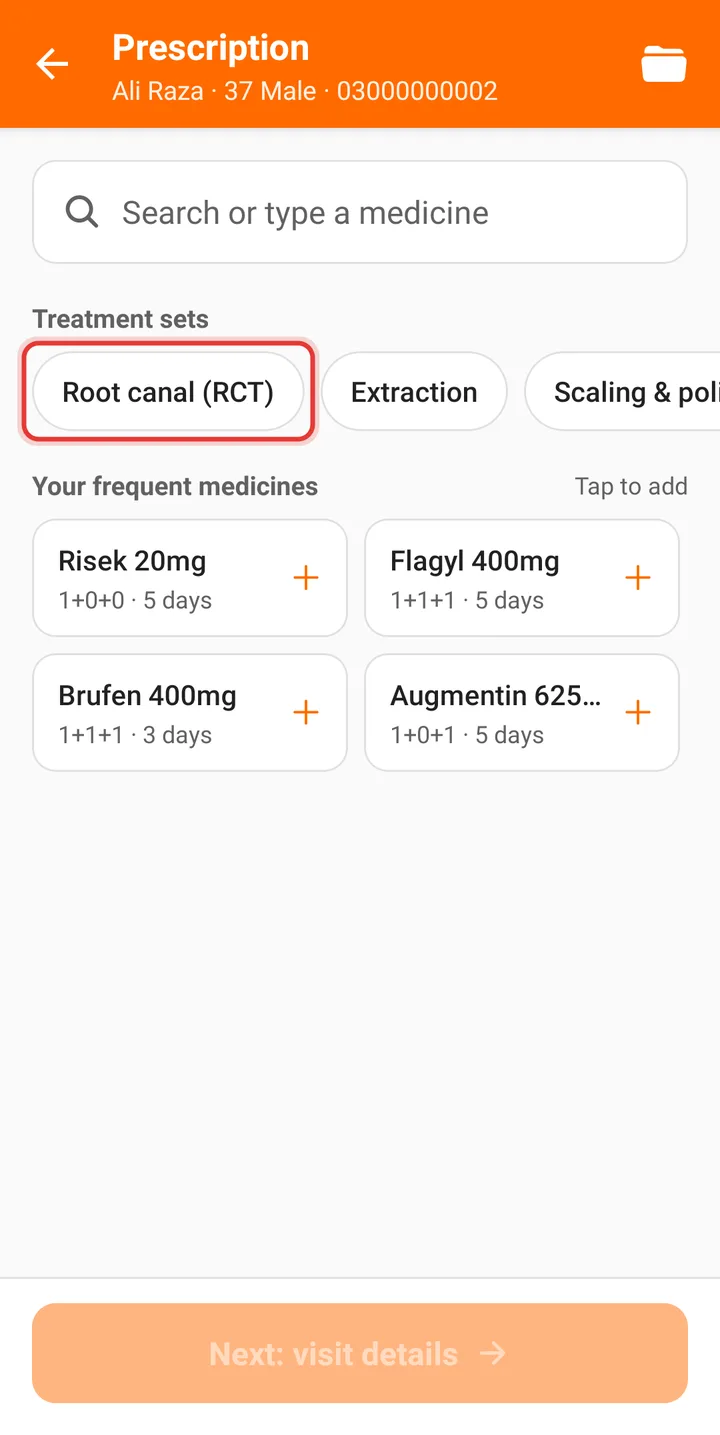
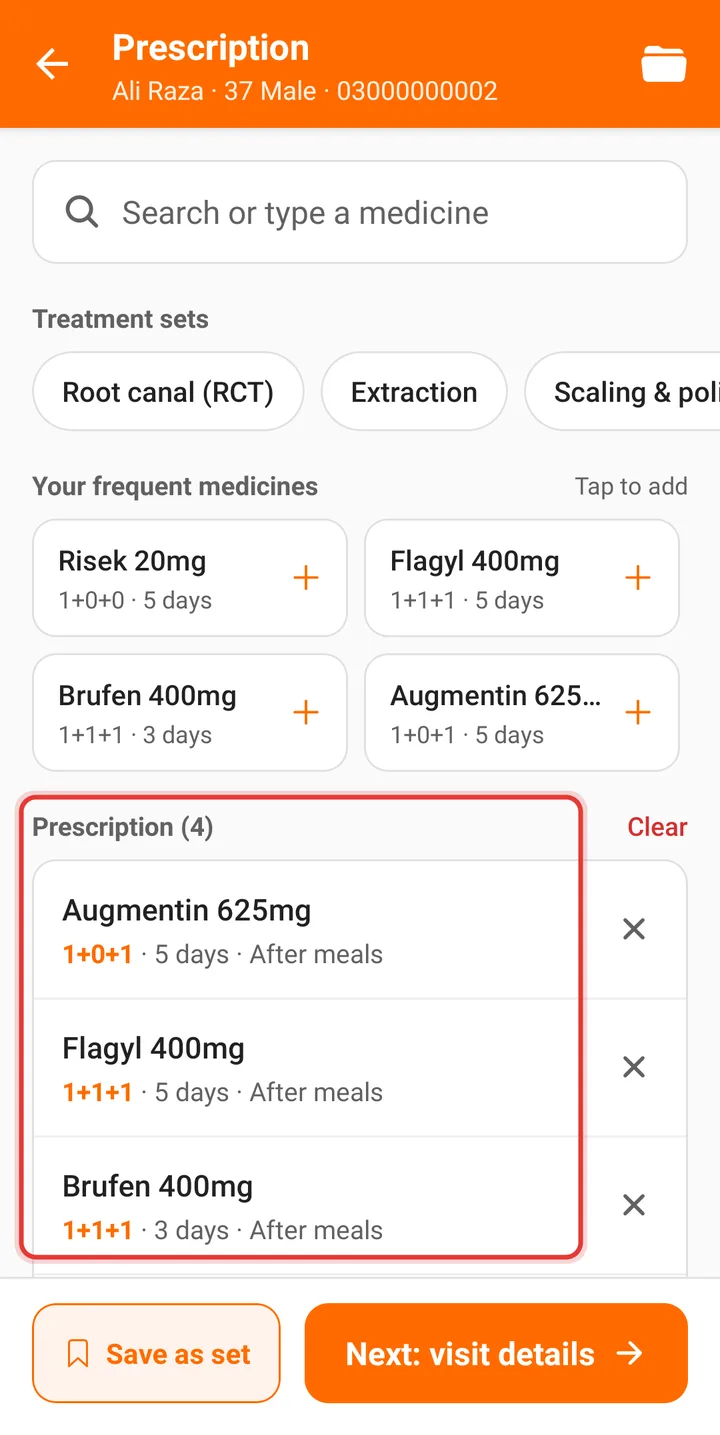
The quickest way is a treatment set. One tap on Root canal (RCT), Extraction, Scaling & polishing, Abscess or Mouth ulcer adds all of its medicines with their doses. The medicines you use most collect under Your frequent medicines, and the search box at the top finds anything else or takes a new name you type in.
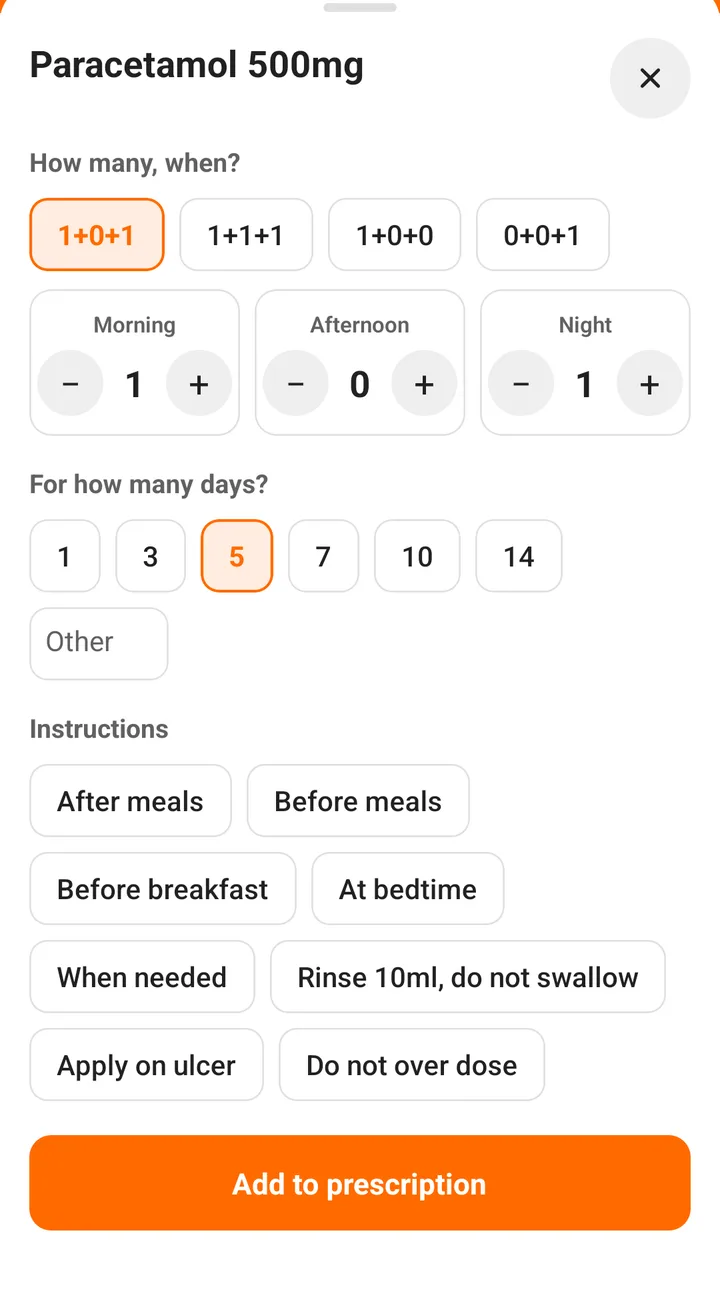
Tap a medicine in the list to change its dose: 1+0+1, 1+1+1, 1+0+0 or 0+0+1 (or set morning, afternoon and night yourself), the number of days, and an instruction such as After meals or At bedtime. If you write the same combination often, Save as set keeps it for next time. When the list is right, tap Next: visit details.
Step 7: Press Send to patient
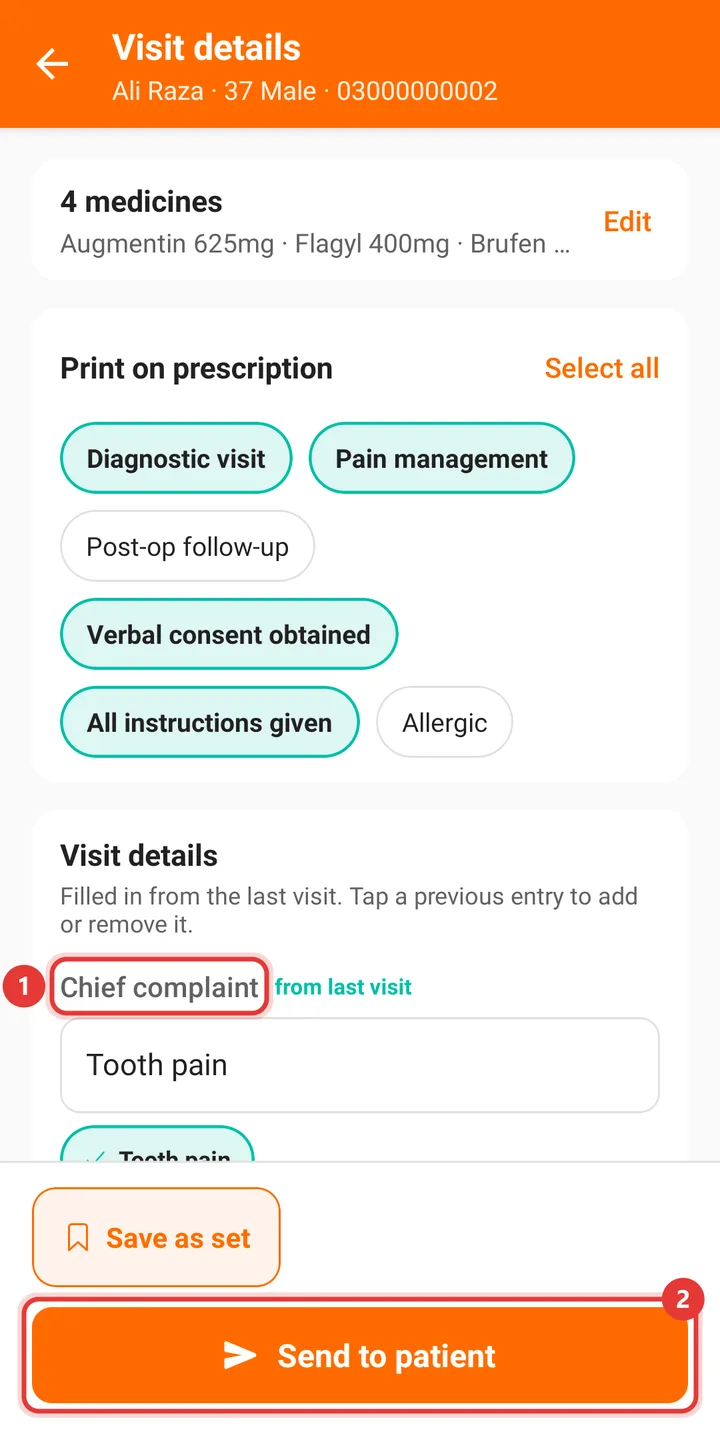
Type the chief complaint and diagnosis. For a patient who has been before, they're filled in from the last visit and you only change what's new. Tick what should be printed, such as Diagnostic visit, Pain management or Verbal consent obtained, then tap Send to patient.
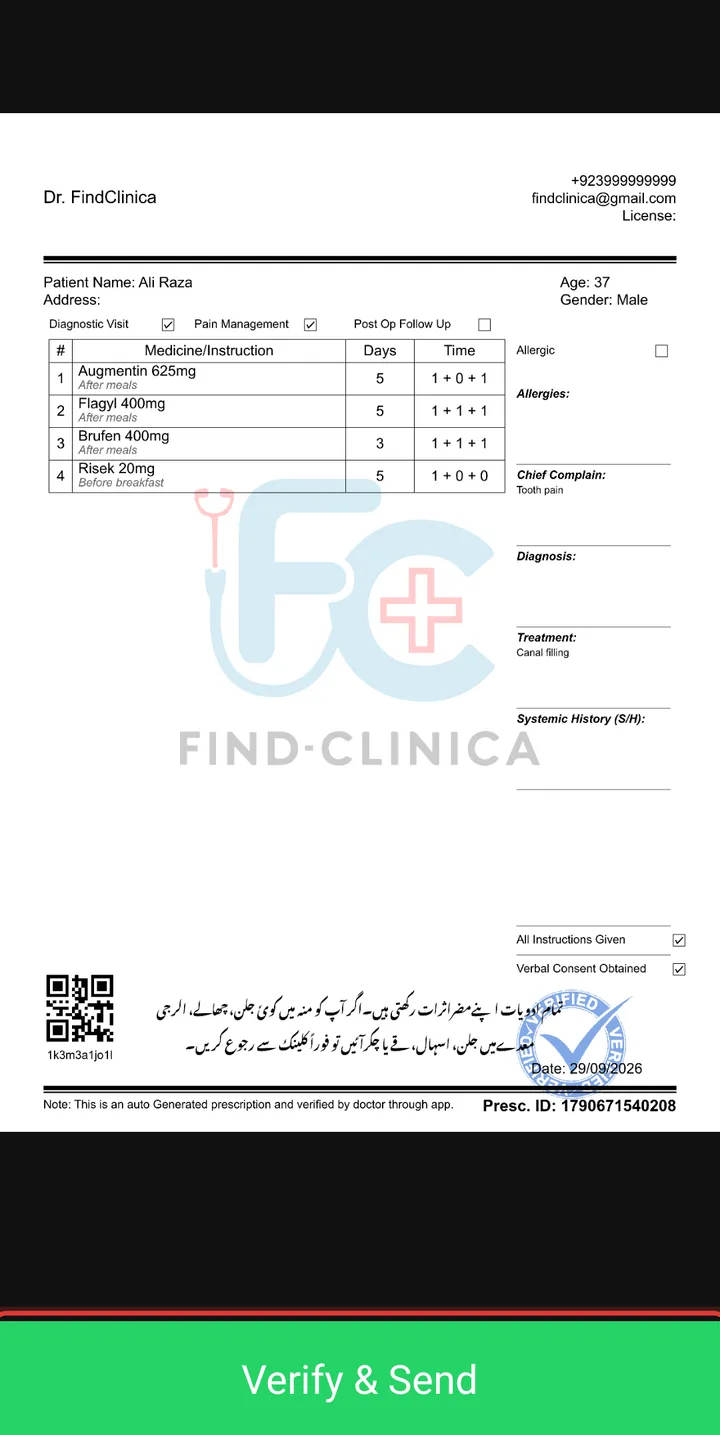
The finished prescription opens in a moment. Read it once and tap Verify & Send.
Step 8: Tap WhatsApp and paste
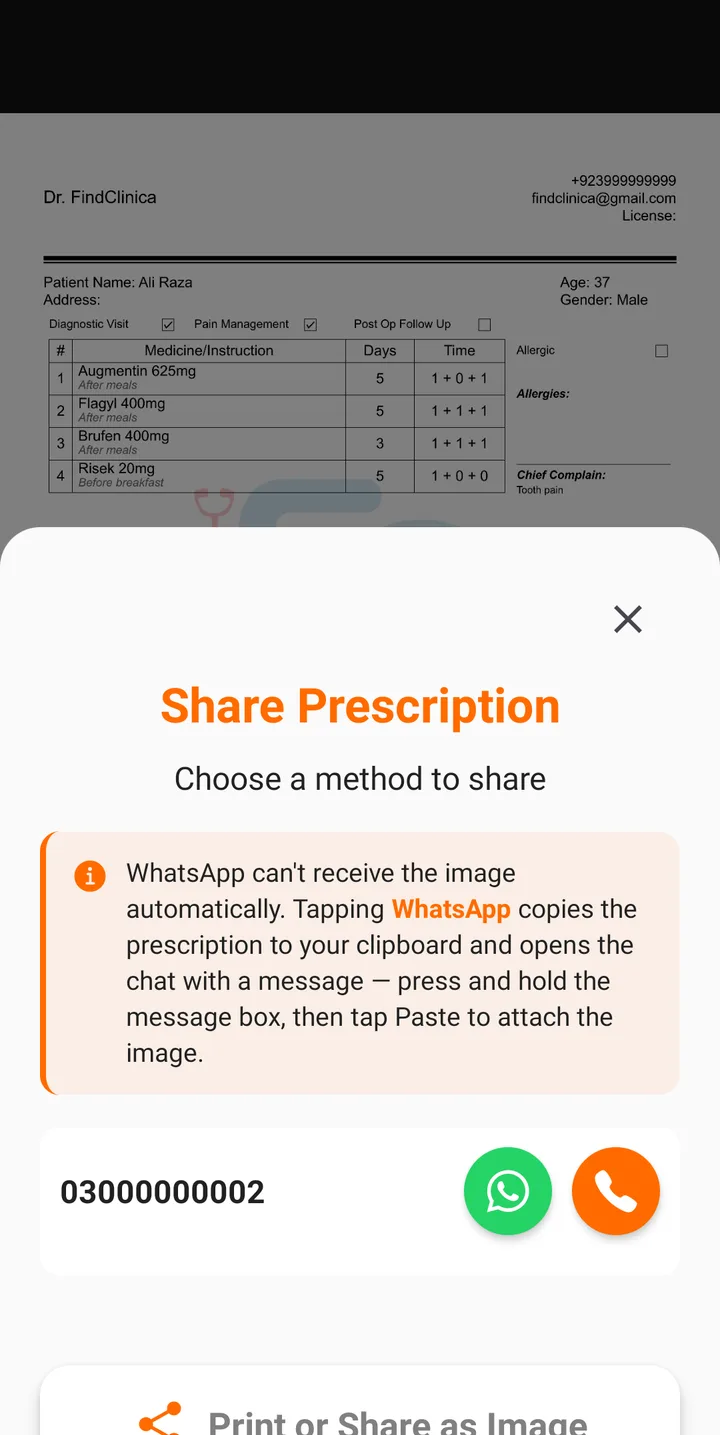
On Share Prescription, tap the green WhatsApp button next to the patient's number. The app copies the prescription image and opens the patient's chat with a short message: the date, your clinic's name, a link to the prescription and your number.
Press and hold the message box, tap Paste, and send. Done.
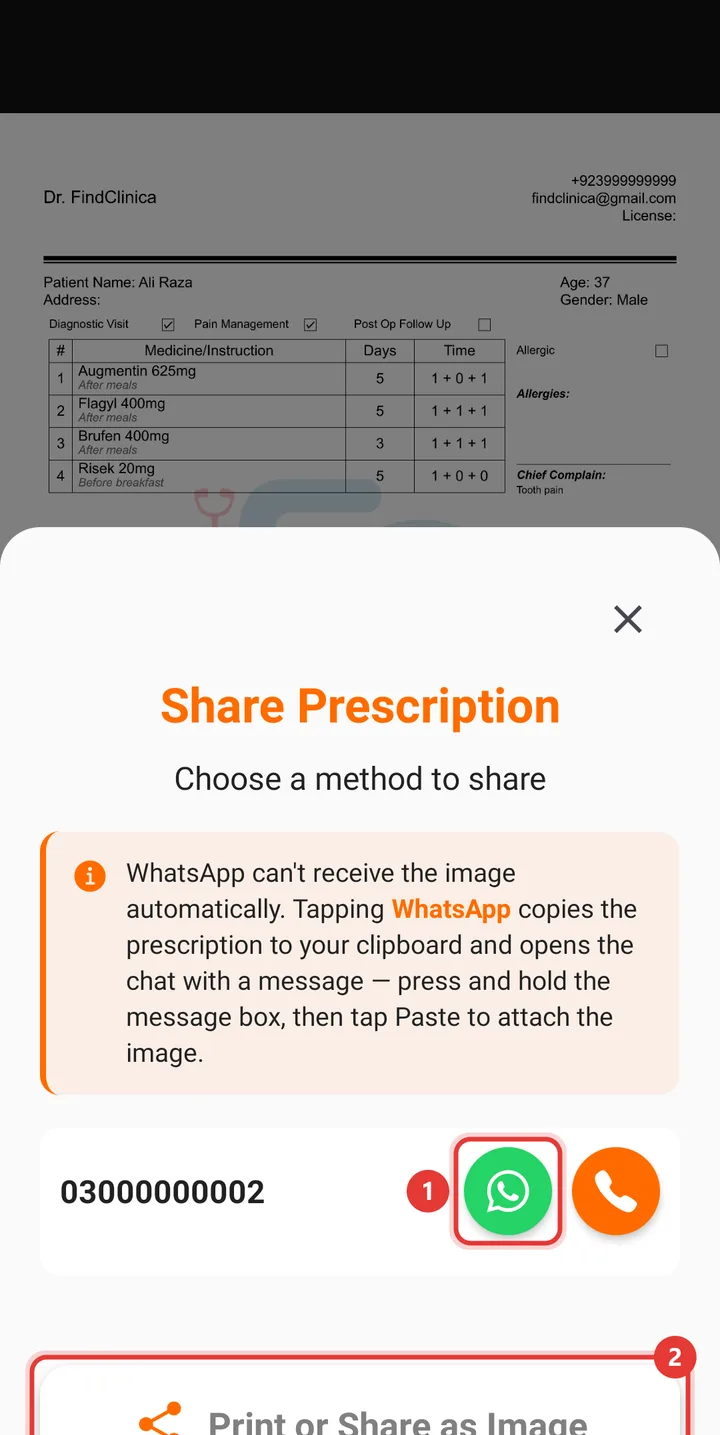
Why the paste? WhatsApp doesn't let other apps drop a picture straight into someone's chat, so the app copies it for you. And if you forget to paste, the link in the message still opens the prescription.
What the patient receives
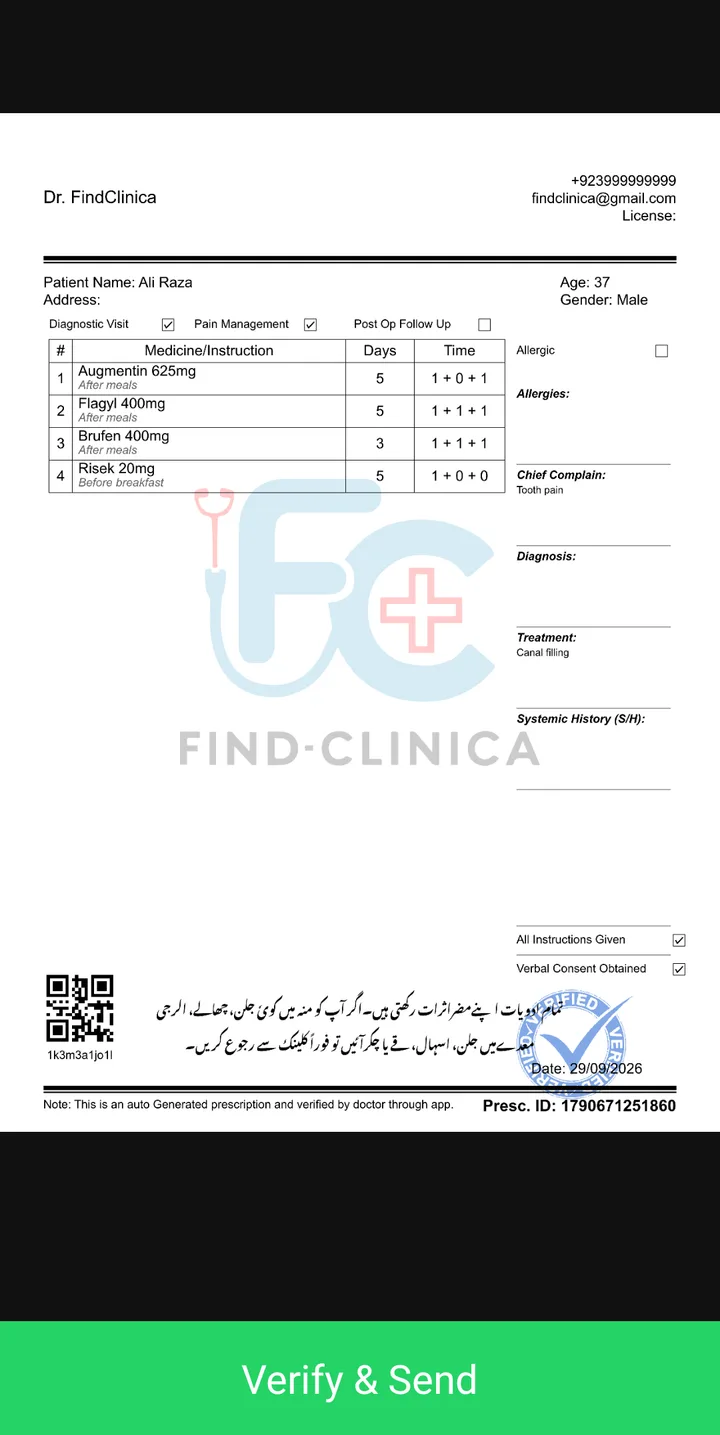
A clear image instead of handwriting. At the top are your clinic's name, your name and address, and on the right your number, email and PMDC number. Below that: the patient's name, age and gender, then each medicine with its days and timing (1 + 0 + 1), and the complaint, diagnosis and treatment. At the bottom there's a short Urdu note about side effects, a QR code and a prescription ID.
You keep a copy too. It's under Prescriptions History in the same three-dot menu, so when the patient calls next week asking which tablet it was, you can send it again in a few seconds.
What it costs
Nothing for what's on this page. The app is free on Google Play, the free plan has no limit on patients, and the prescription goes out through your own WhatsApp, so there's no charge per message and no SMS package to buy.
Pro (PKR 2,000 a month) adds appointment reminders by SMS, more storage for photos and a few other things. Compare the plans.
A few honest limits
It runs on Android phones and on Windows. There's no iPhone app yet; join the early access list if you use one.
Sending needs internet. If the signal drops, finish writing and press Send when it's back.
The app doesn't check for drug interactions. It shows the patient's allergies and history while you write, but the clinical call is yours.
If the patient isn't on WhatsApp, the orange button on the same screen opens your SMS app with the same message and link. Print or Share as Image sends the picture to a printer or any other app. A patient with no number on file gets only that last option.
Common questions
Is it really free to send prescriptions on WhatsApp?
Yes. The app is free on Google Play and the free plan includes digital prescriptions. The prescription is sent from your own WhatsApp, so there's no charge per message either.
Why do I have to add a doctor first?
Visits and appointments in FindClinica are recorded under a doctor, and the home screen keeps warning you until one is added. The top of the prescription comes from your own details in Settings, so if you work alone, adding yourself once is all it takes.
The patient has two numbers. Which one gets it?
Both appear on the Share Prescription screen, each with its own WhatsApp button. Tap the one the patient actually uses.
Can I send the same prescription again later?
Yes. Open the patient's file, tap the three dots and choose Prescriptions History. Every prescription you've sent is kept there.
Can I write prescriptions without internet?
You can add patients and write the prescription offline. Pressing Send needs a connection, because the prescription image is made on our server.
Can I do this on a computer instead?
Yes, the Windows app has the same prescription screen. This page covers the phone; the online prescription maker page walks through the desktop.
Read next
- Online prescription maker (desktop steps)
- Guide: write and send a prescription
- Guide: how to add a doctor
- How to see past prescriptions
- Prescription software for doctors
- Clinic management app for Android
- Free prescription pad template
More for clinics in Pakistan
- Dental Clinic Software in Pakistan
- Clinic Management Software in Pakistan
- EMR Software in Pakistan for Small Clinics
- Prescription Software for Doctors in Pakistan
- Patient Record App for Doctors
- Paper Register vs Excel vs Clinic Software
- Best Clinic Software in Pakistan, Compared
- Clinic Management App for Android
- Clinic Software in Lahore
- Clinic Software in Karachi
- Clinic Software in Islamabad
- Software for Clinics With More Than One Doctor
- Online Prescription Maker: Make a Medical Prescription
- Send Appointment Messages on WhatsApp for Free
- Software for Orthodontists in Pakistan
- Clinic Software That Works Offline
- How to Read a Periodontal Chart
- Patient Complaint QR Code for Clinics
- Sentinel Event and Incident Reporting for Clinics
- Healthcare Waste Log for Clinics in Pakistan
- Patient Aftercare Instructions on WhatsApp
- Free Clinic Software for Windows
Free tools and templates
Send your first prescription today
Install FindClinica on your Android phone, add yourself as a doctor and send a prescription on WhatsApp in about ten minutes. Stuck on a step? Message us on WhatsApp and we'll walk you through it.