How do I write and send a prescription?
Open the patient, click Write Prescription, add a treatment set or single medicines, check the visit details, then click Send to patient and share it on WhatsApp or print it.
6 steps · Desktop and mobile · Updated
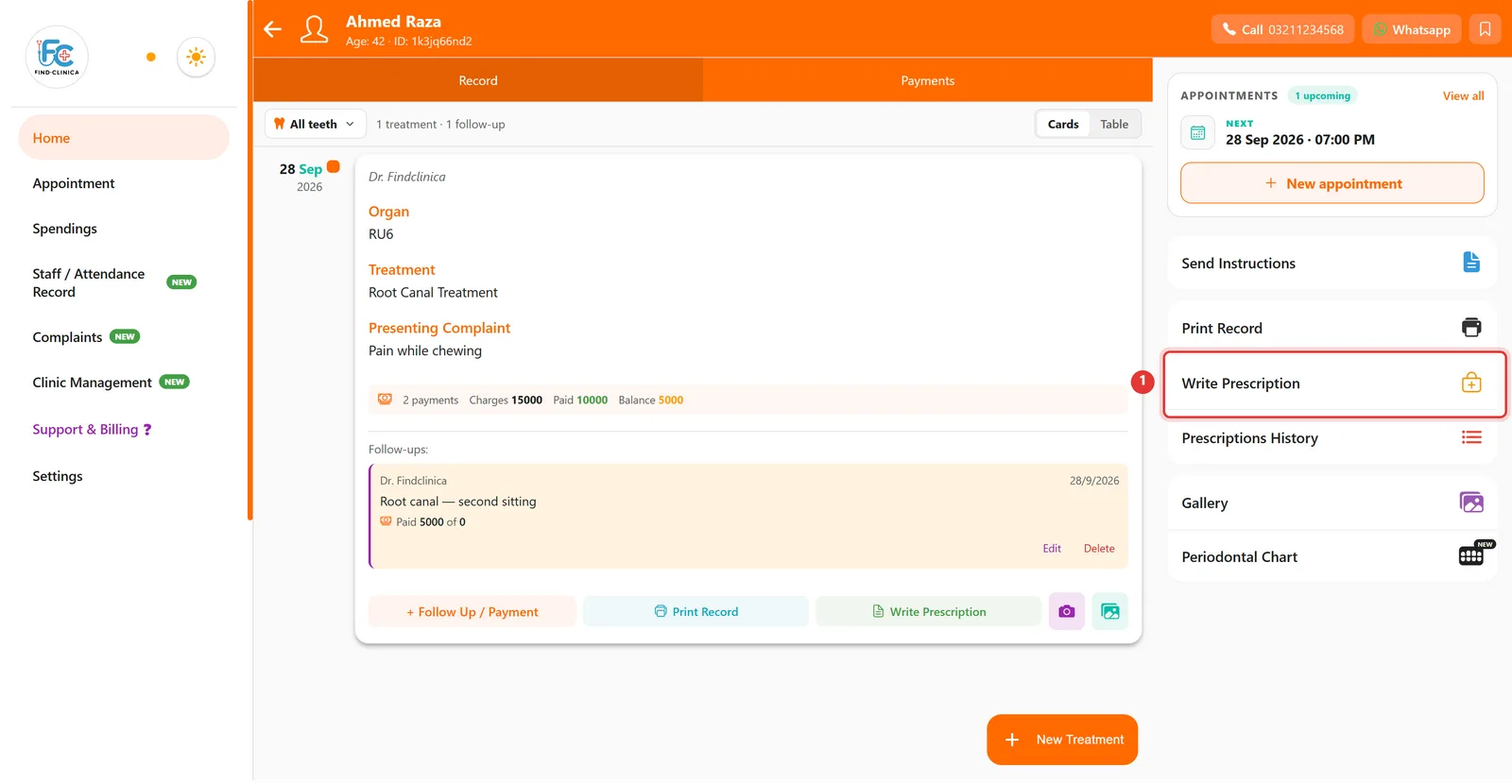
Step 1: Open the patient and click Write Prescription on the right.
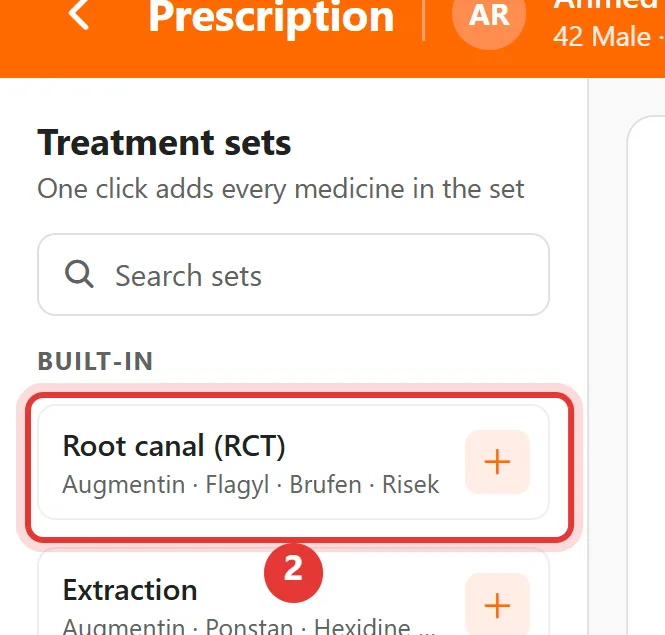
Step 2: Under Treatment sets, click + next to a set (here, Root canal (RCT)) to add all of its medicines at once.
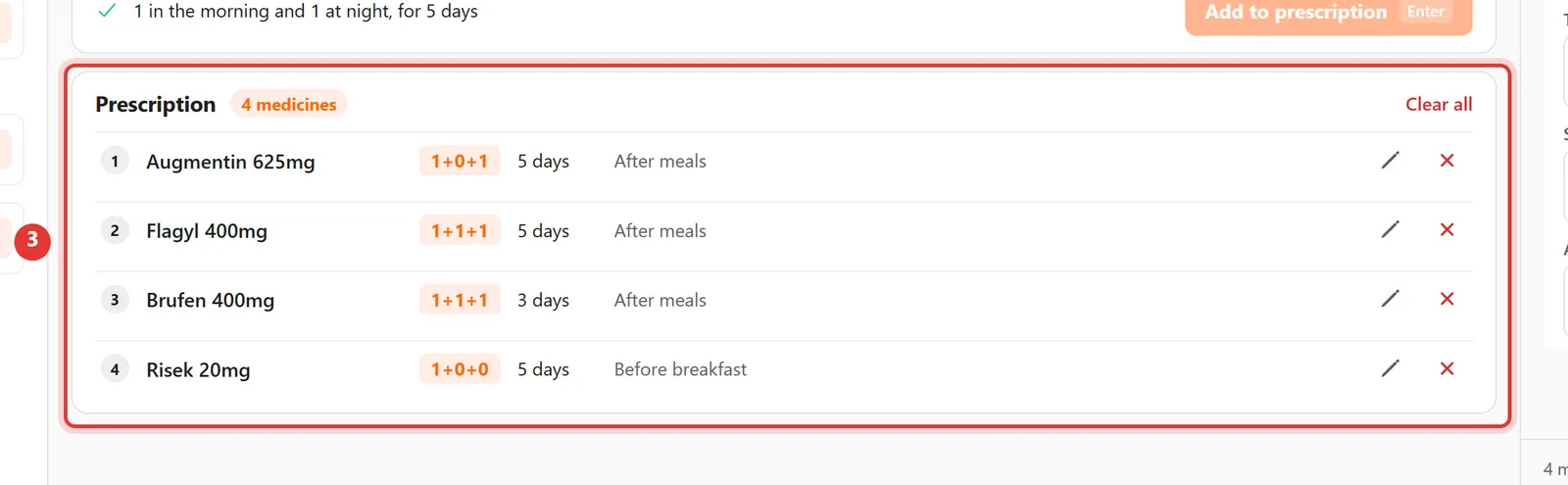
Step 3: The medicines appear in the Prescription list with their dose, days and instructions. Use the pencil to change one, or the × to remove it.
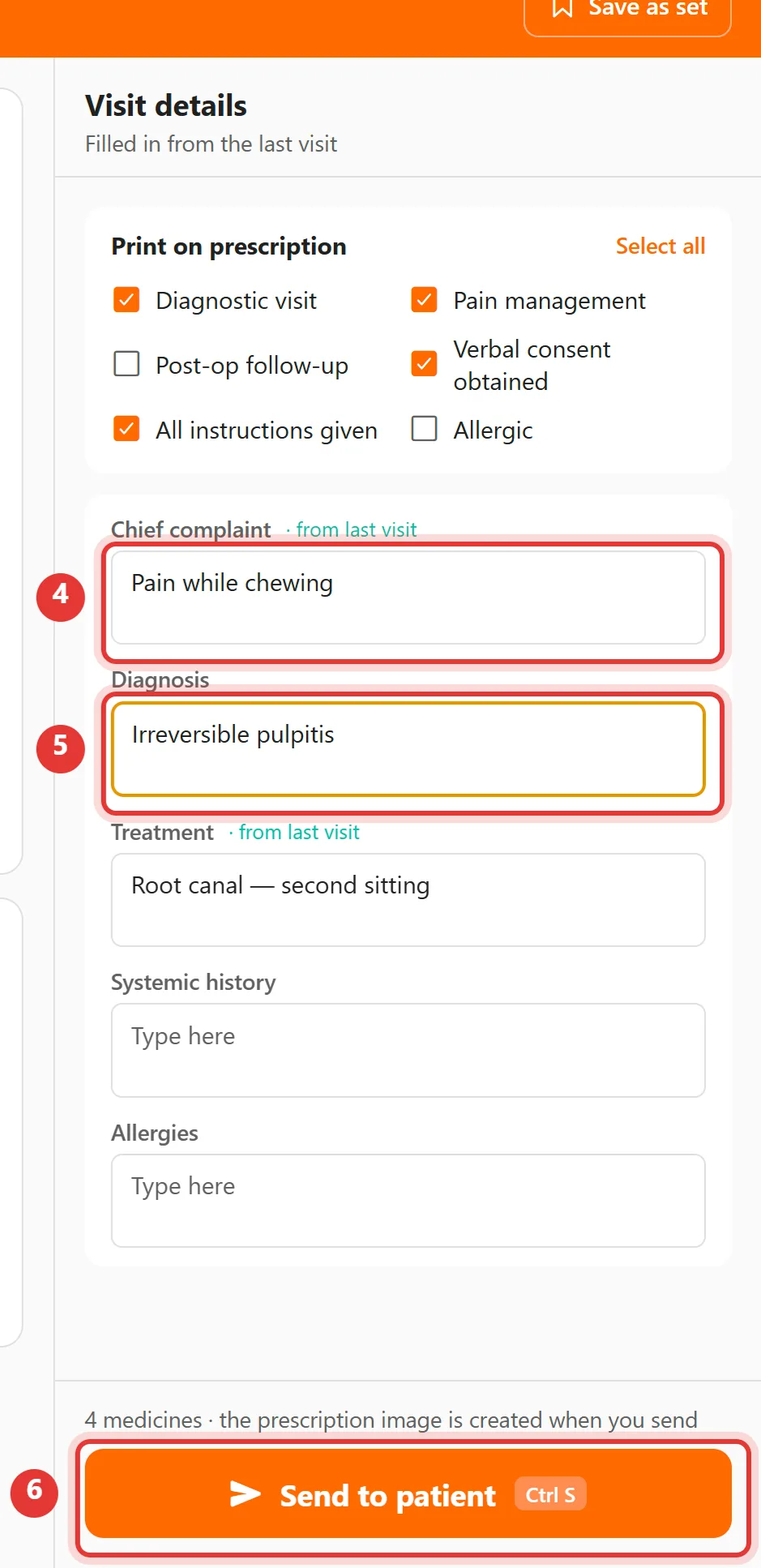
Step 4: Check the Visit details on the right — add the Chief complaint and Diagnosis — then click Send to patient.
Step 5: Check the prescription, then click Verify & Send.
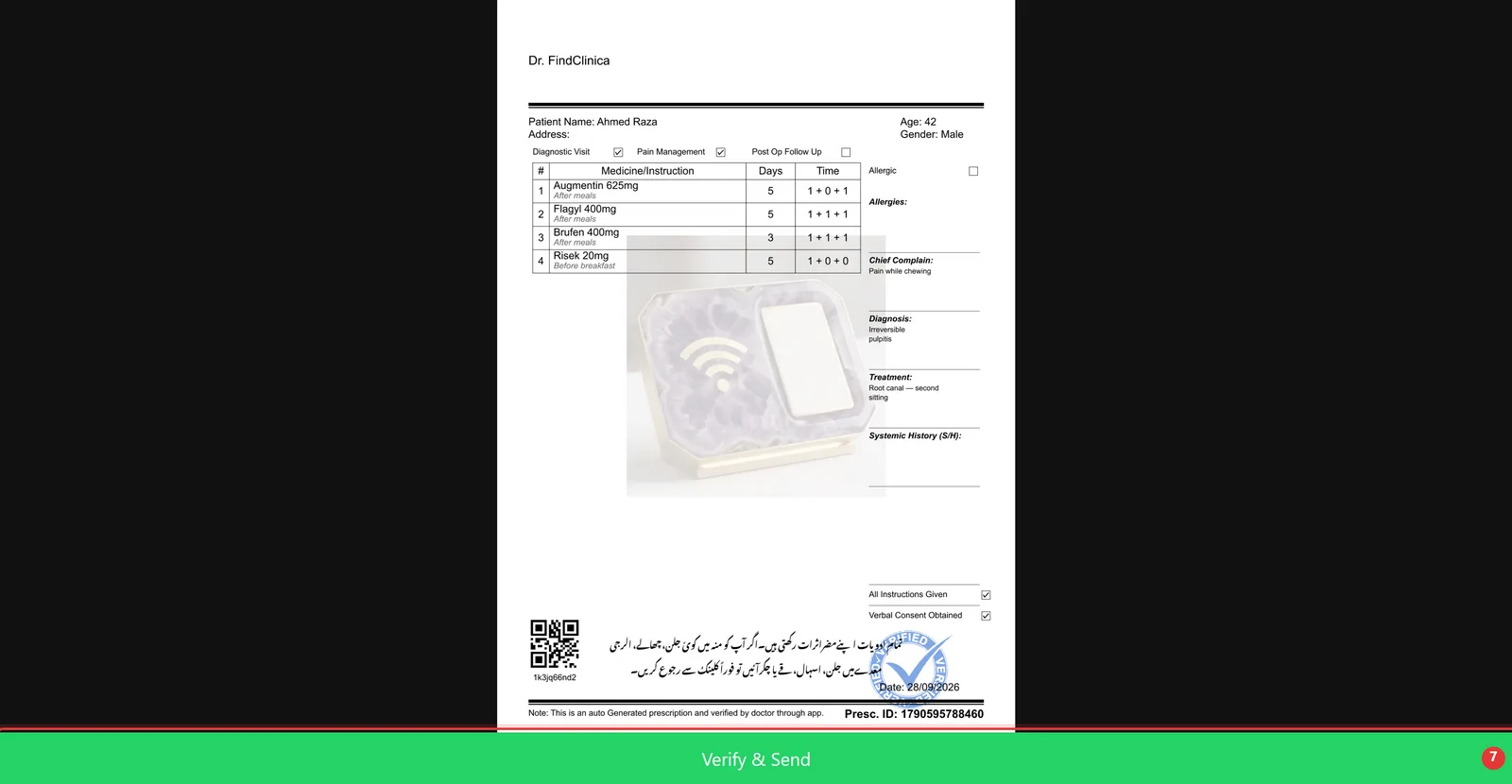
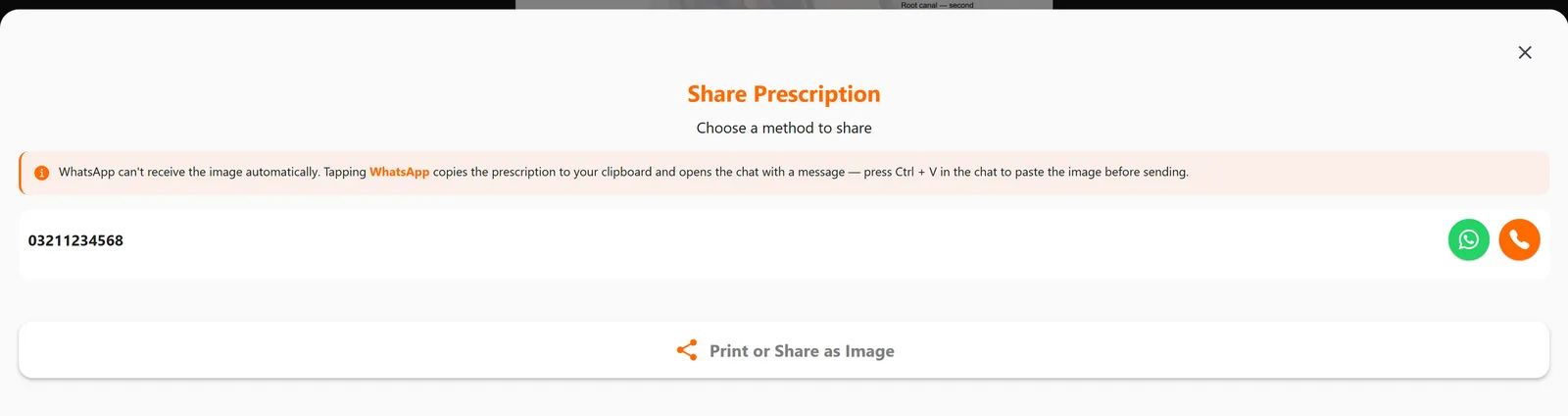
Step 6: Choose how to share it: the WhatsApp button next to the patient's number, or Print or Share as Image.
Good to know
- To add a single medicine, click it under Quick selection, or type its name in Medicine name, pick the dose and days, and click Add to prescription.
- On desktop, WhatsApp copies the prescription image to your clipboard — press Ctrl + V in the chat to paste it before sending.
- Press Ctrl + S as a shortcut for Send to patient.
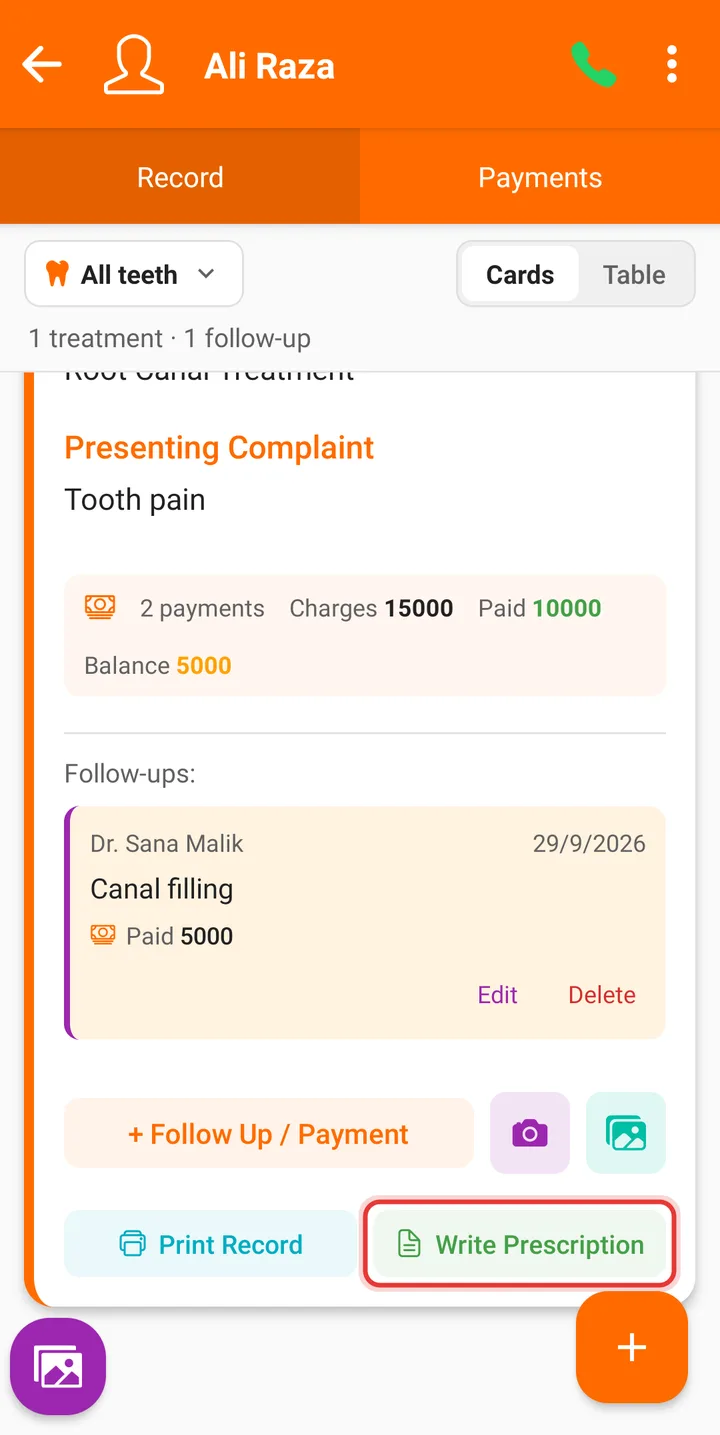
Step 1: On the treatment card, tap Write Prescription.
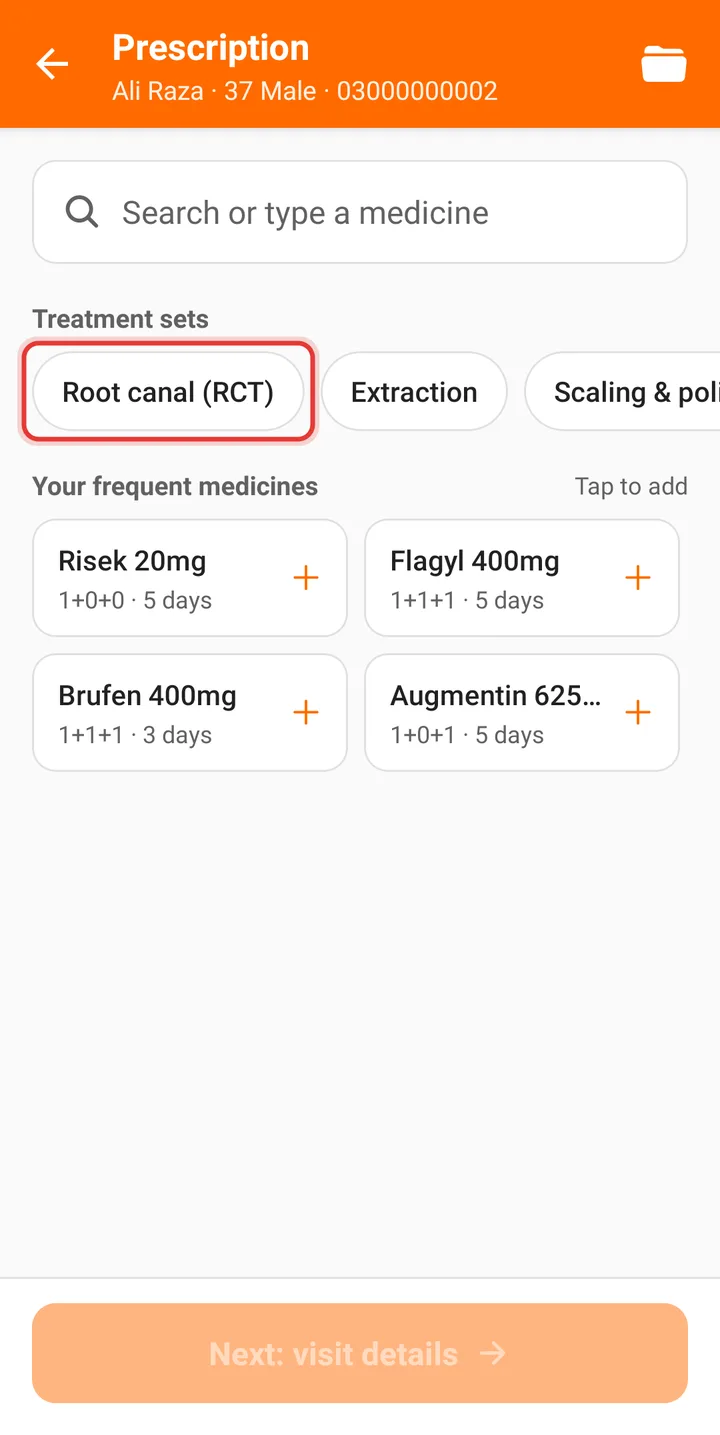
Step 2: Under Treatment sets, tap a set — here Root canal (RCT) — to add all of its medicines.
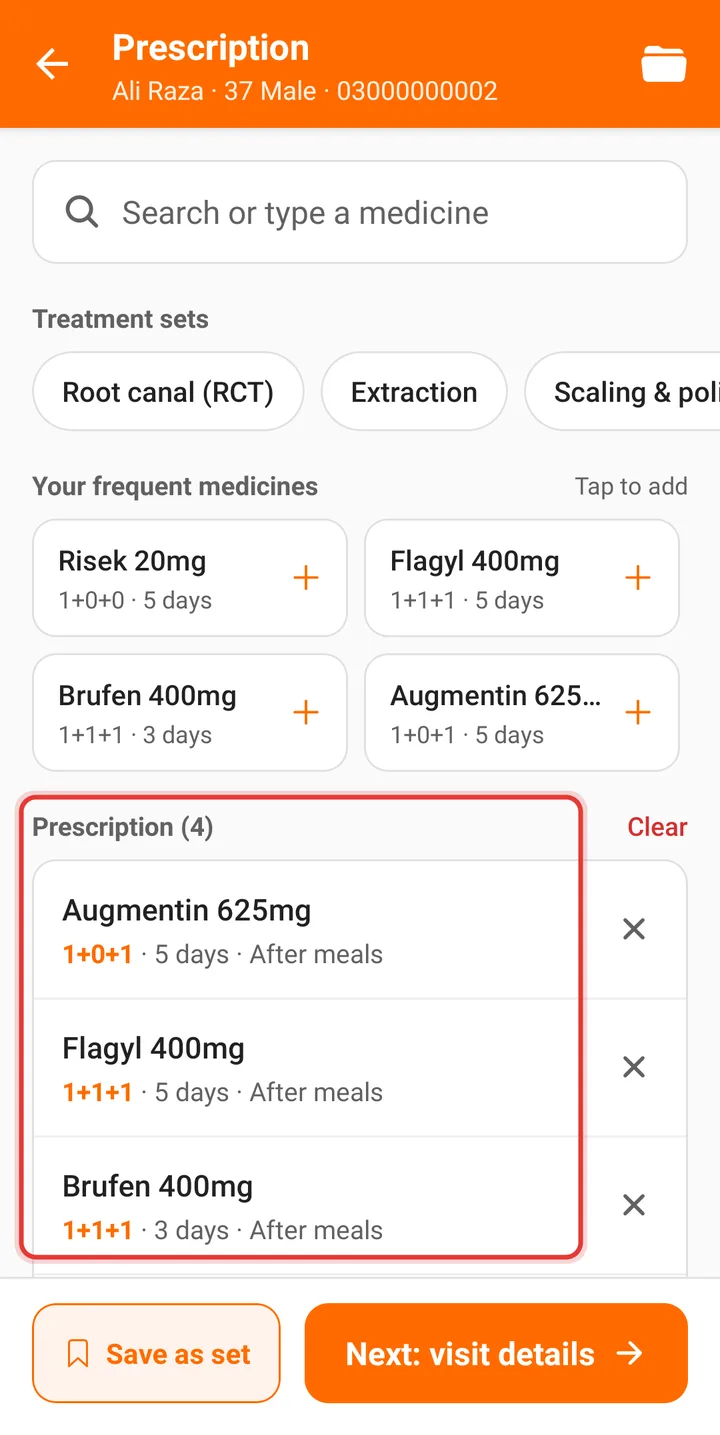
Step 3: The medicines appear under Prescription. Tap × to remove one, then tap Next: visit details.
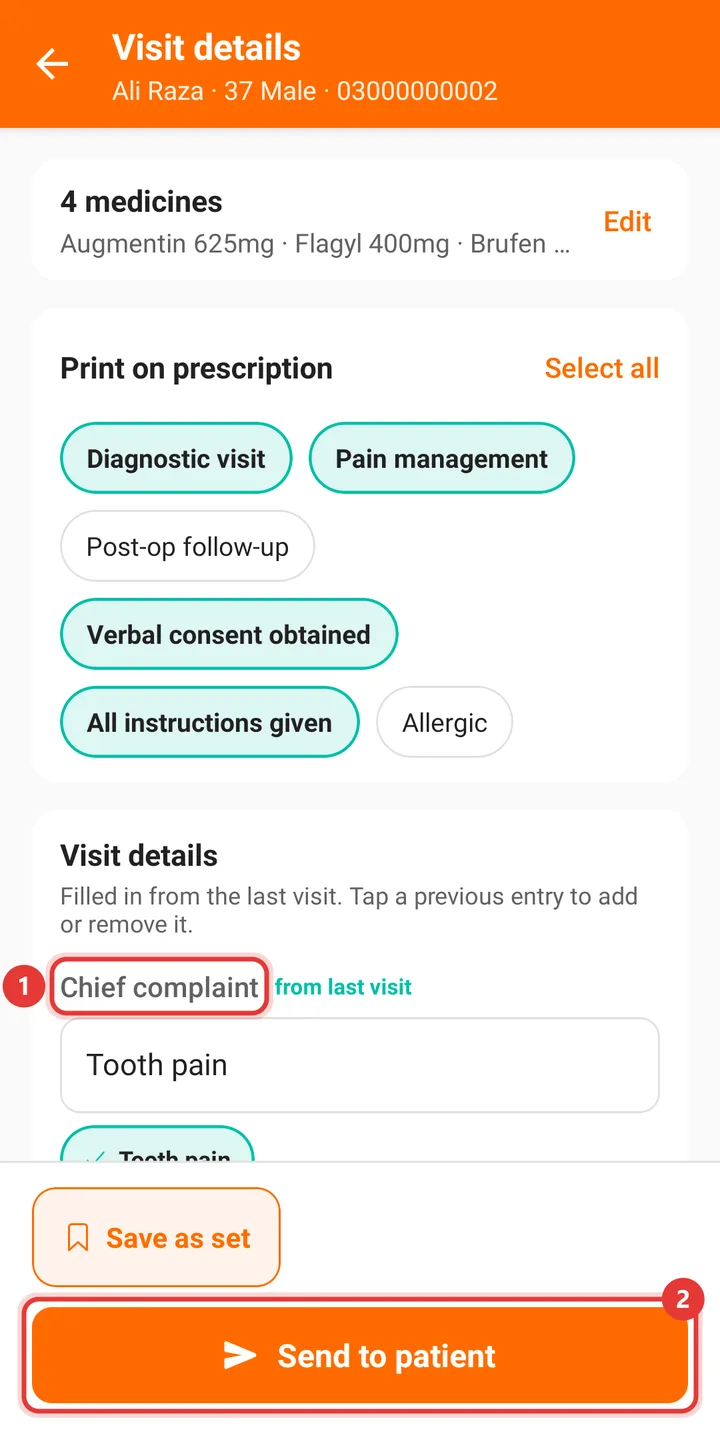
Step 4: Check the Chief complaint — tap a previous entry to fill it in — then tap Send to patient.
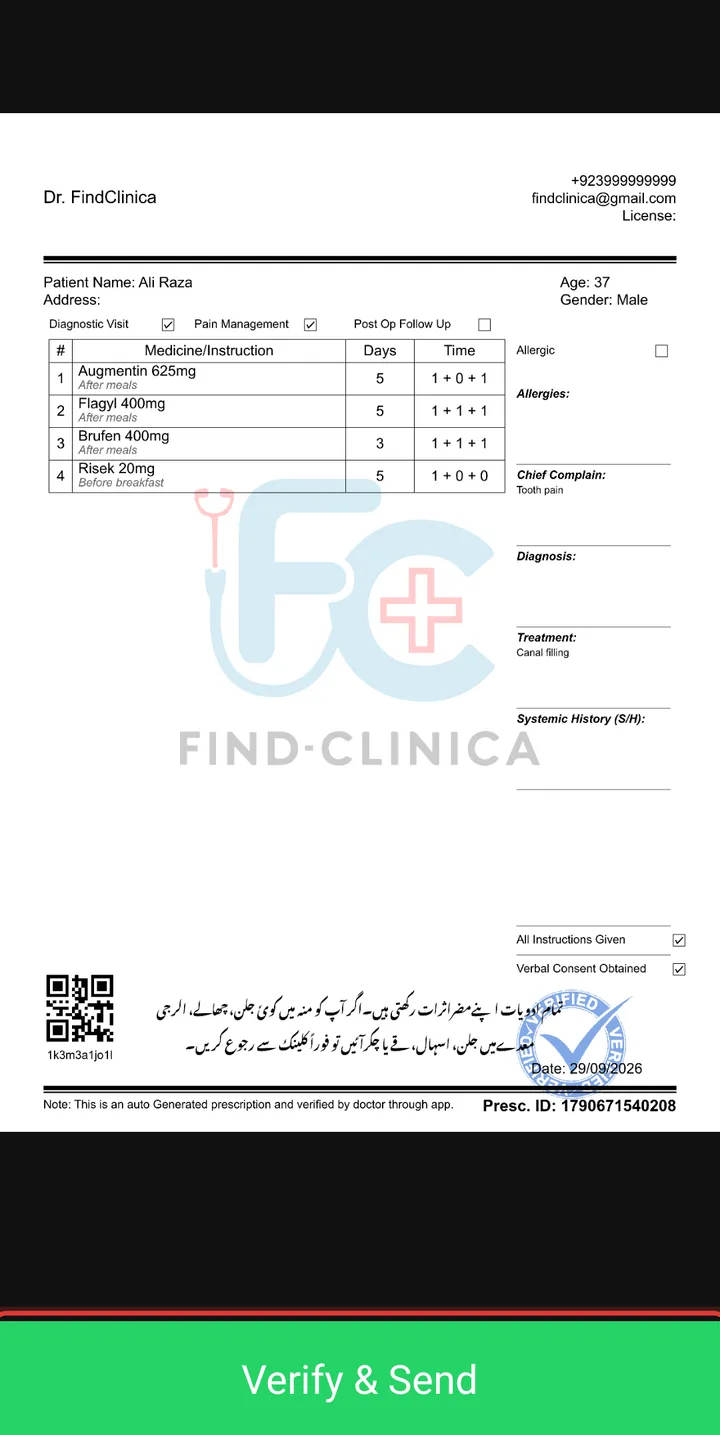
Step 5: Check the prescription and tap Verify & Send.
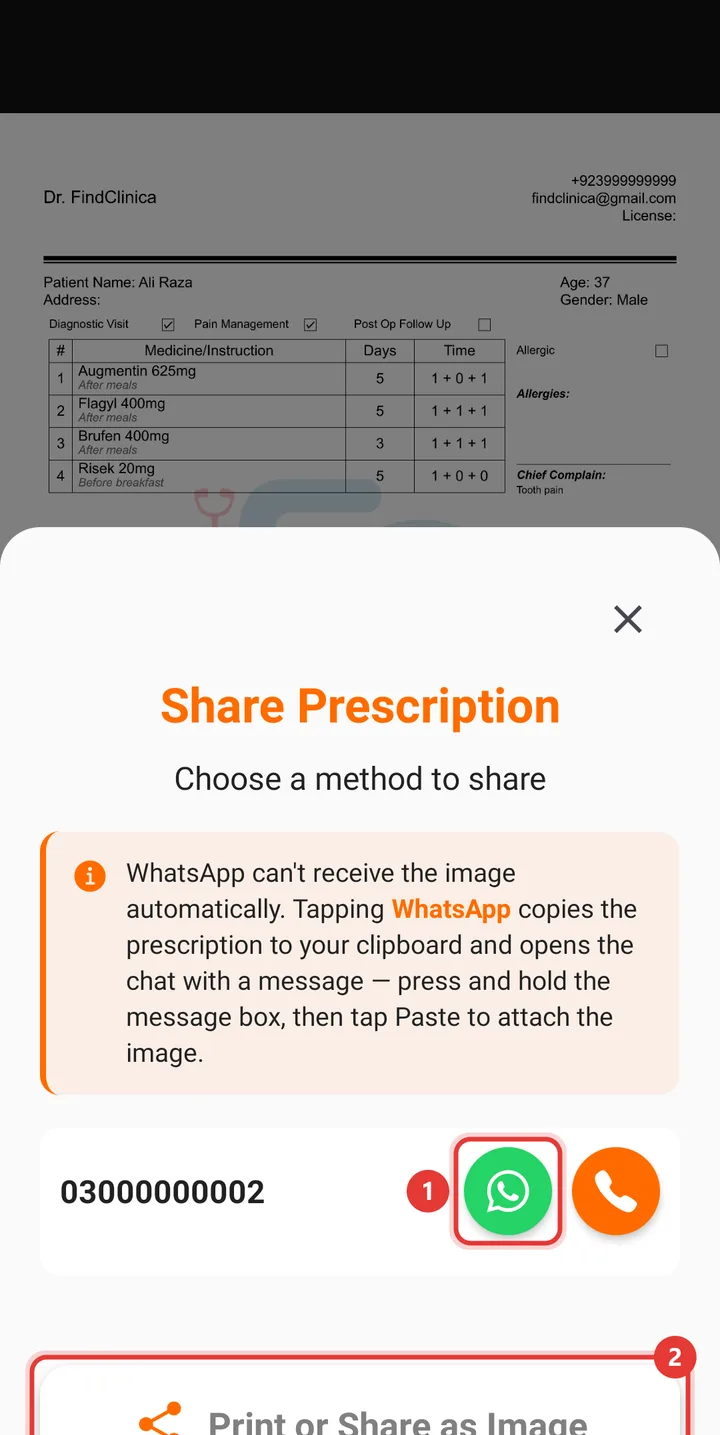
Step 6: Share it with the WhatsApp button next to the patient's number, or Print or Share as Image.
Good to know
- On a phone, WhatsApp opens with a message and the prescription copied — press and hold the message box and tap Paste to attach it.
Prefer video?
Related guides
Still stuck? Contact us or browse all guides.