Free clinic software for the Windows computer at reception
Receptionists don't want to share the doctor's phone, and doctors don't want to hand it over. The reception computer is where patients are booked, files are found and fees are taken, so that's where the clinic software needs to be.
FindClinica's Windows app is free and connects to the account on your Android phone. Both work on the same records: the receptionist books a patient at the desk, and it shows up on your phone in the operatory moments later.
Updated
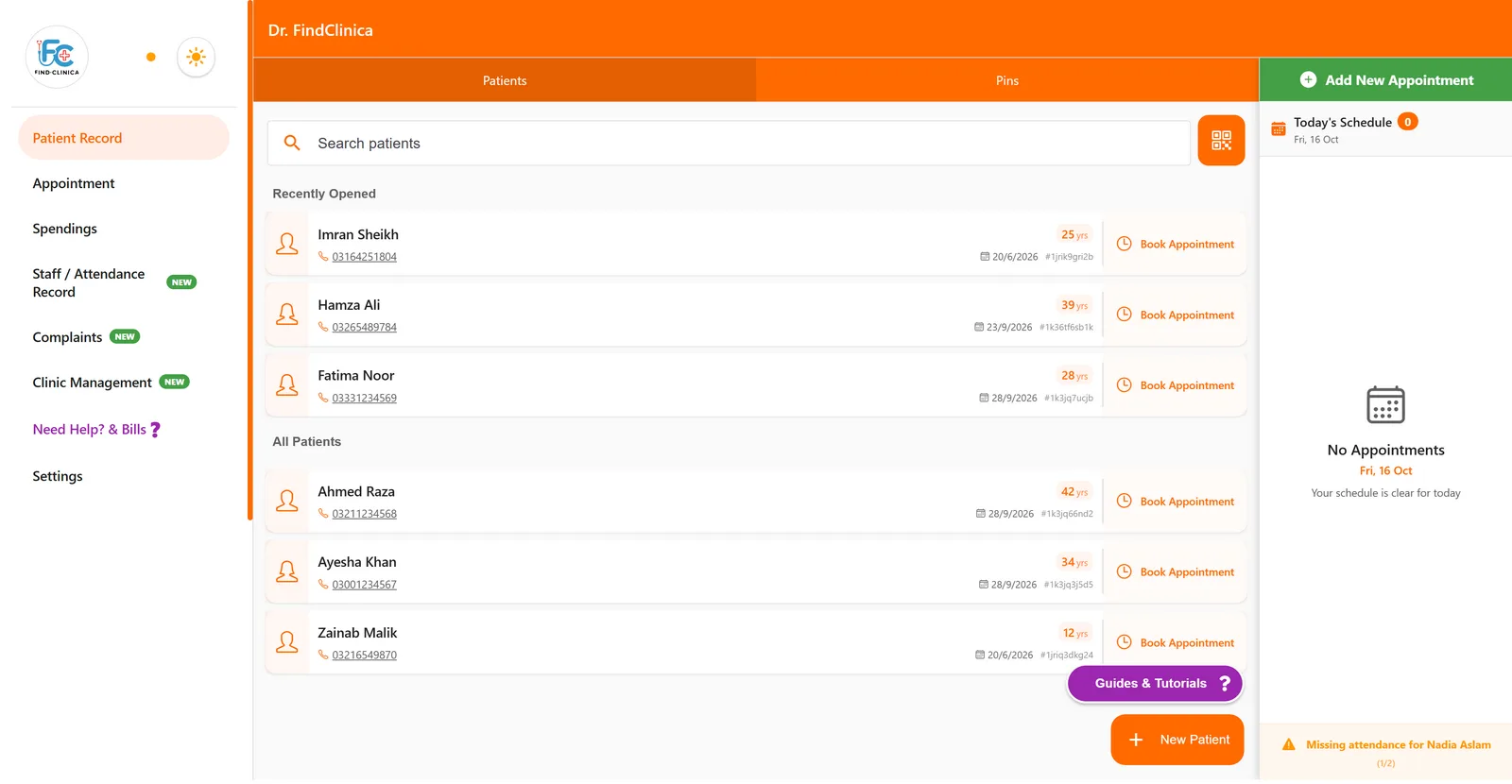
Free, with one connected computer
The free plan includes the desktop app on one connected computer, with no limit on patients. Premium (PKR 5,000 a month) allows three connected devices, for a second doctor's laptop or another reception desk. See the plans.
The app runs on Windows 10 and 11, 64-bit. The installer is about 130 MB, and the app updates itself: when a new version is out it asks before restarting, so it never interrupts a patient's booking.
Connecting it to your phone
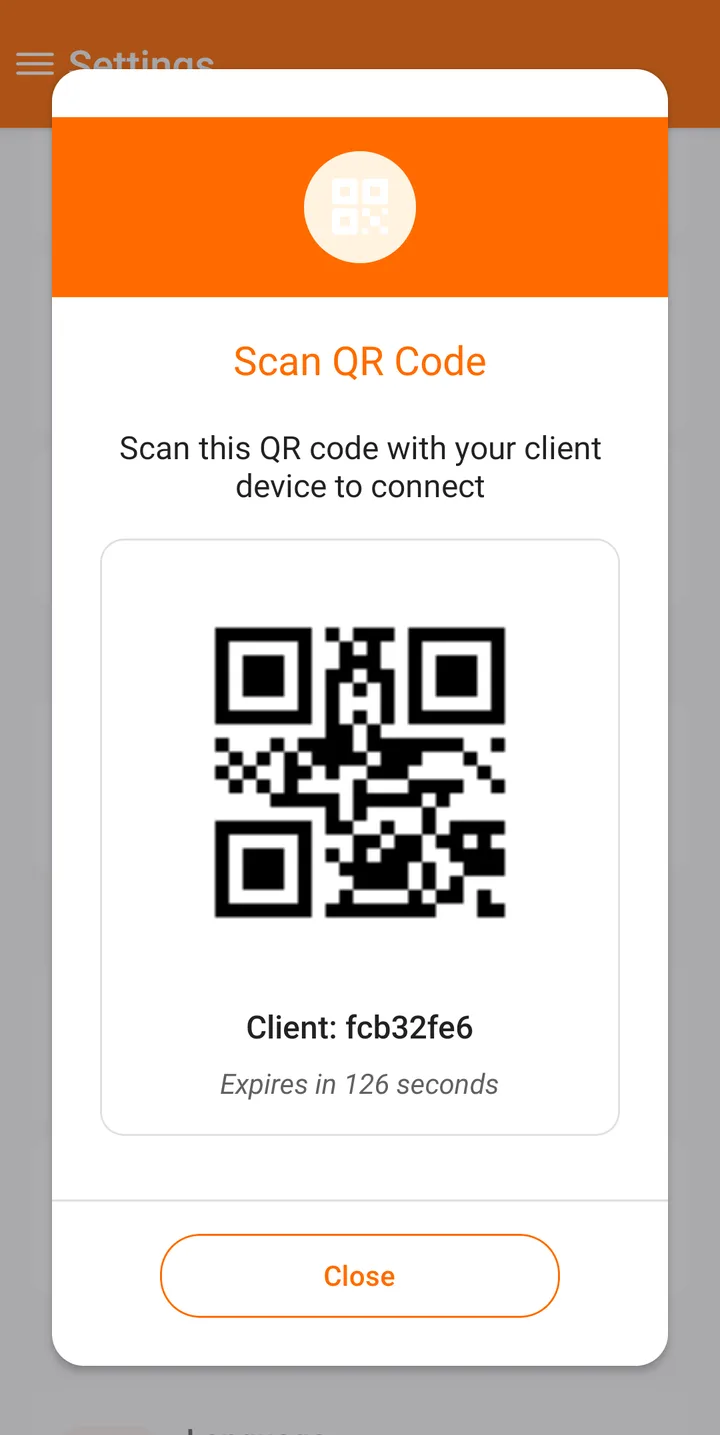
The clinic's account lives on the owner's Android phone; the computer connects to it. On the phone, go to Settings, Connect Client, and give the computer a name such as Reception. The phone shows a QR code and a short code that expire in about two minutes. On the computer, choose Connect Client and type the code (or scan the QR with a webcam). That's it: the records start syncing.
You can see and remove connected computers from Connected Clients List on the phone, for example when a receptionist leaves. The full guide, with screenshots.
Made for the desk
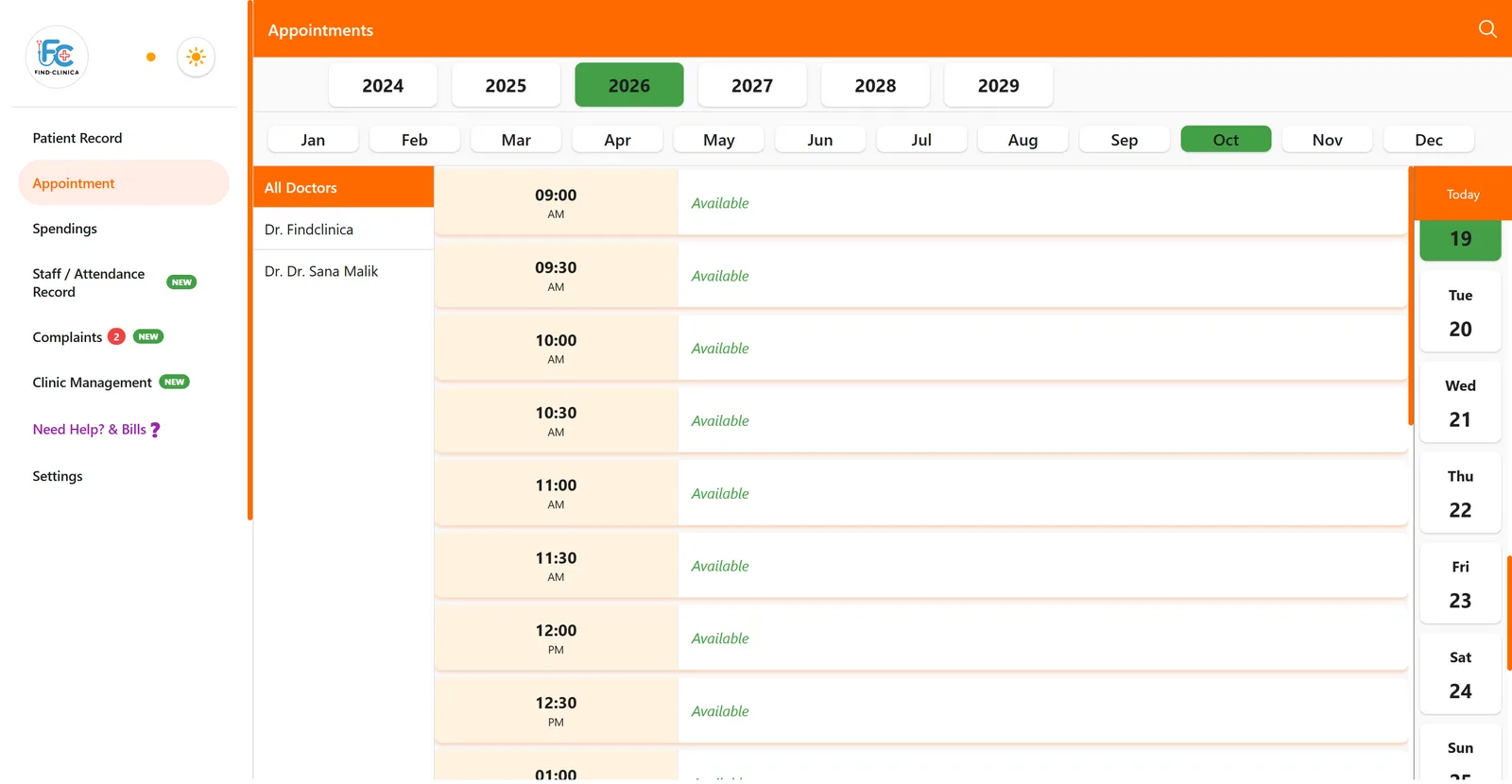
The menu is always open down the side. The home screen keeps today's schedule beside the patient list, with the next appointment highlighted, the doctor for each one, a call button and the staff's attendance for the day. The appointment screen lists your doctors down the side, so the receptionist can look at one doctor's day or everyone's.
And there are keyboard shortcuts for the busy hours: Ctrl+F to search patients, the arrow keys and Enter to open one, Ctrl+N for a new patient, visit, payment or expense depending on the screen, Ctrl+S to save, Alt+A for appointments, Alt+H for home, and Esc to go back.
It works offline too
The desktop keeps its own copy of the records, so a power cut at the router doesn't stop reception. Changes wait on the computer and sync when the connection is back; the dot at the top of the menu turns from orange to green when they have. How offline mode works.
What the connected computer can't do
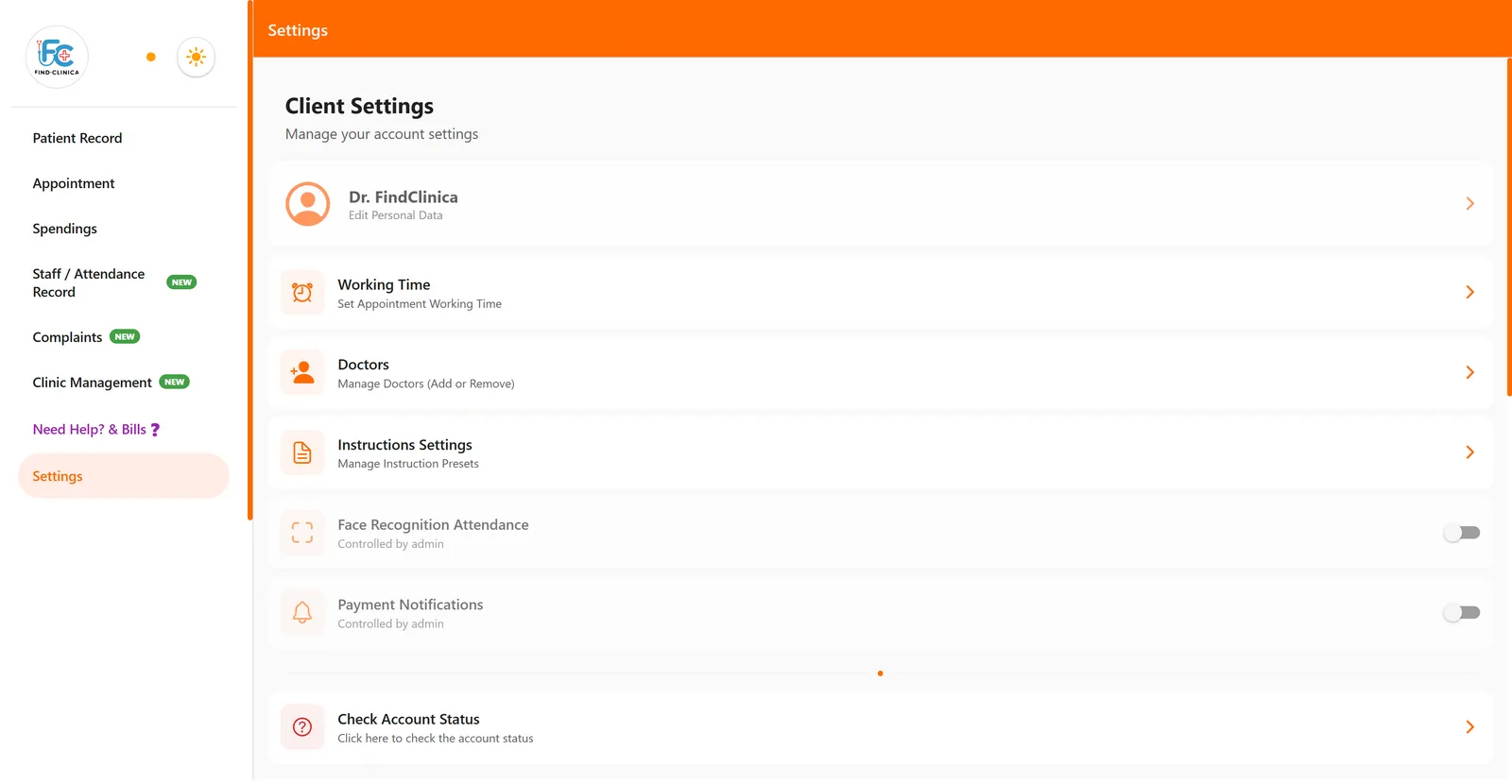
The owner's phone stays in charge. A connected computer can't see Statistics or the Tools (such as the Video Creator), can't connect more devices, and can't edit or delete payments, expenses, staff or doctors, or change working hours. Those settings show "Controlled by admin". That's usually what a clinic owner wants from the reception desk.
You do need an Android phone to set up the account; the desktop app can't sign up on its own, and there is no Mac or iPhone version yet.
Common questions
Is the Windows app really free?
Yes. The free plan includes one connected computer. Premium allows three.
Which Windows versions does it run on?
Windows 10 and Windows 11, 64-bit.
Can I use it without an Android phone?
No. The account is created on the Android app, and the computer connects to it. After that, the computer works on its own, even when the phone is switched off.
Can I print from the desktop?
Yes. Prescriptions, patient records and the clinic registers print or save as PDF from the desktop app.
Where do I download it?
From the download section on the home page.
Read next
- How to connect the desktop app
- Clinic software that works offline
- Software for clinics with several doctors
- Clinic management app for Android
More for clinics in Pakistan
- Dental Clinic Software in Pakistan
- Clinic Management Software in Pakistan
- EMR Software in Pakistan for Small Clinics
- Prescription Software for Doctors in Pakistan
- Patient Record App for Doctors
- Paper Register vs Excel vs Clinic Software
- Best Clinic Software in Pakistan, Compared
- Clinic Management App for Android
- Clinic Software in Lahore
- Clinic Software in Karachi
- Clinic Software in Islamabad
- Software for Clinics With More Than One Doctor
- Online Prescription Maker for Doctors
- Software for Orthodontists in Pakistan
- Clinic Software That Works Offline
- How to Read a Periodontal Chart
- Patient Complaint QR Code for Clinics
- Sentinel Event and Incident Reporting for Clinics
- Healthcare Waste Log for Clinics in Pakistan
- Patient Aftercare Instructions on WhatsApp
Free tools and templates
Try it with your next patient
The free plan costs nothing and has no time limit. Install it and add one patient, or ask us anything on WhatsApp first.