How do I connect the desktop app to my clinic?
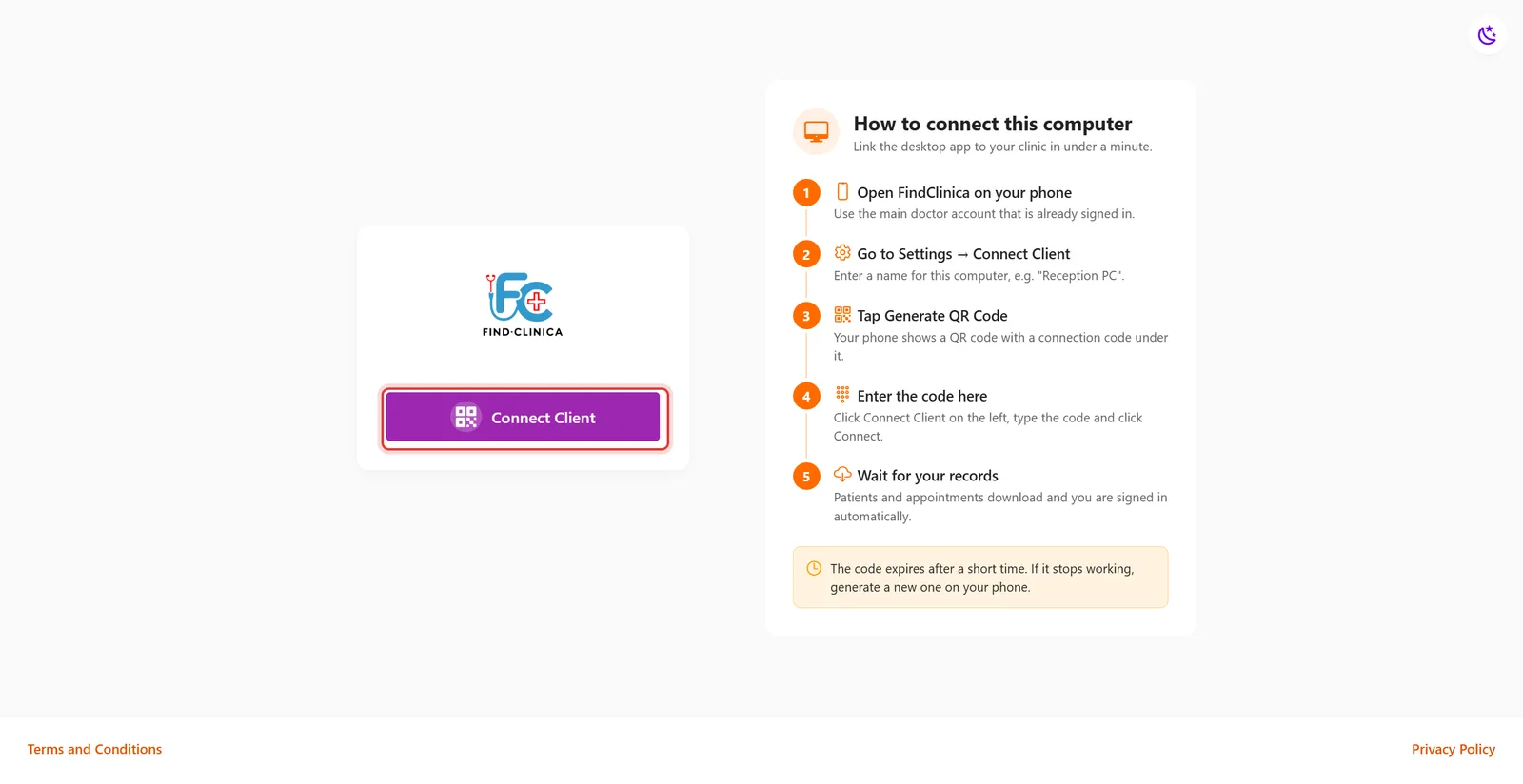
On the computer, click Connect Client. On your phone, open Settings → Connect Client, name the computer and tap Generate QR Code. Type the code shown under the QR code into the computer and click Connect — your records download and you are signed in.
9 steps · Updated
Step 1: On the computer, open FindClinica and click Connect Client. A box for the connection code opens.
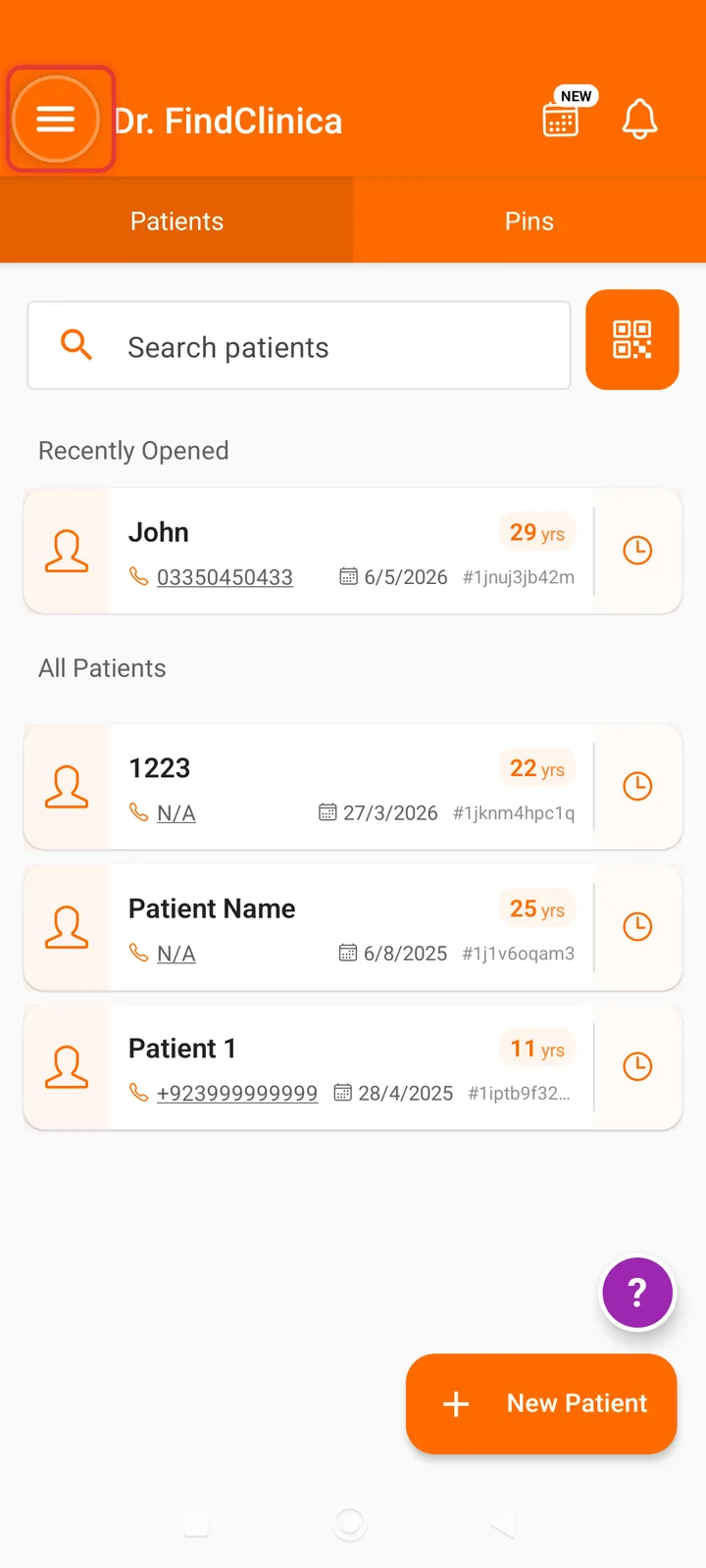
Step 2: On your phone, open FindClinica with the clinic's main account and tap the menu button at the top left.
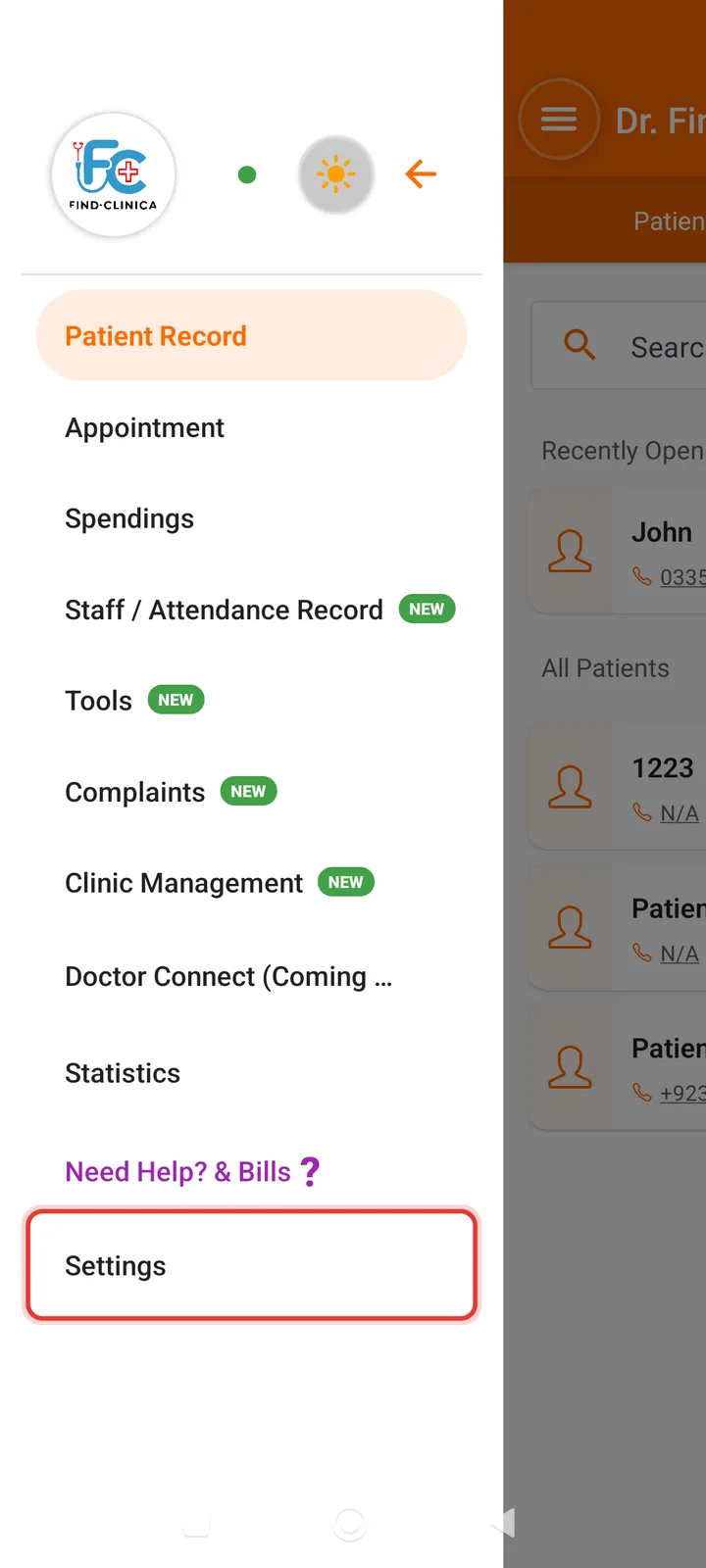
Step 3: Tap Settings.
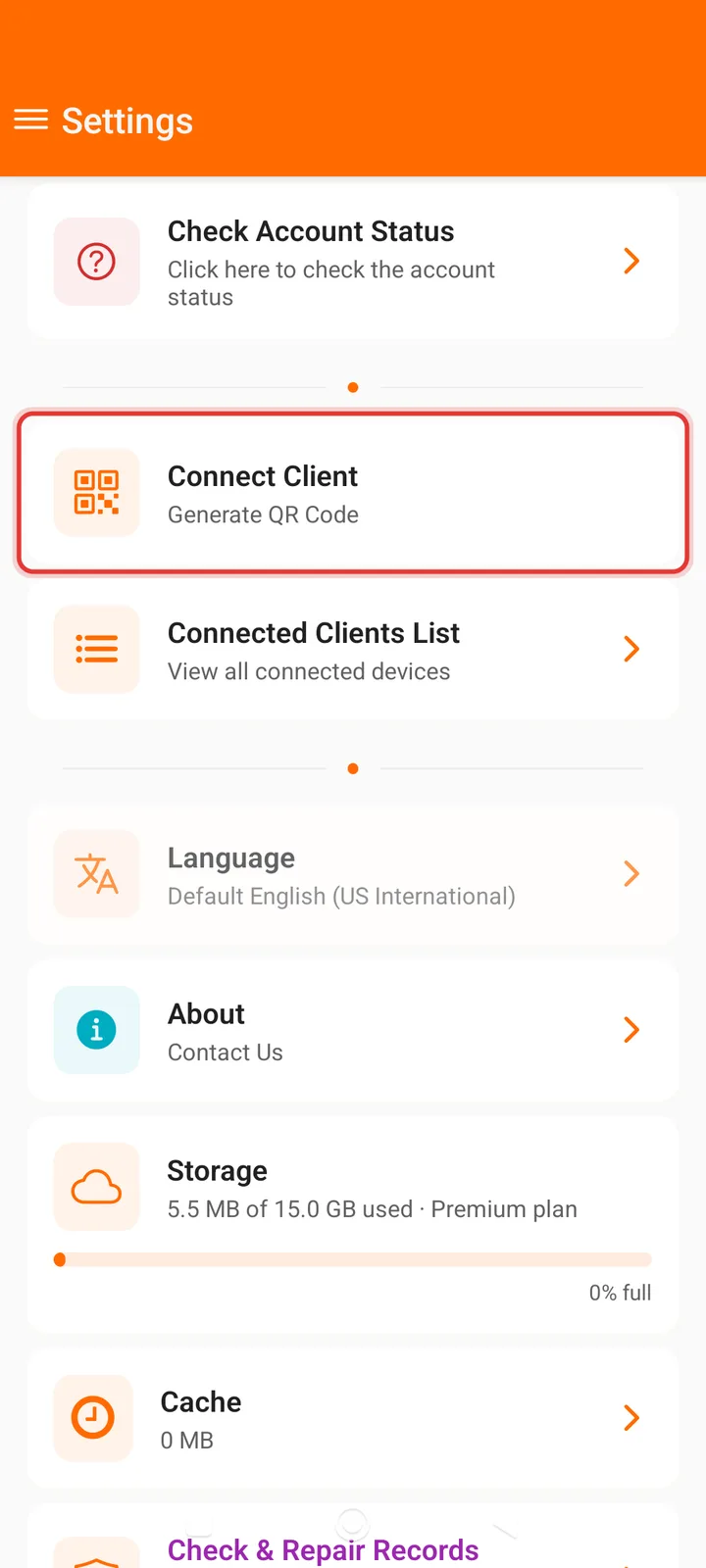
Step 4: Scroll down and tap Connect Client.
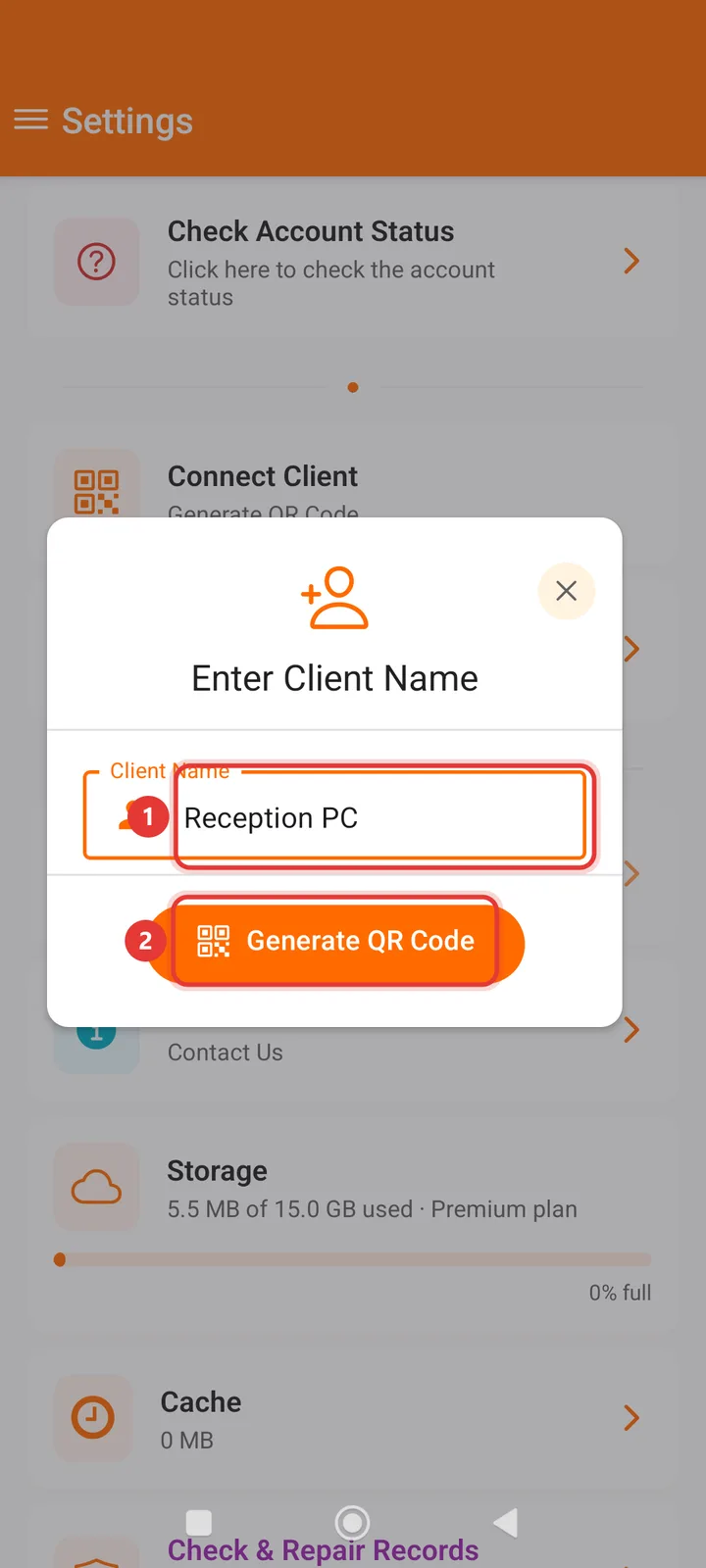
Step 5: Type a name for the computer in Client Name, for example Reception PC, then tap Generate QR Code.
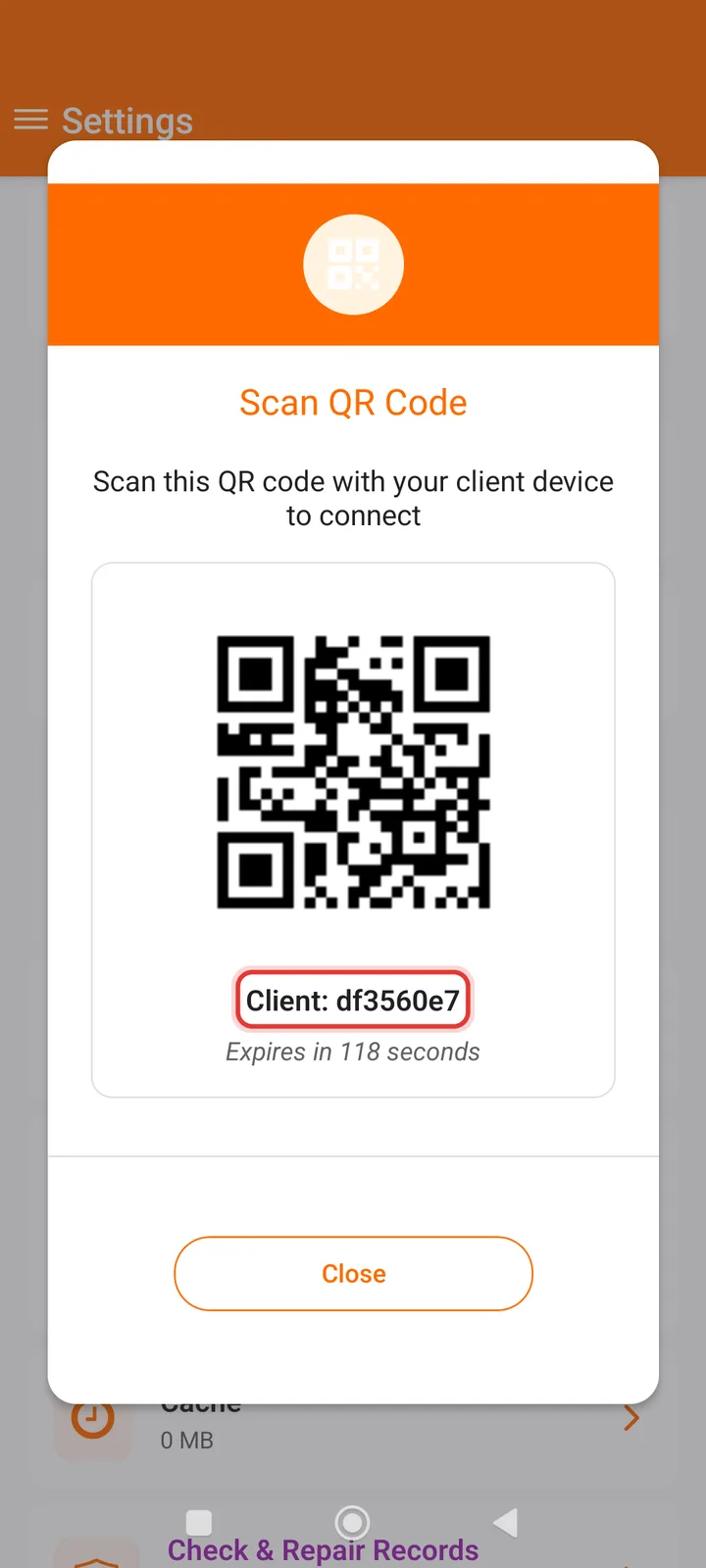
Step 6: Your phone shows a QR code. The connection code is under it, after Client:. It works for 2 minutes.
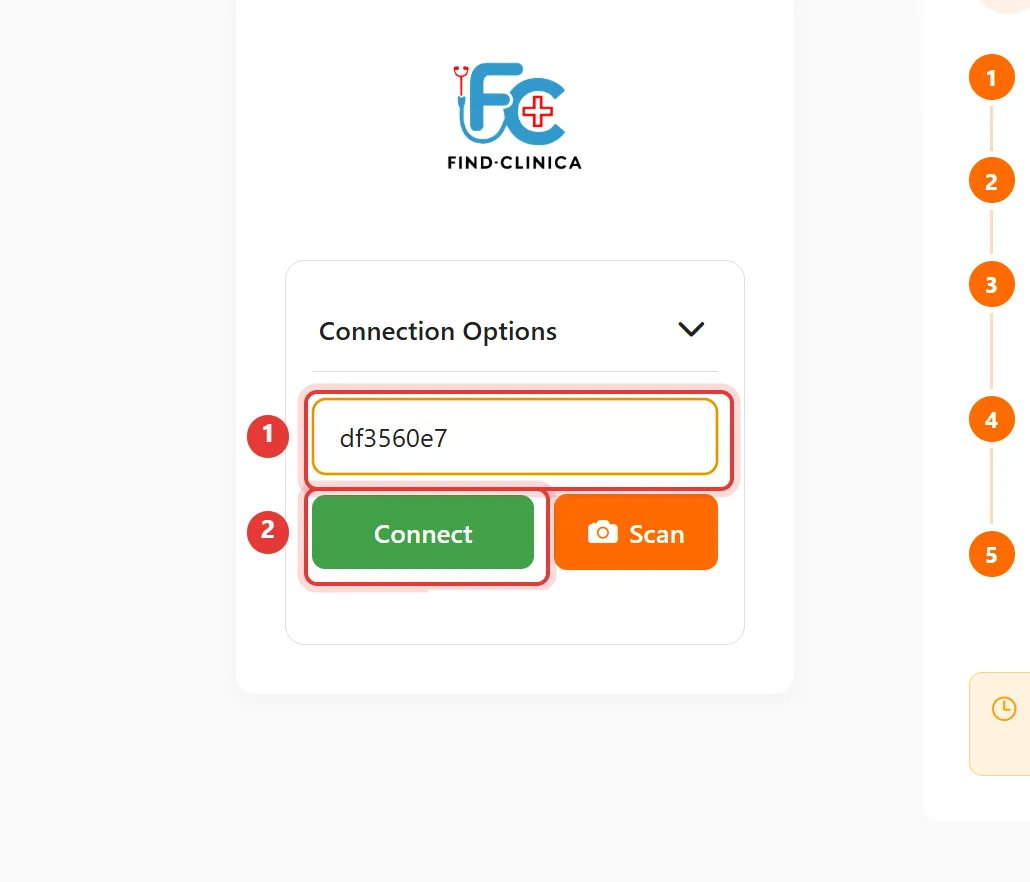
Step 7: On the computer, type the code into Enter connection code and click Connect.
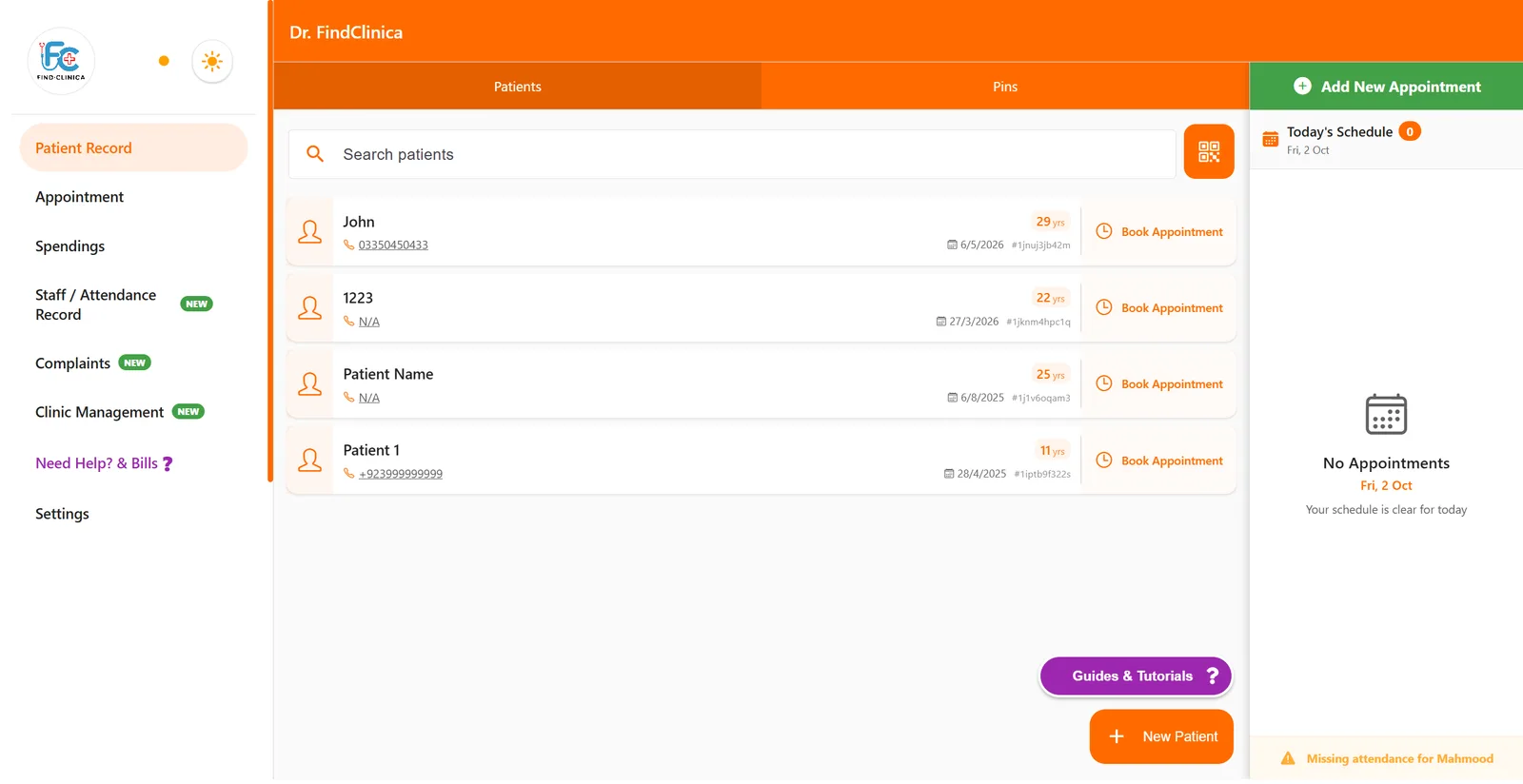
Step 8: Your patients and appointments download, and the clinic's home screen opens. The computer is connected.
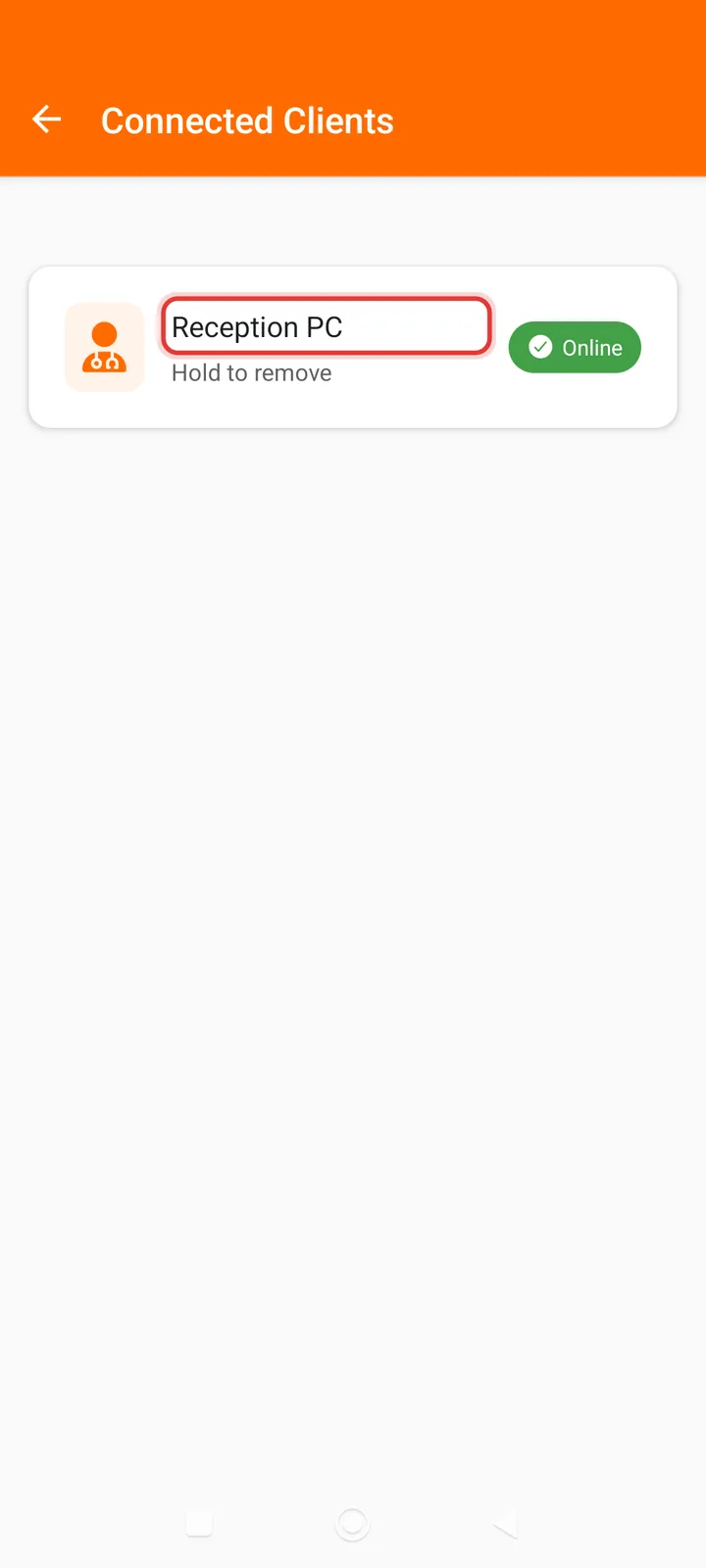
Step 9: To check, go back to Settings on your phone and tap Connected Clients List. The computer is listed as Online.
Good to know
- Have the computer ready on the Connect Client box before you generate the code — the code expires after 2 minutes and can be used once.
- If the computer says Invalid QR code or that the code has expired, generate a new code on your phone and type that one.
- Free, trial and Pro plans can connect one computer; Premium can connect three. If your phone says Max 1 Client Allowed!, remove a computer you no longer use first.
- To remove a computer, open Connected Clients List on your phone, press and hold the computer's name, and confirm.
Related guides
Still stuck? Contact us or browse all guides.