How do I add a treatment and its payment?
Open the patient, click New Treatment, tap the tooth, enter the treatment and complaint, fill in Charges and Paid, then click Save.
6 steps · Desktop and mobile · Updated
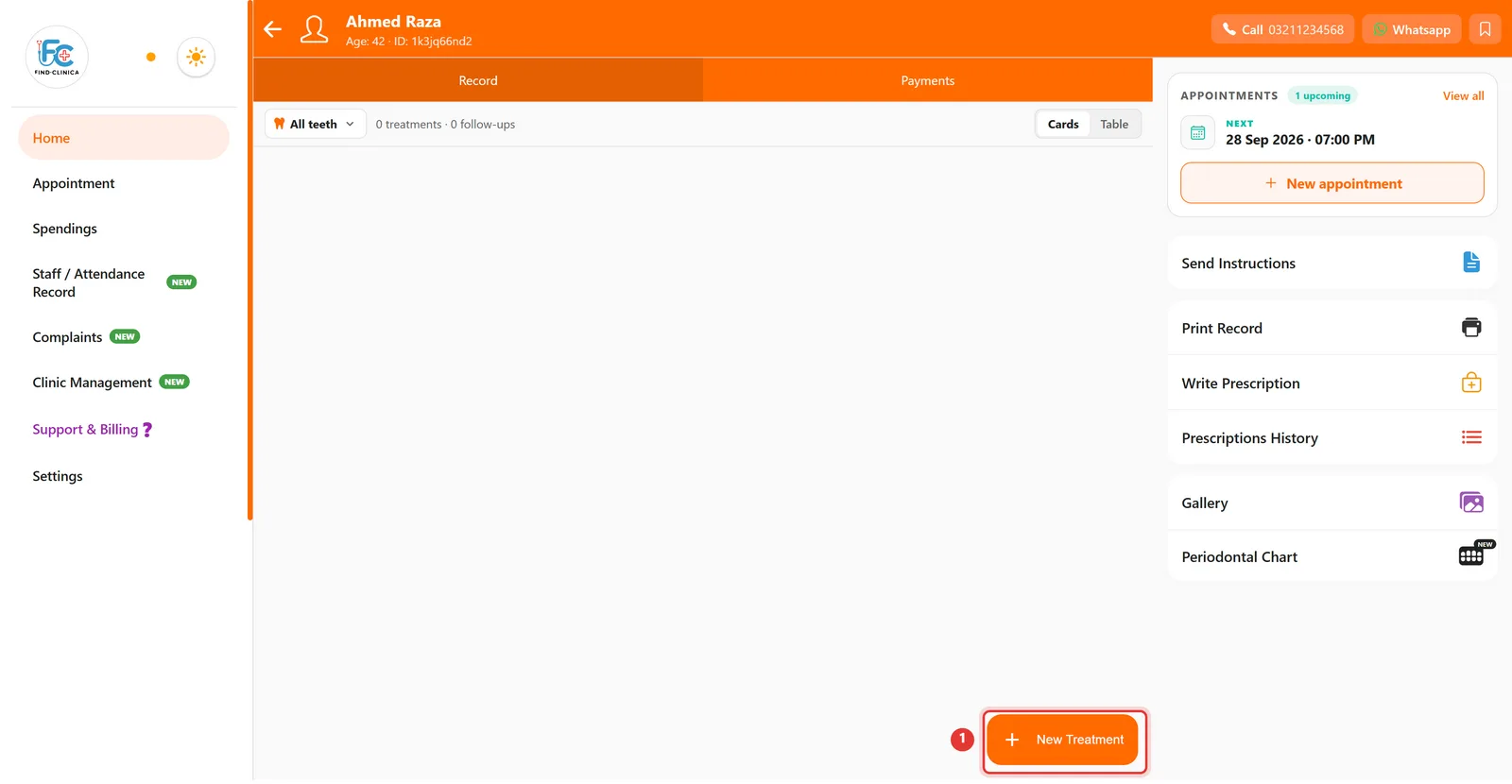
Step 1: Open the patient and click New Treatment at the bottom right.
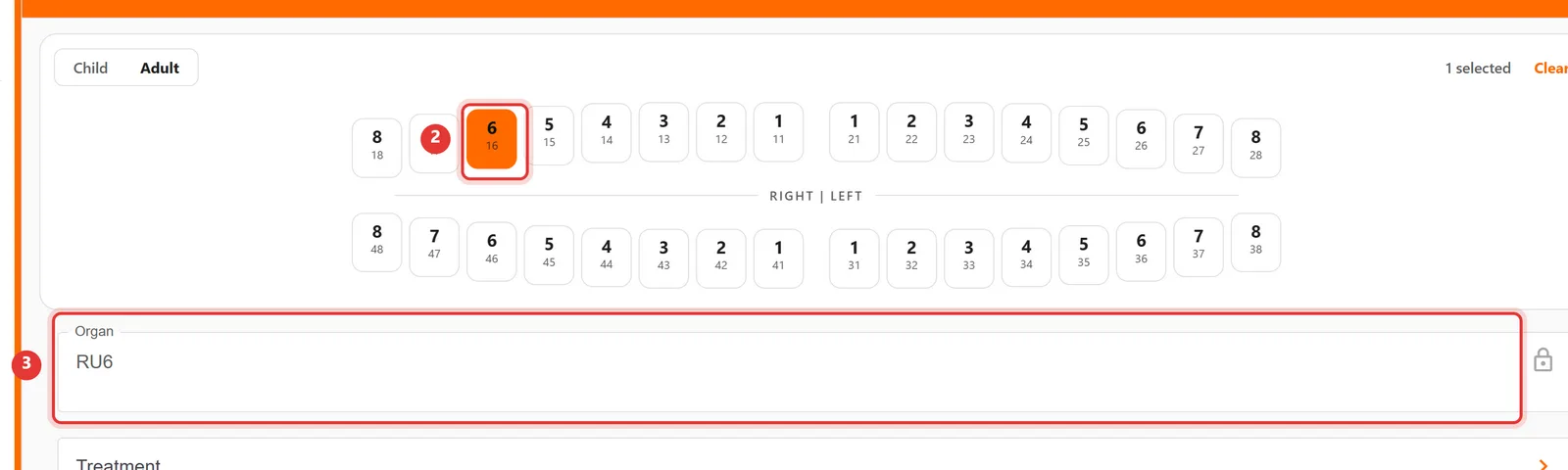
Step 2: Tap the tooth on the chart. The Organ field fills in automatically (here, tooth 16 becomes RU6).
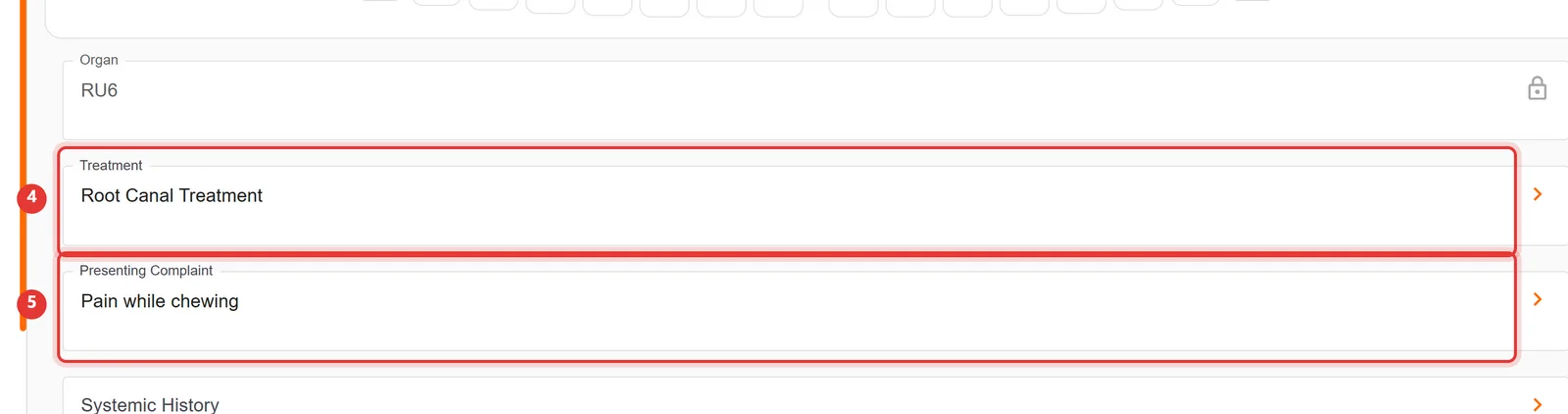
Step 3: Type the Treatment and the Presenting Complaint.
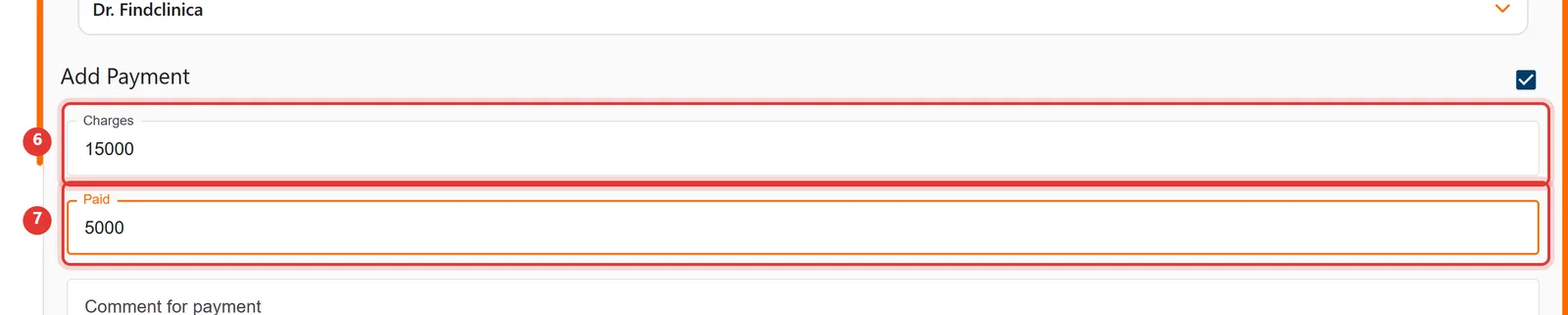
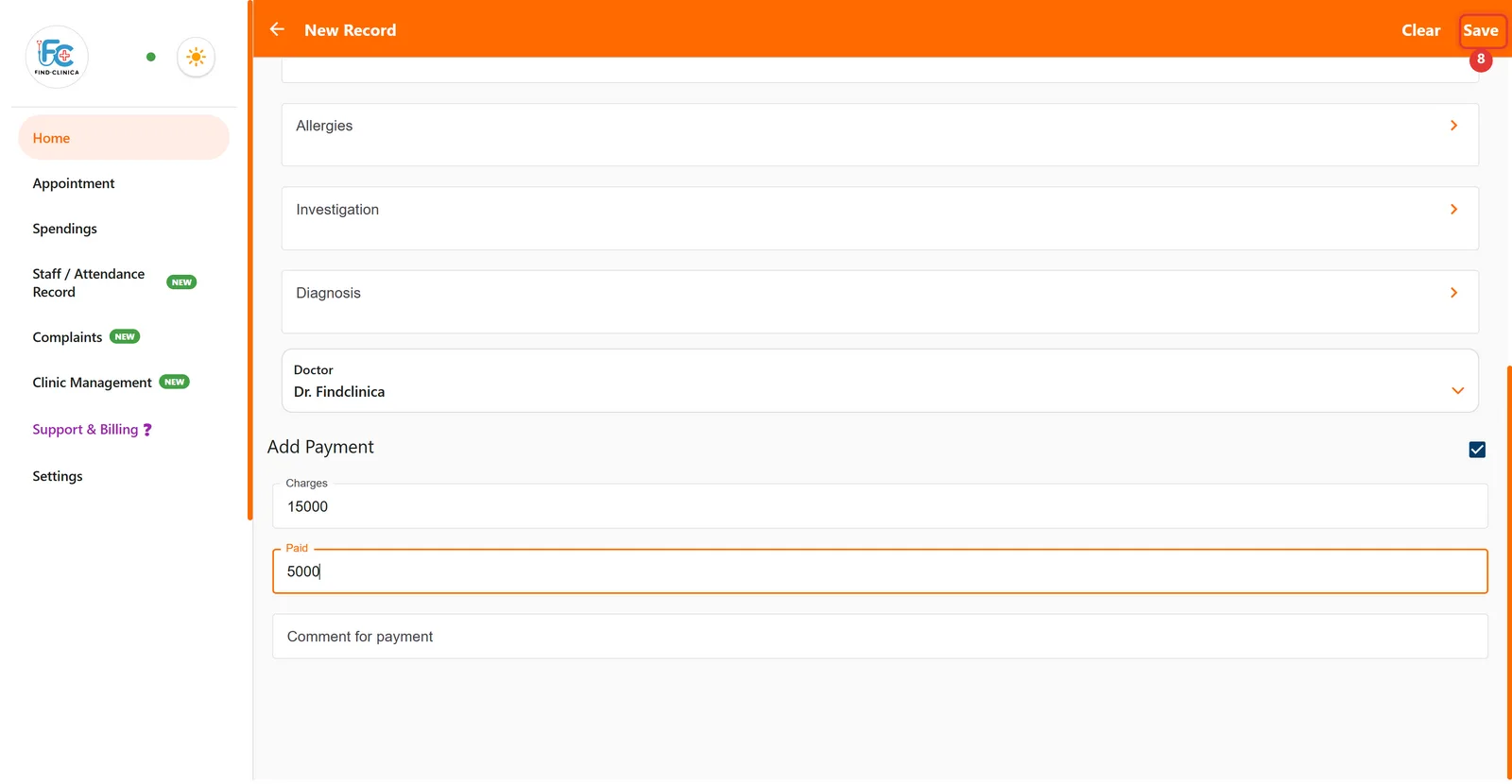
Step 4: Scroll down to Add Payment and enter the Charges and the amount Paid today.
Step 5: Click Save at the top right.
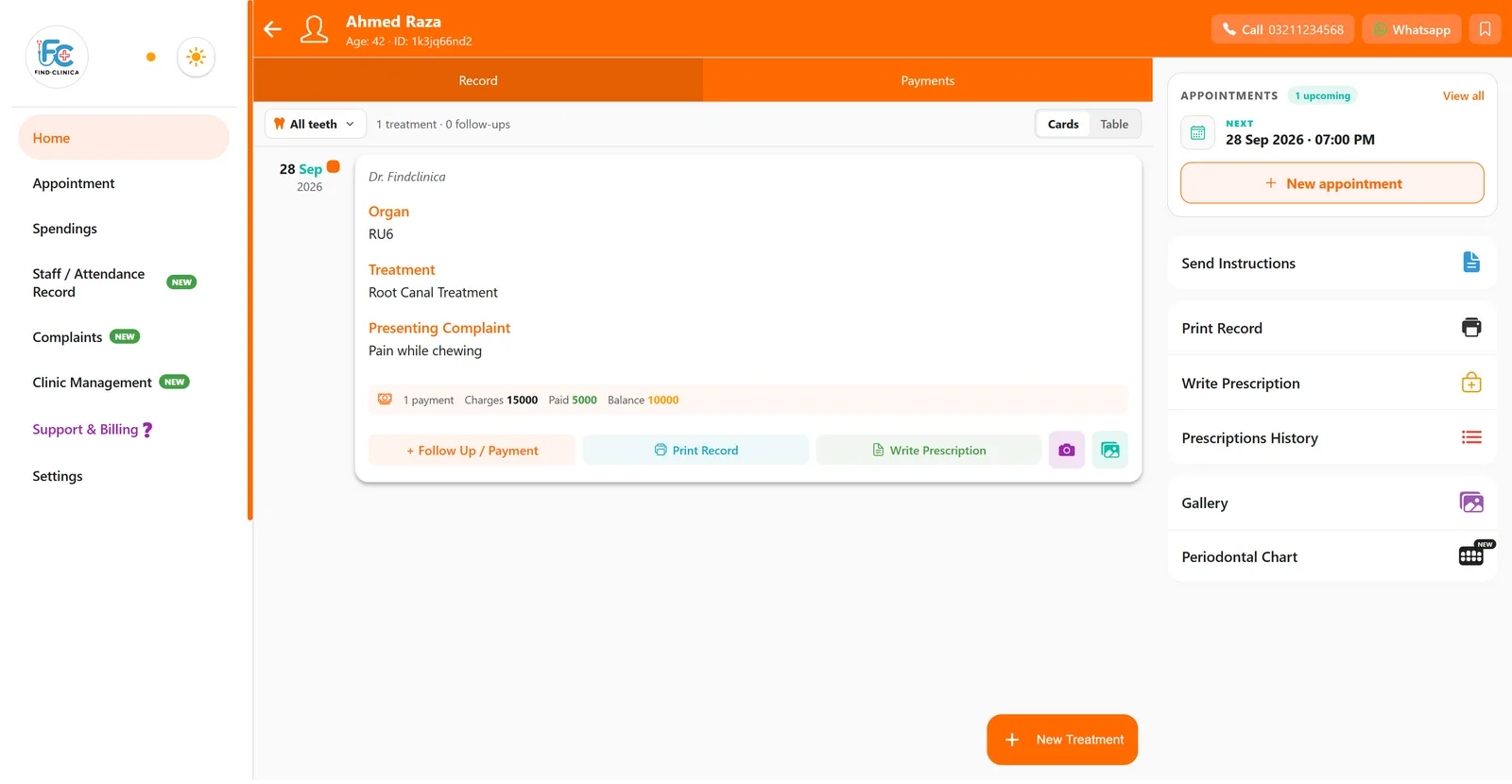
Step 6: The treatment appears on the patient's page with its charges, amount paid and remaining balance.
Good to know
- Tap more than one tooth to record a treatment on several teeth at once.
- Systemic History, Allergies, Investigation and Diagnosis are optional.
- To take more money later, use Follow Up / Payment on the treatment card.
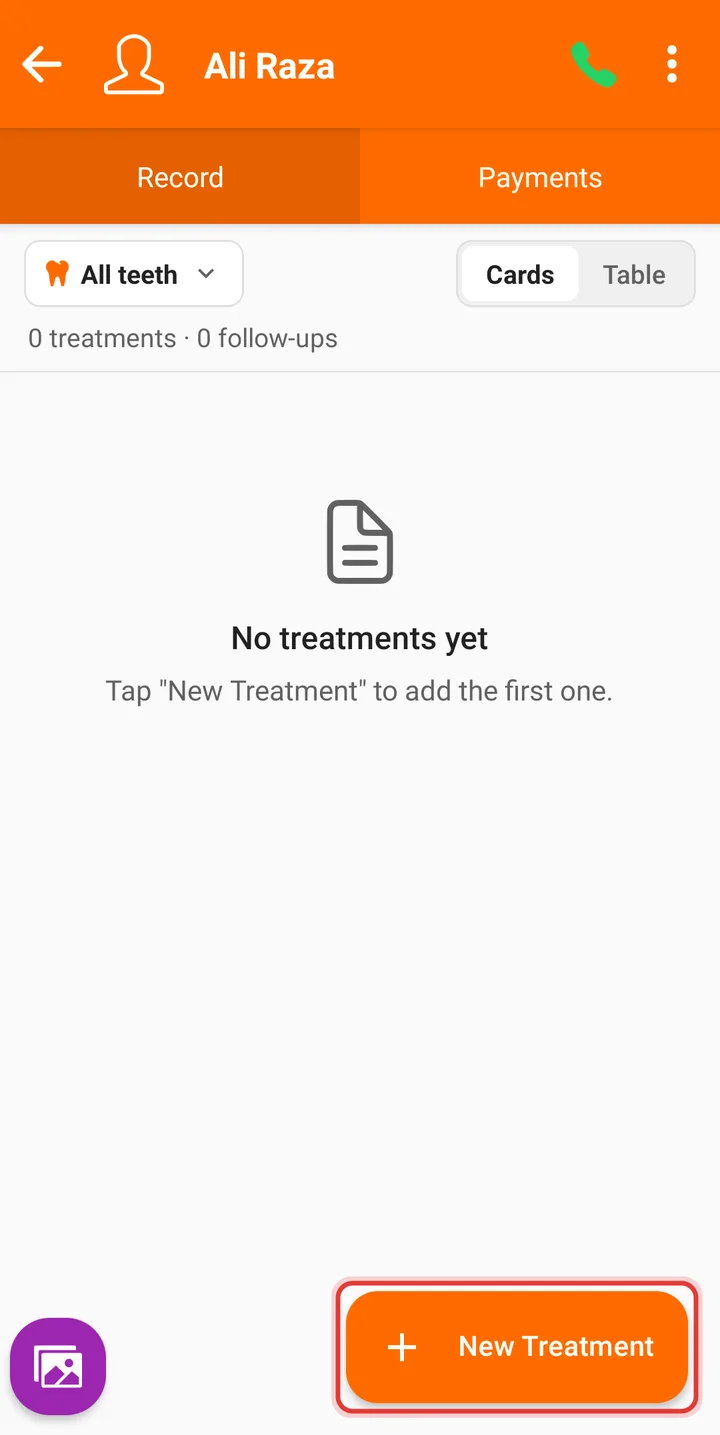
Step 1: Open the patient and tap New Treatment.
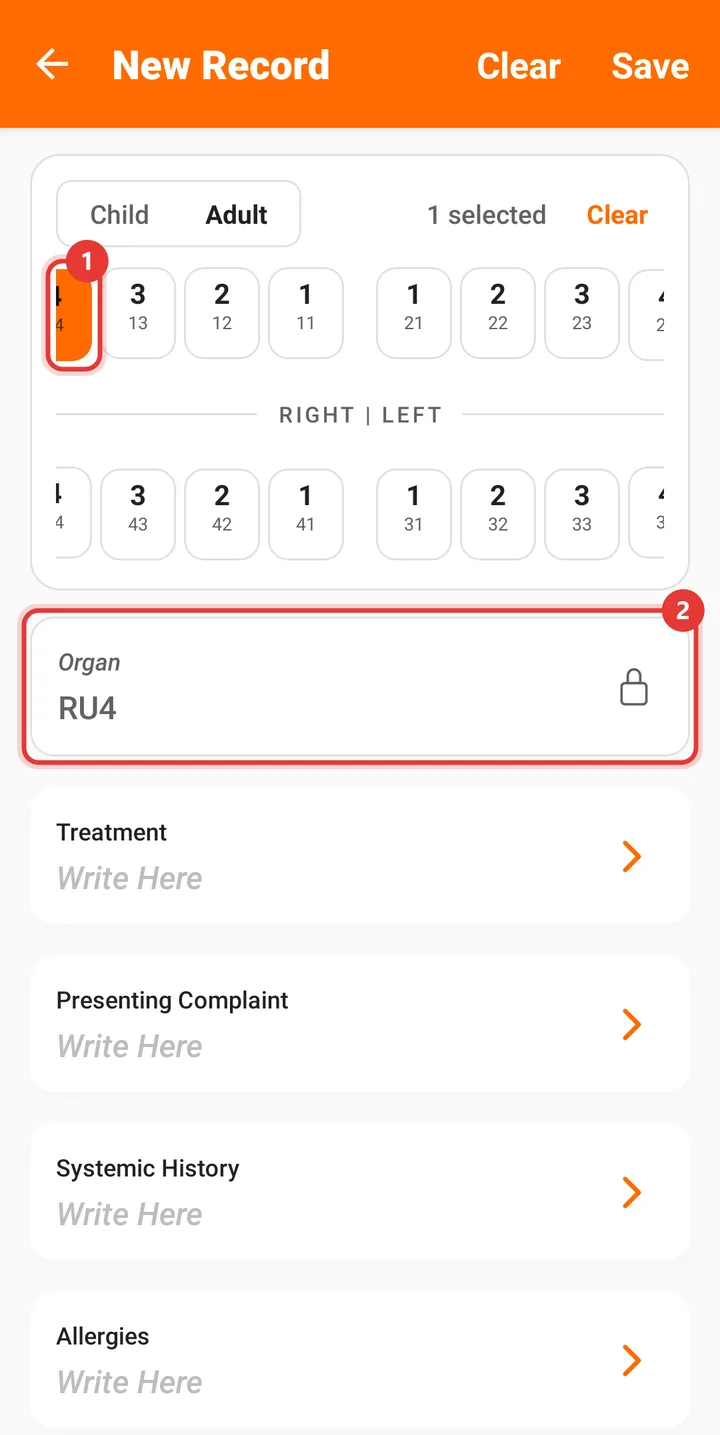
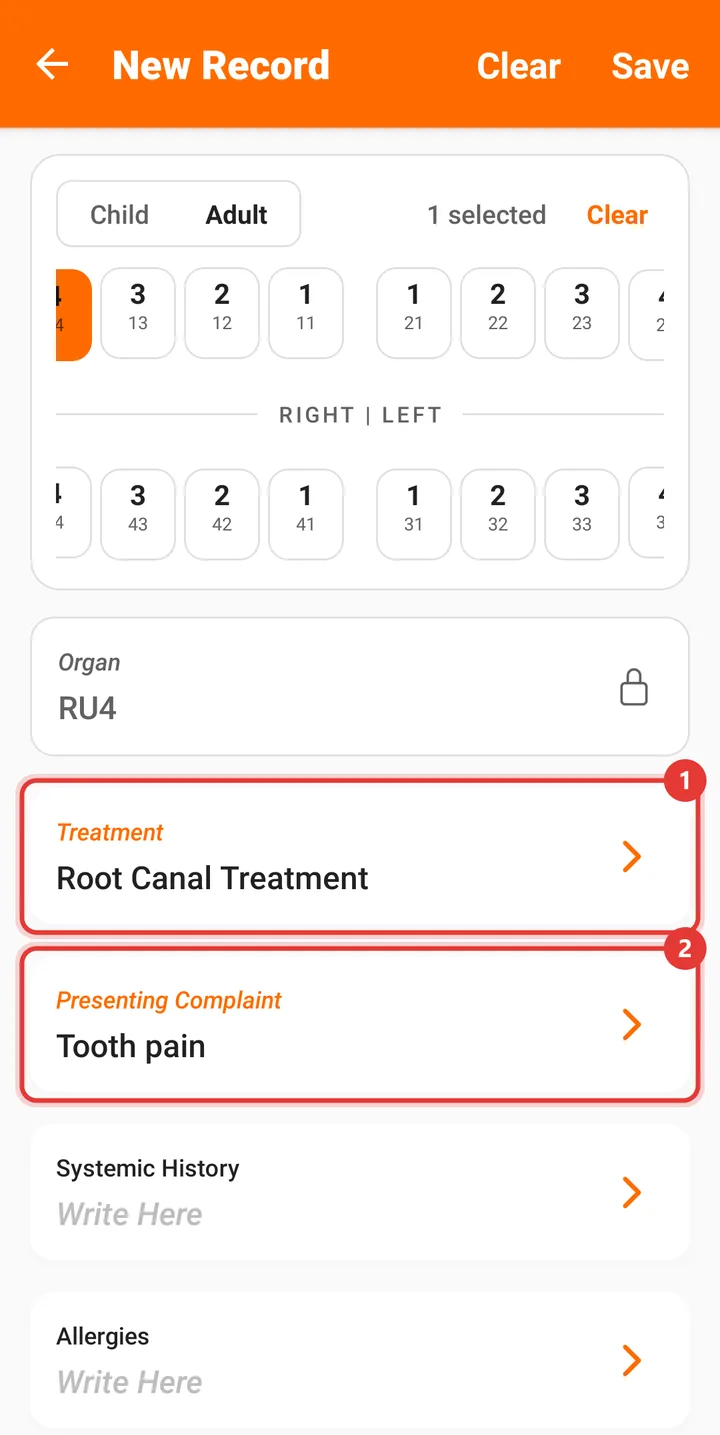
Step 2: Tap the tooth on the chart. The Organ fills in automatically (here, tooth 14 becomes RU4).
Step 3: Tap Treatment, type what was done, and tap Done.
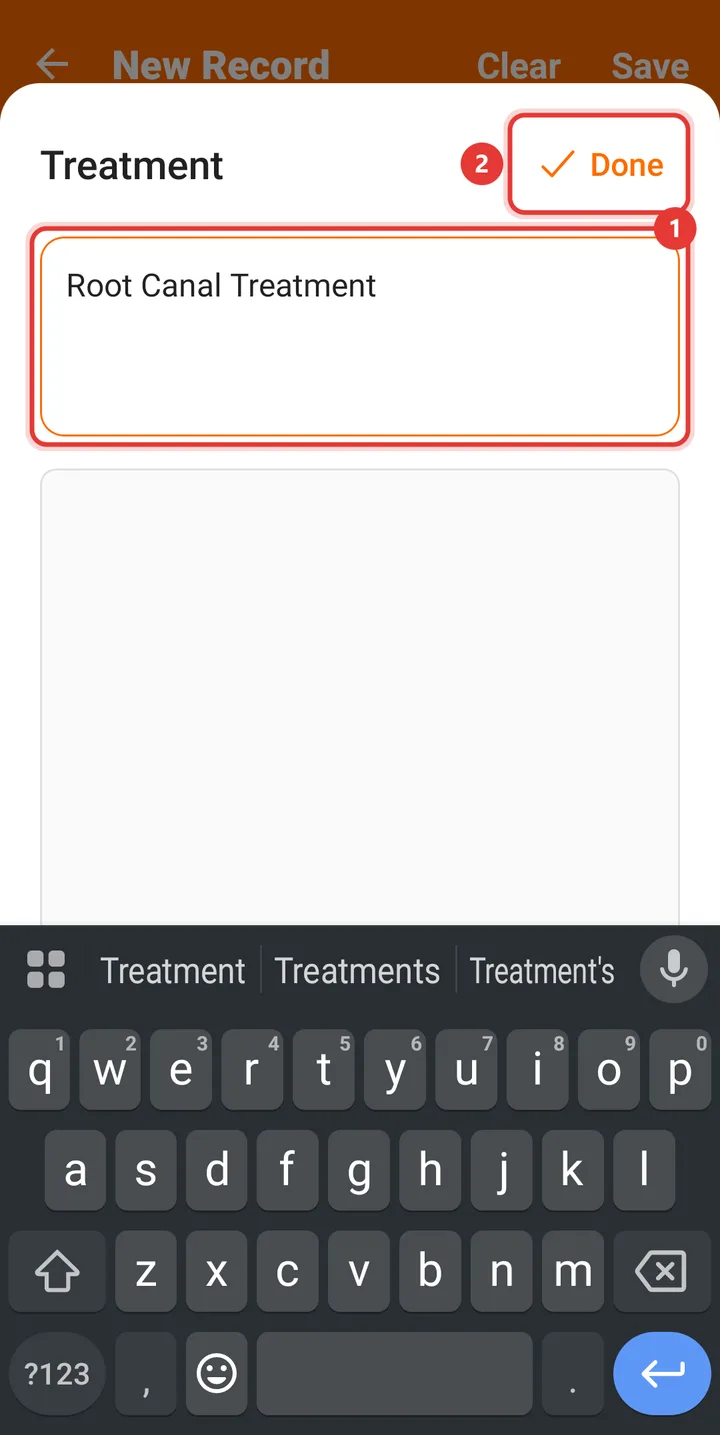
Step 4: Do the same for the Presenting Complaint.
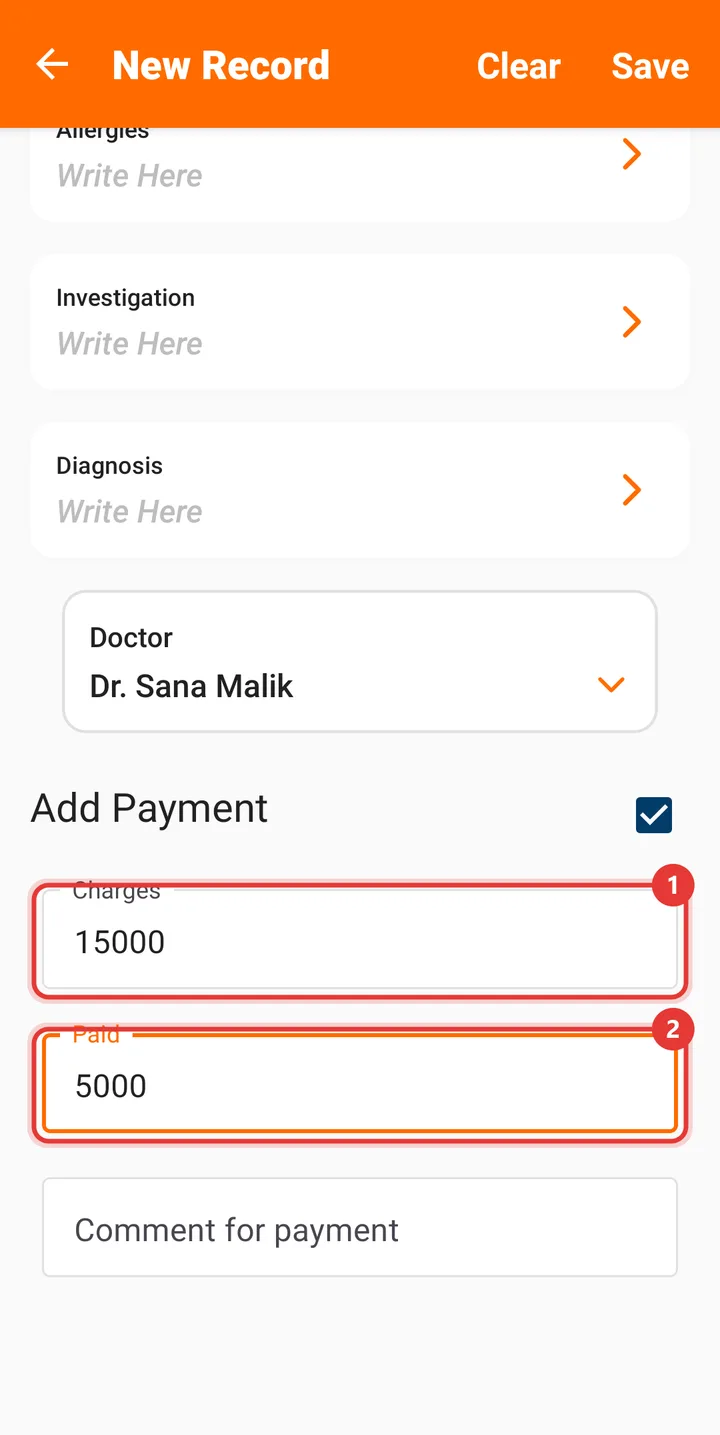
Step 5: Scroll down to Add Payment and enter the Charges and the amount Paid today.
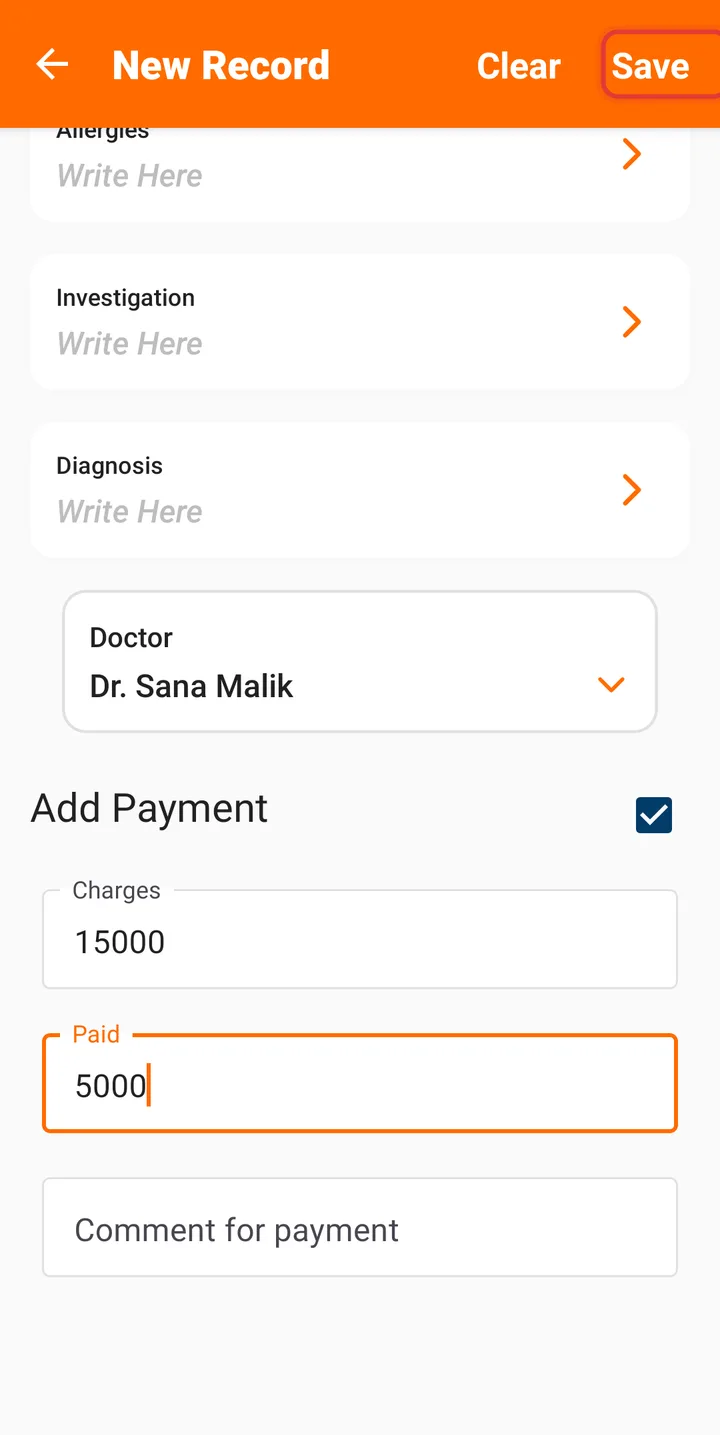
Step 6: Tap Save at the top right.
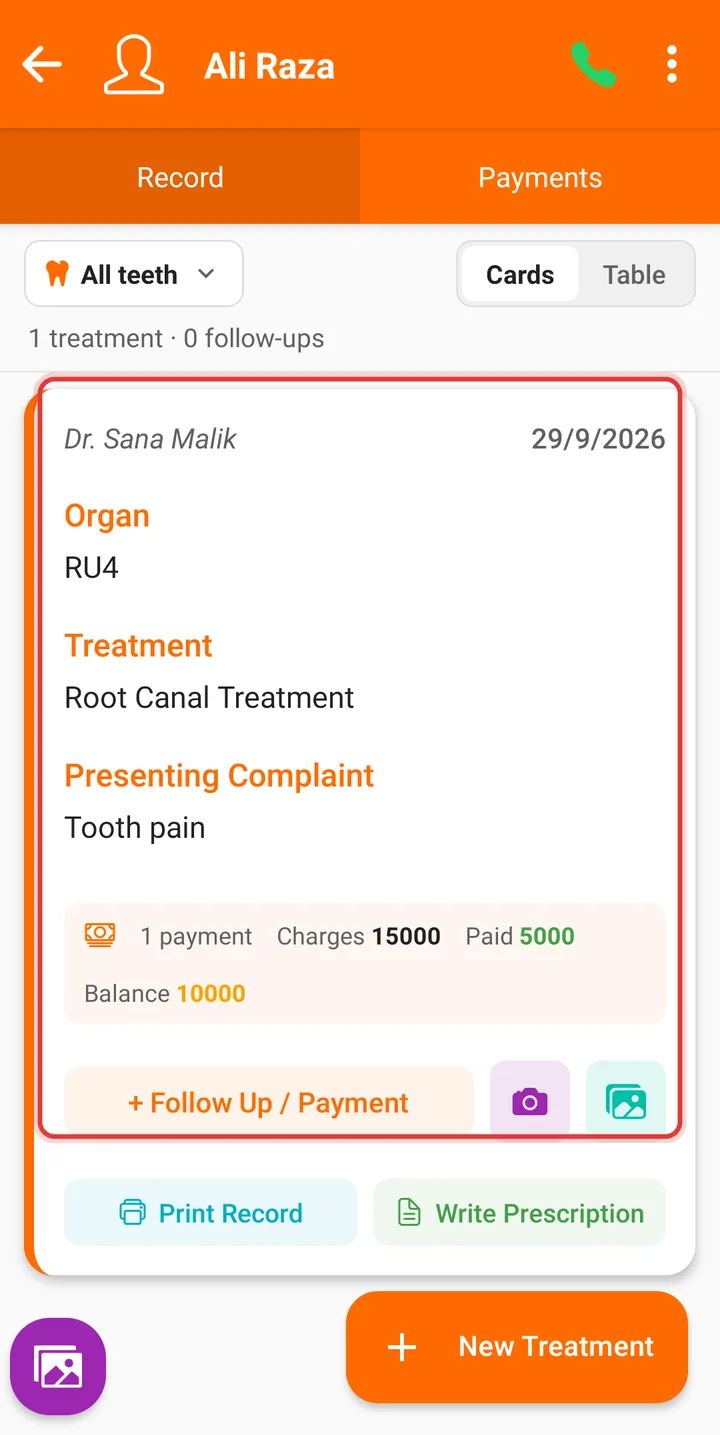
Step 7: The treatment card shows the organ, treatment, complaint and the payment summary with the Balance.
Good to know
- The tooth chart is wider than a phone — swipe it sideways to reach the back teeth.
Related guides
Still stuck? Contact us or browse all guides.