How do I add a new patient?
Click New Patient on the home screen, enter the patient's name, age, gender and phone number, then click Save. The new patient's file opens straight away.
4 steps · Desktop and mobile · Updated
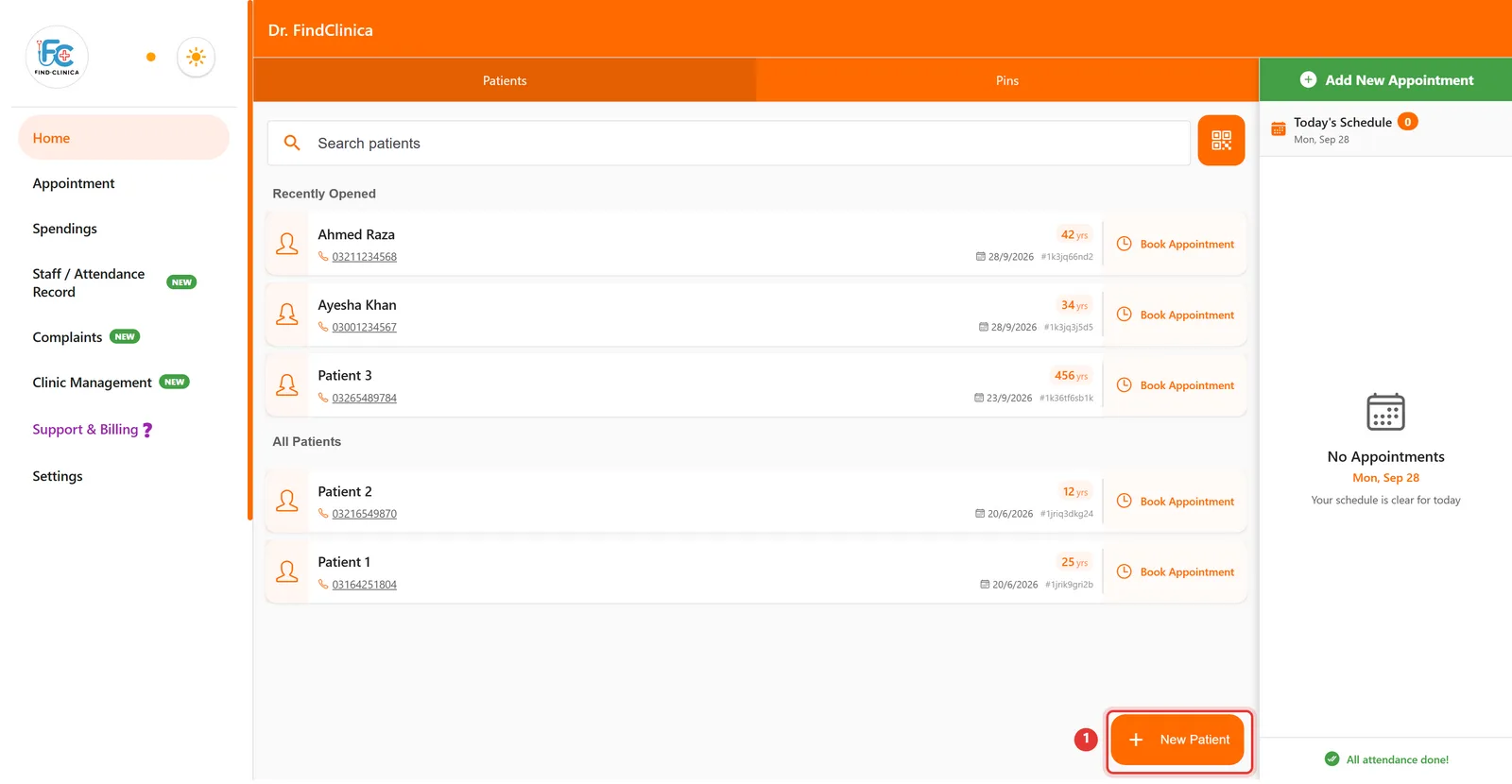
Step 1: On the Home screen, click New Patient at the bottom right.
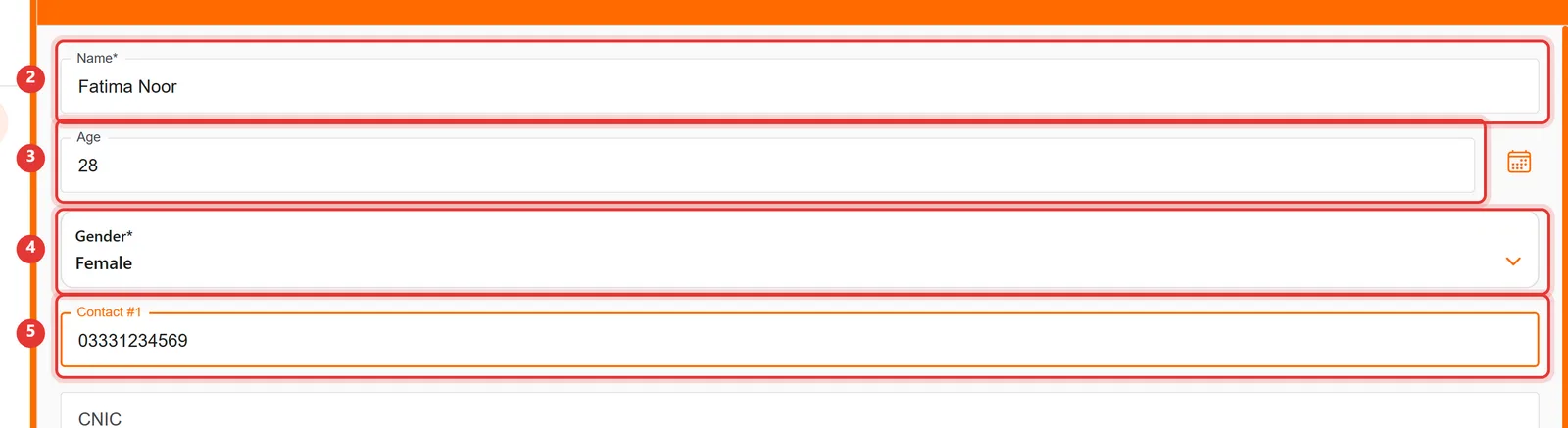
Step 2: Enter the patient's Name and Age, choose their Gender, and add a phone number in Contact #1.
Step 3: Click Save at the top right, or press Ctrl+S.

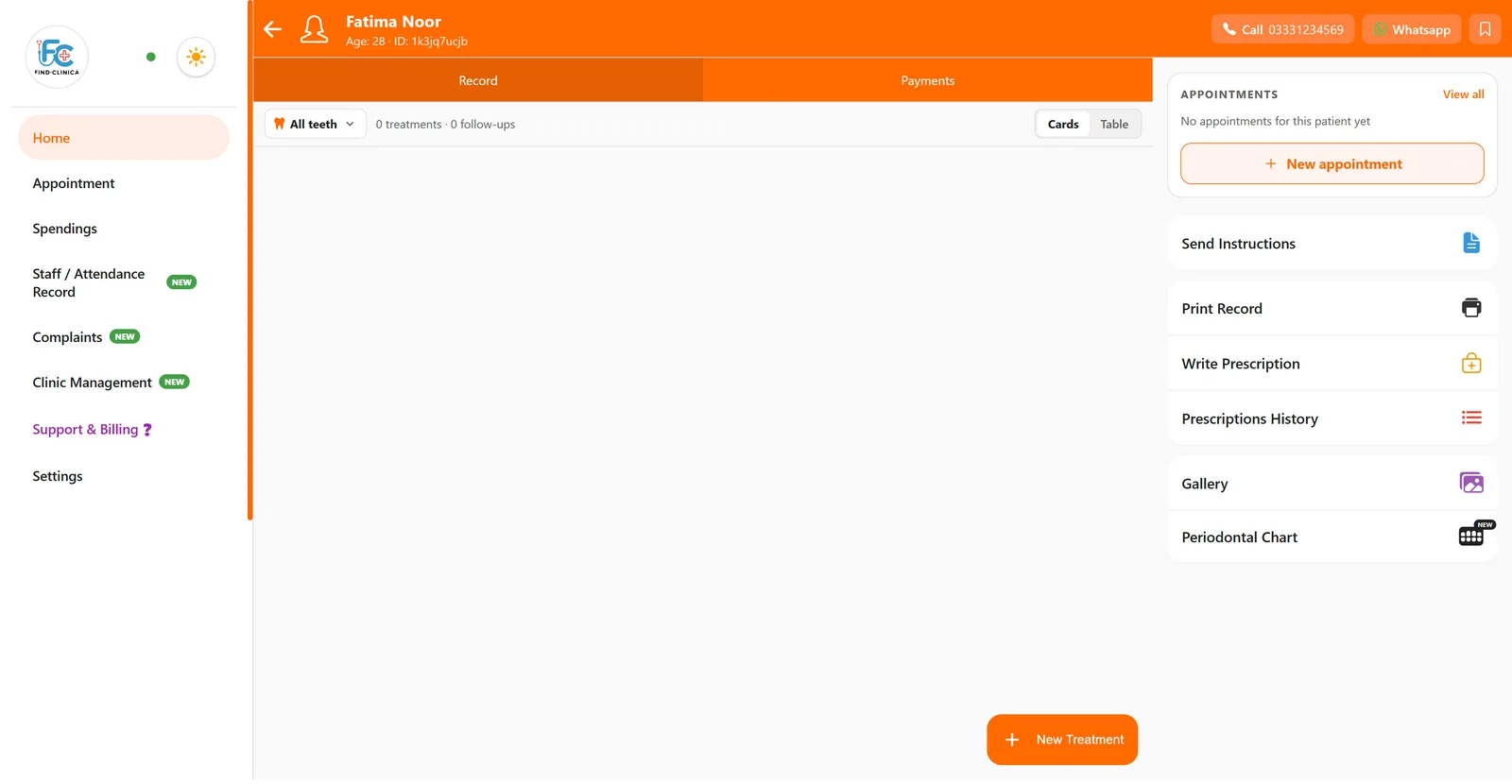
Step 4: The patient's file opens. From here you can add treatments, payments, prescriptions and appointments.
Good to know
- Name, Age and Gender are required. Click the calendar icon next to Age to enter a date of birth instead.
- The other fields — CNIC, father's name, email, address, insurance, referral and systemic history — are optional and can be added later.
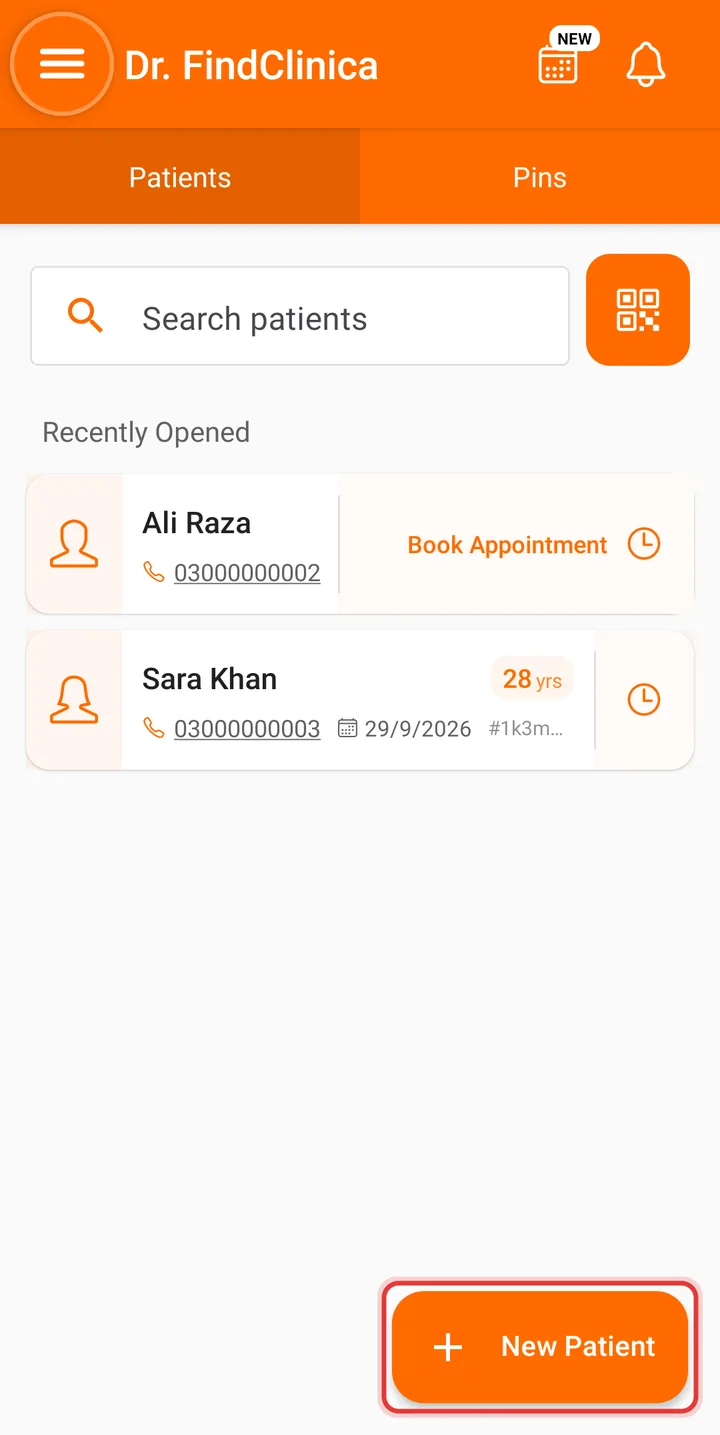
Step 1: On the patient list, tap New Patient at the bottom right.
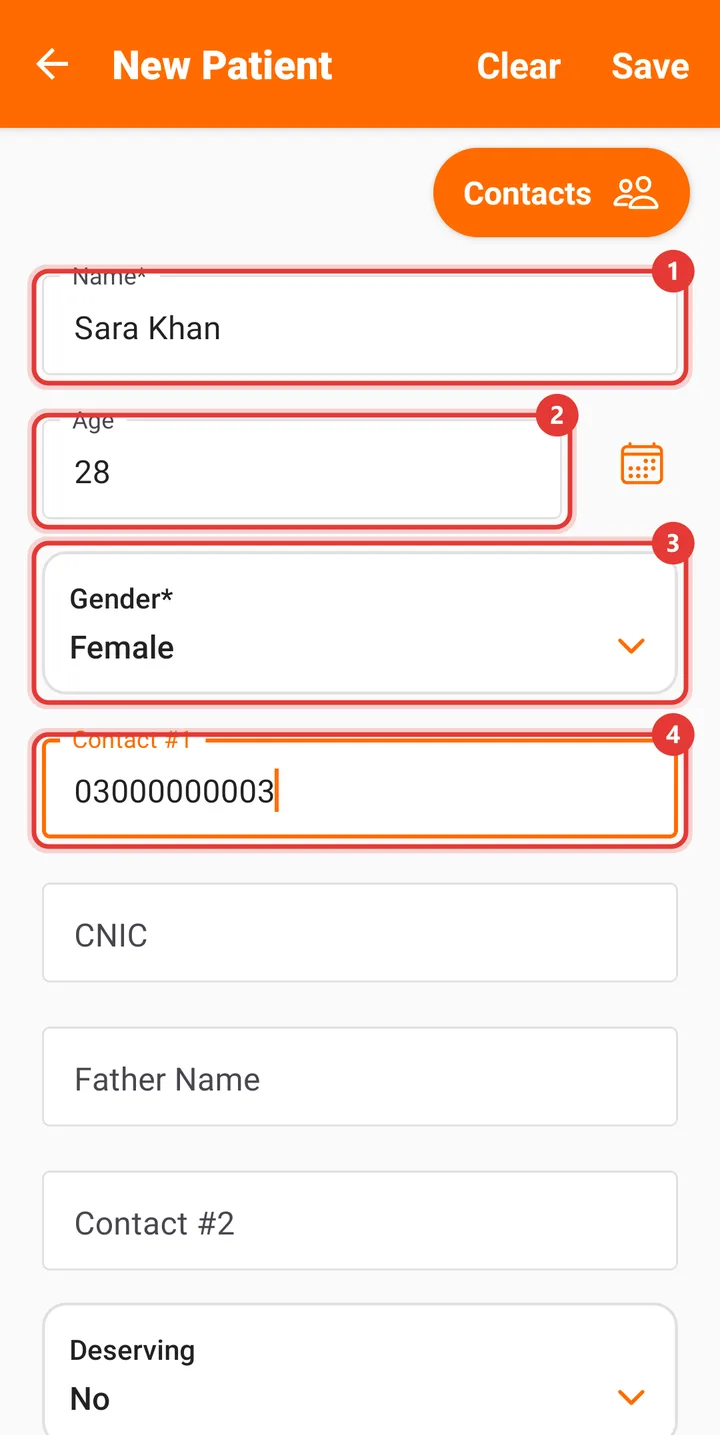
Step 2: Enter the Name and Age, choose the Gender, and add a phone number in Contact #1.
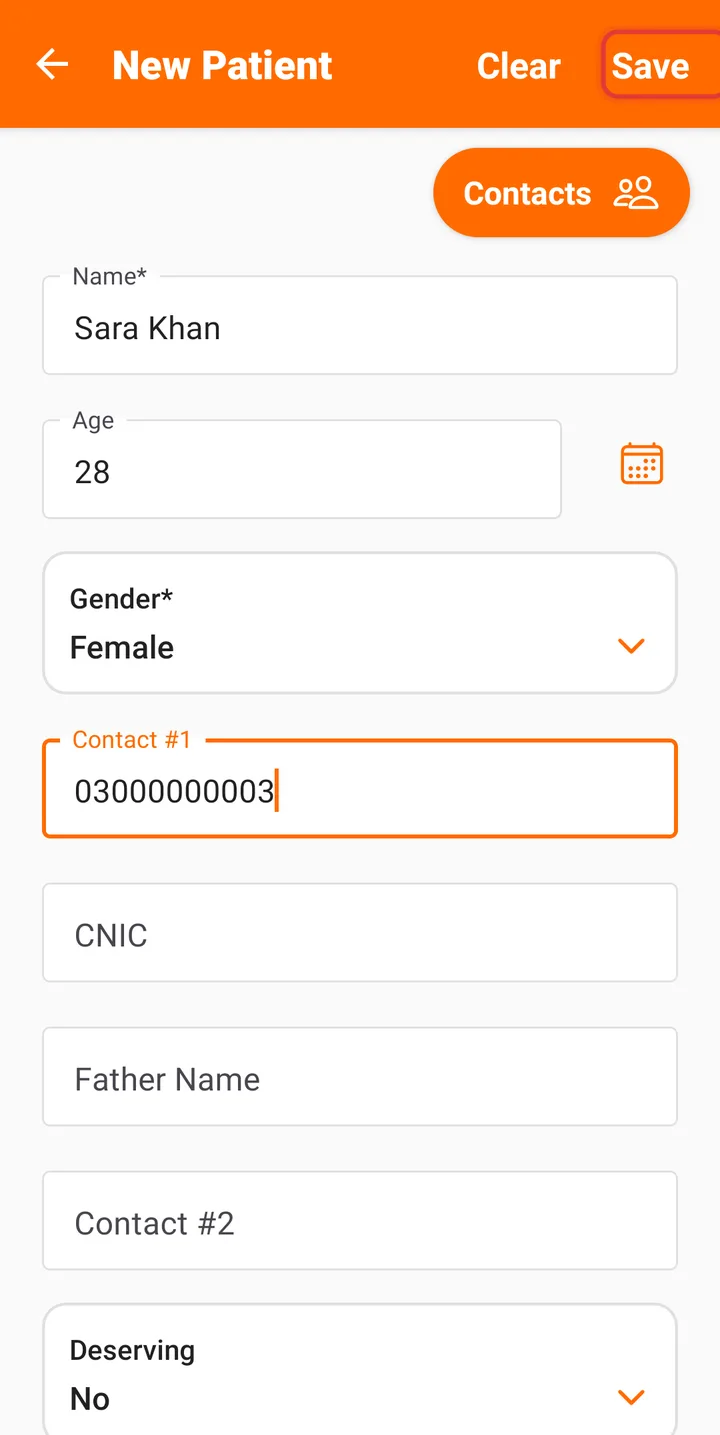
Step 3: Tap Save at the top right.
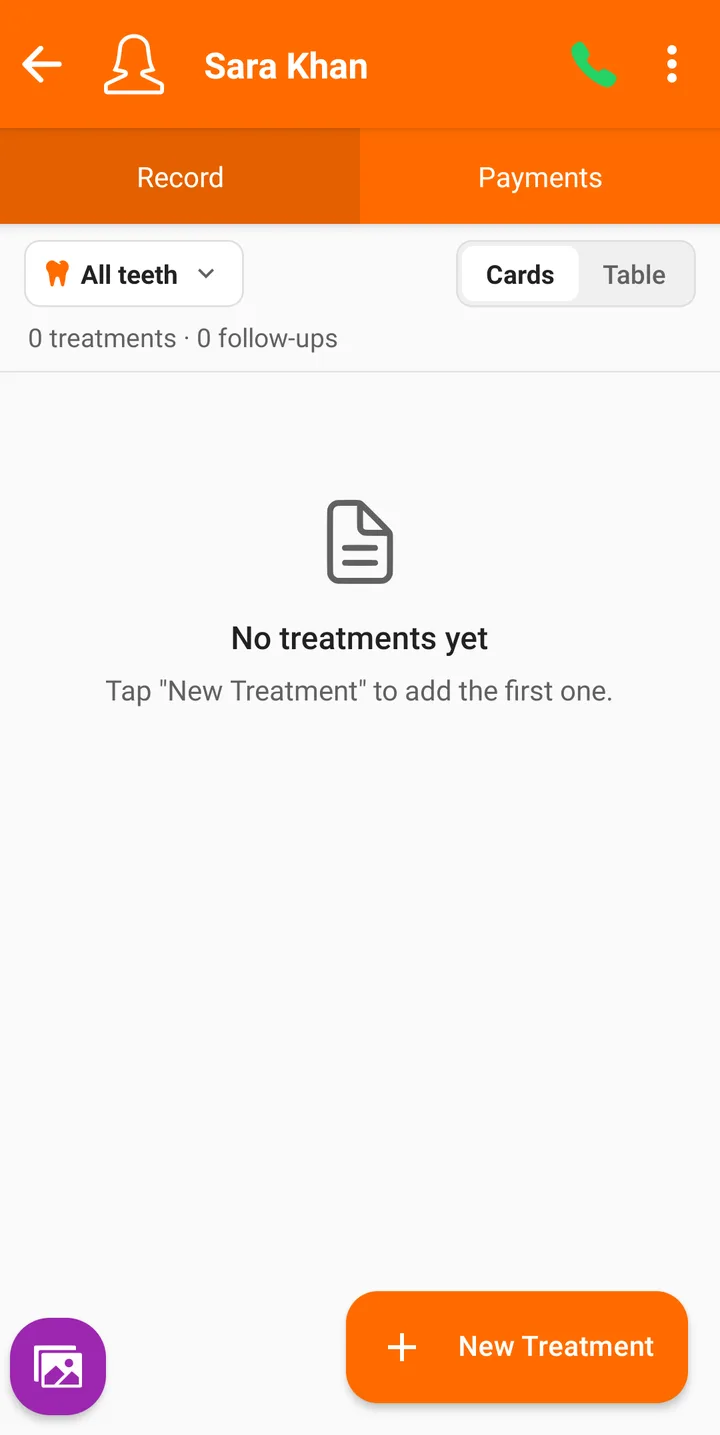
Step 4: The patient's file opens, ready for their first treatment.
Prefer video?
Related guides
Still stuck? Contact us or browse all guides.