How do I edit a patient's details?
Open the patient, click their name at the top of their page, click Edit, change the details and click Save.
5 steps · Desktop and mobile · Updated
Step 1: In the patient list on the Home screen, click the patient's name.
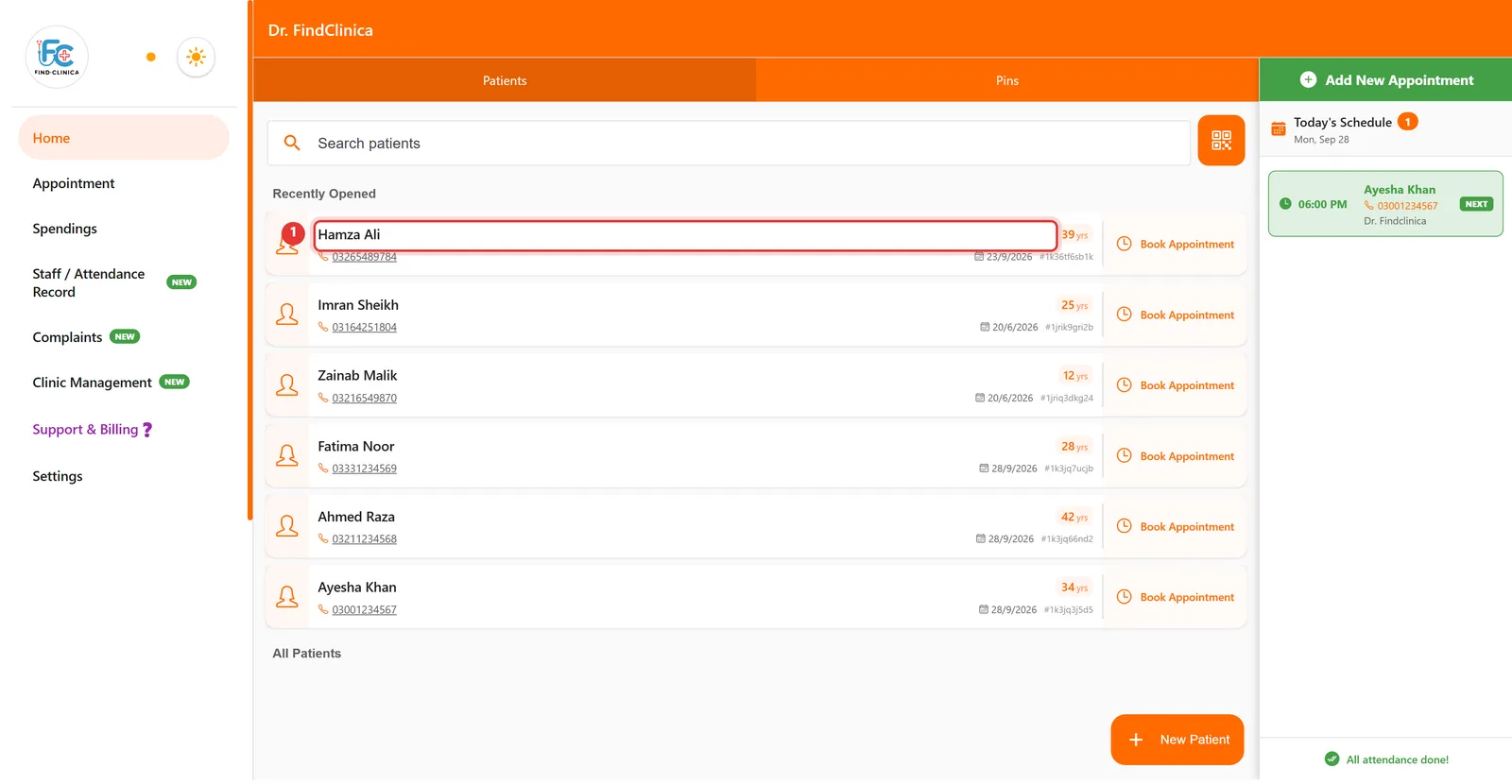
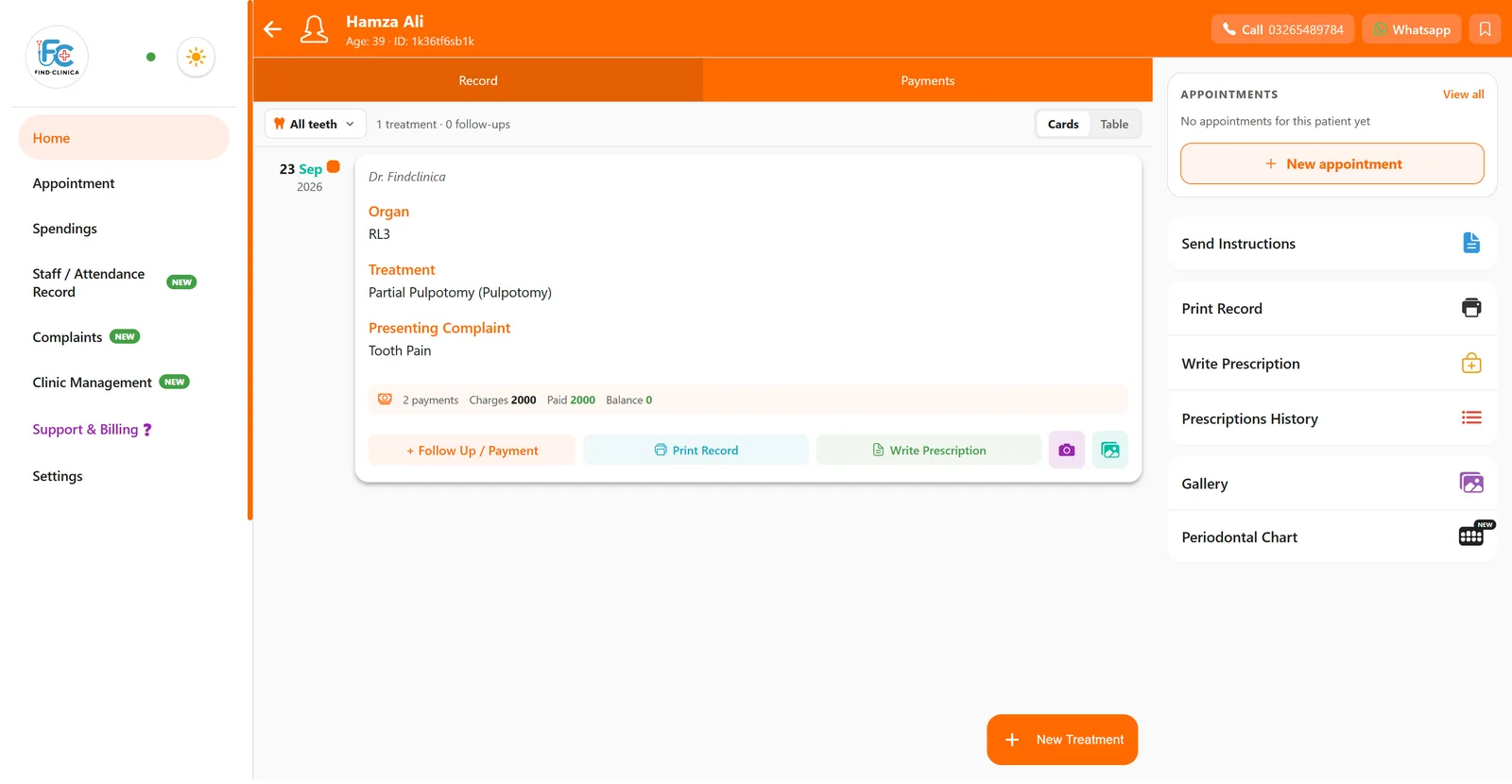
Step 2: On the patient's page, click their name in the orange header.

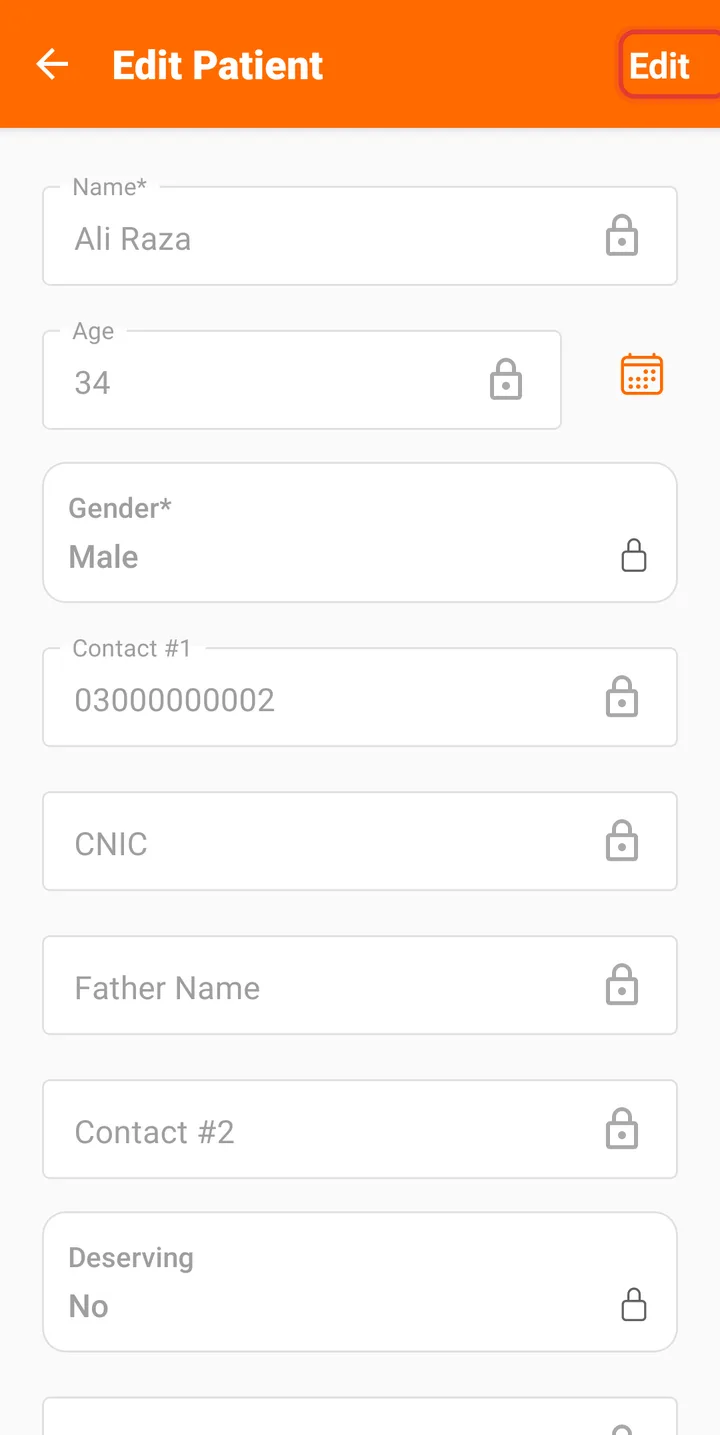
Step 3: The Edit Patient screen opens with the fields locked. Click Edit at the top right to unlock them.

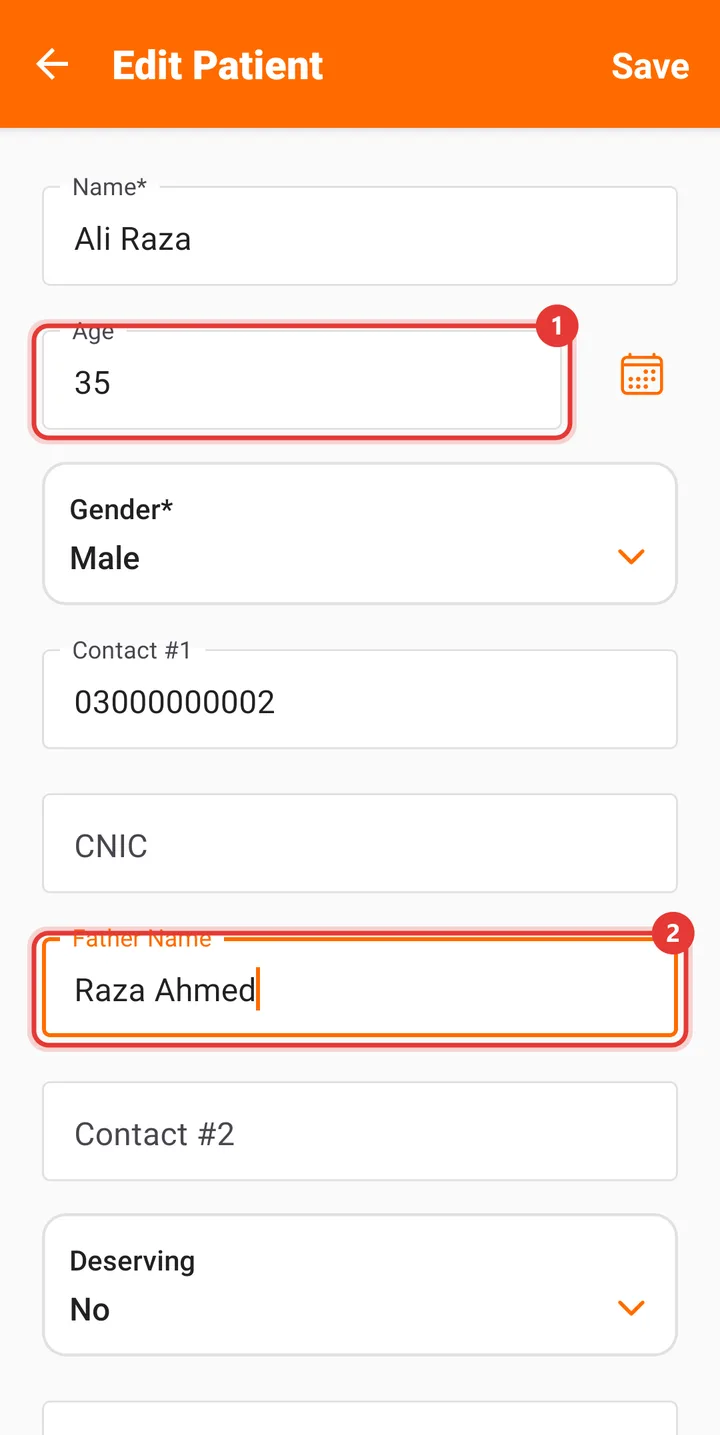
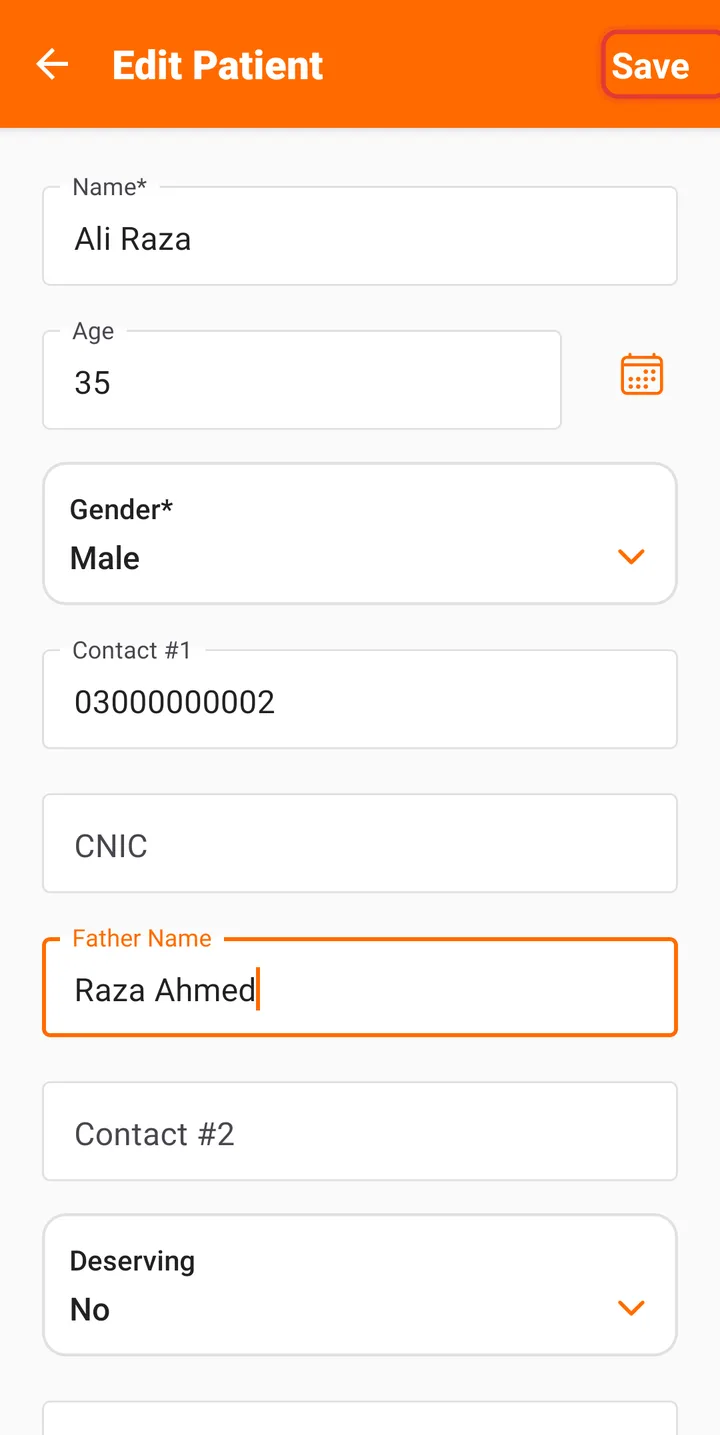
Step 4: Change the details you need — here, the age — then click Save.

Step 5: The patient's page shows the updated details.
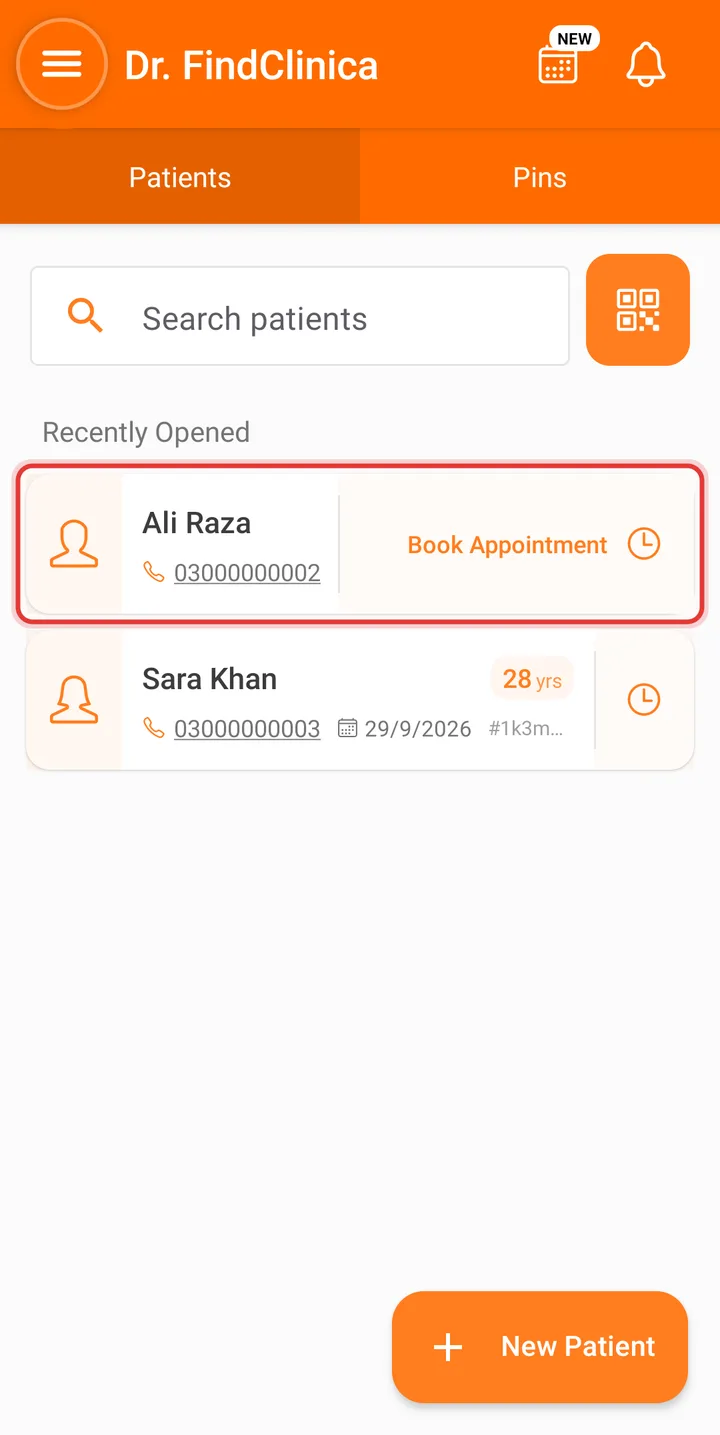
Step 1: Open the patient from the list.
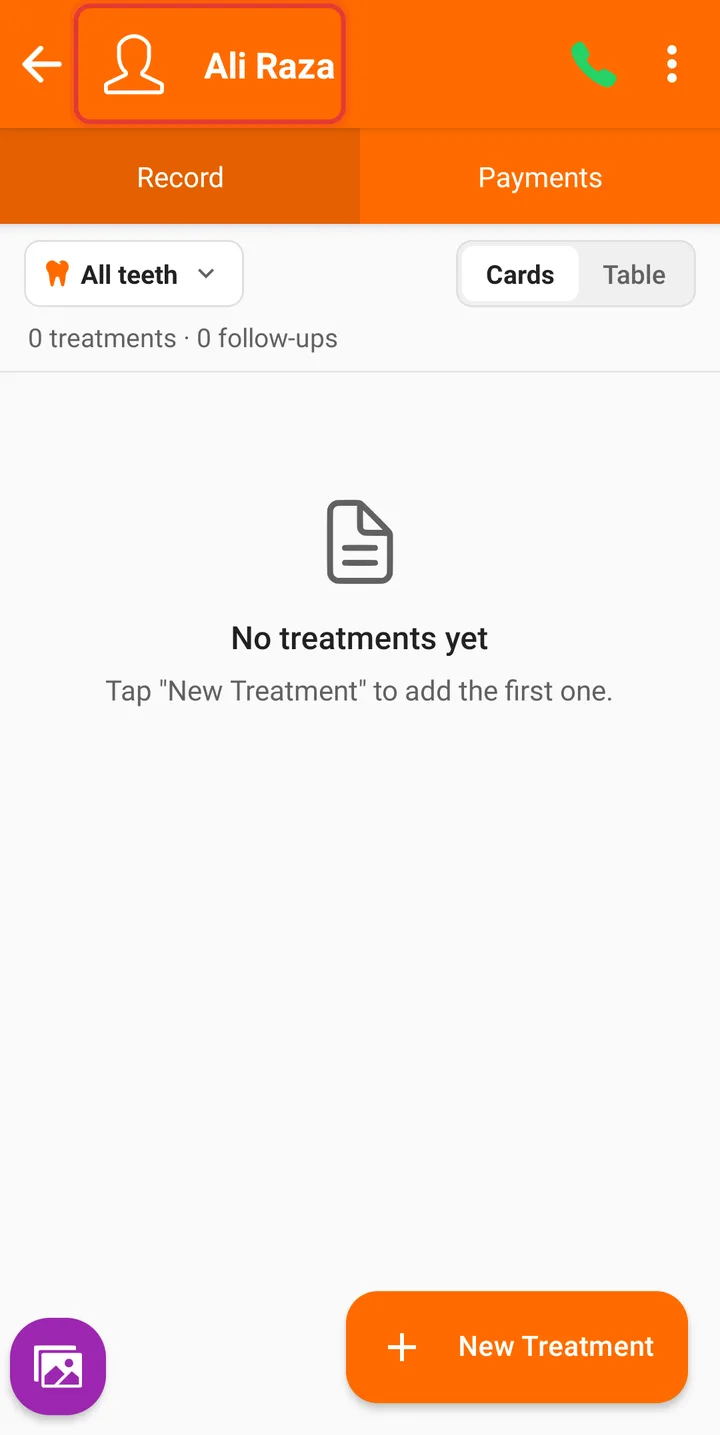
Step 2: Tap the patient's name in the orange header.
Step 3: Edit Patient opens with the fields locked. Tap Edit at the top right.
Step 4: Change what you need — here the Age and the Father Name.
Step 5: Tap Save. The patient list shows the new details straight away.
Related guides
Still stuck? Contact us or browse all guides.