How do I create a new appointment?
Click Add New Appointment on the home screen, pick the doctor, date and a free time slot, enter the patient's name and phone number, then click Save.
4 steps · Desktop and mobile · Updated
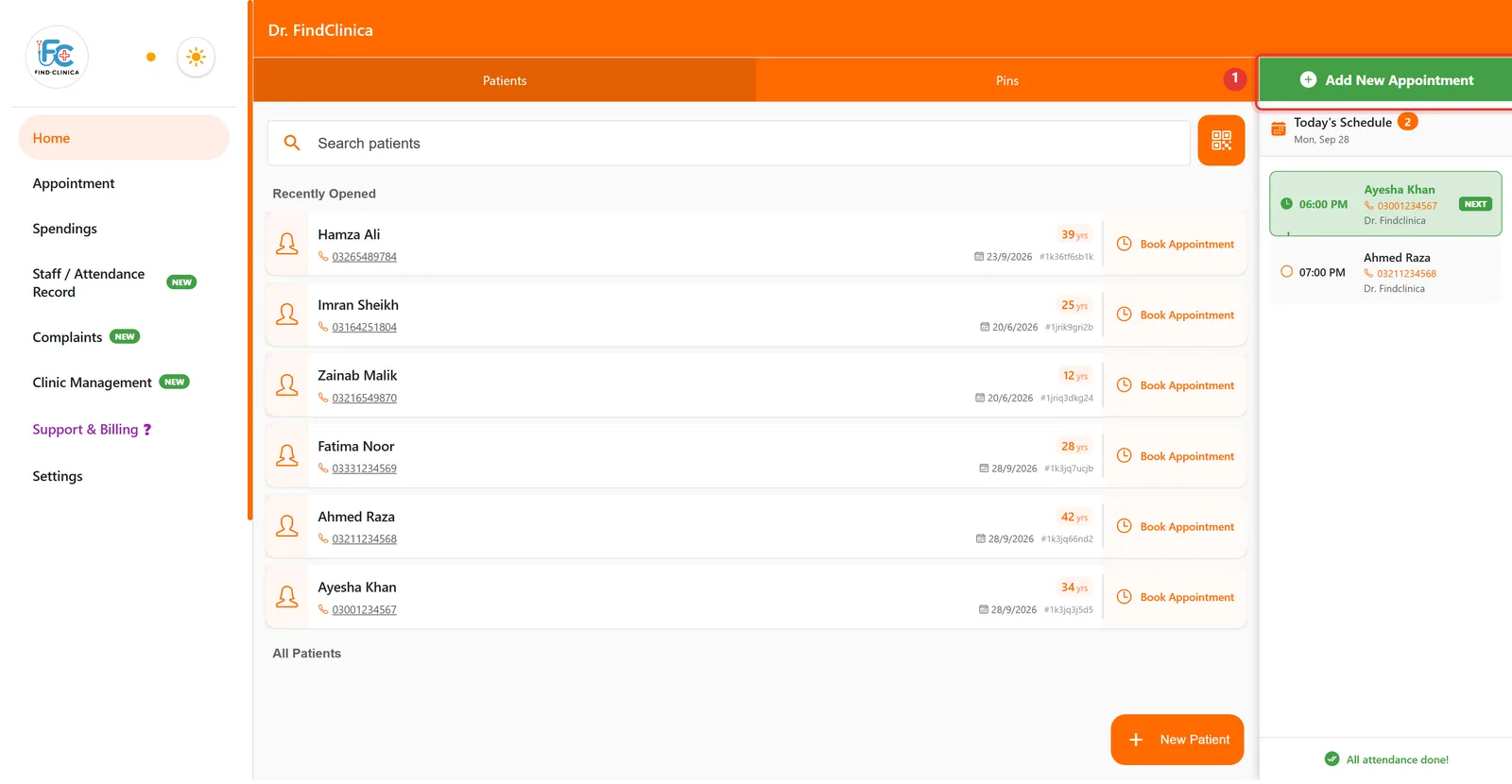
Step 1: On the Home screen, click the green Add New Appointment button.
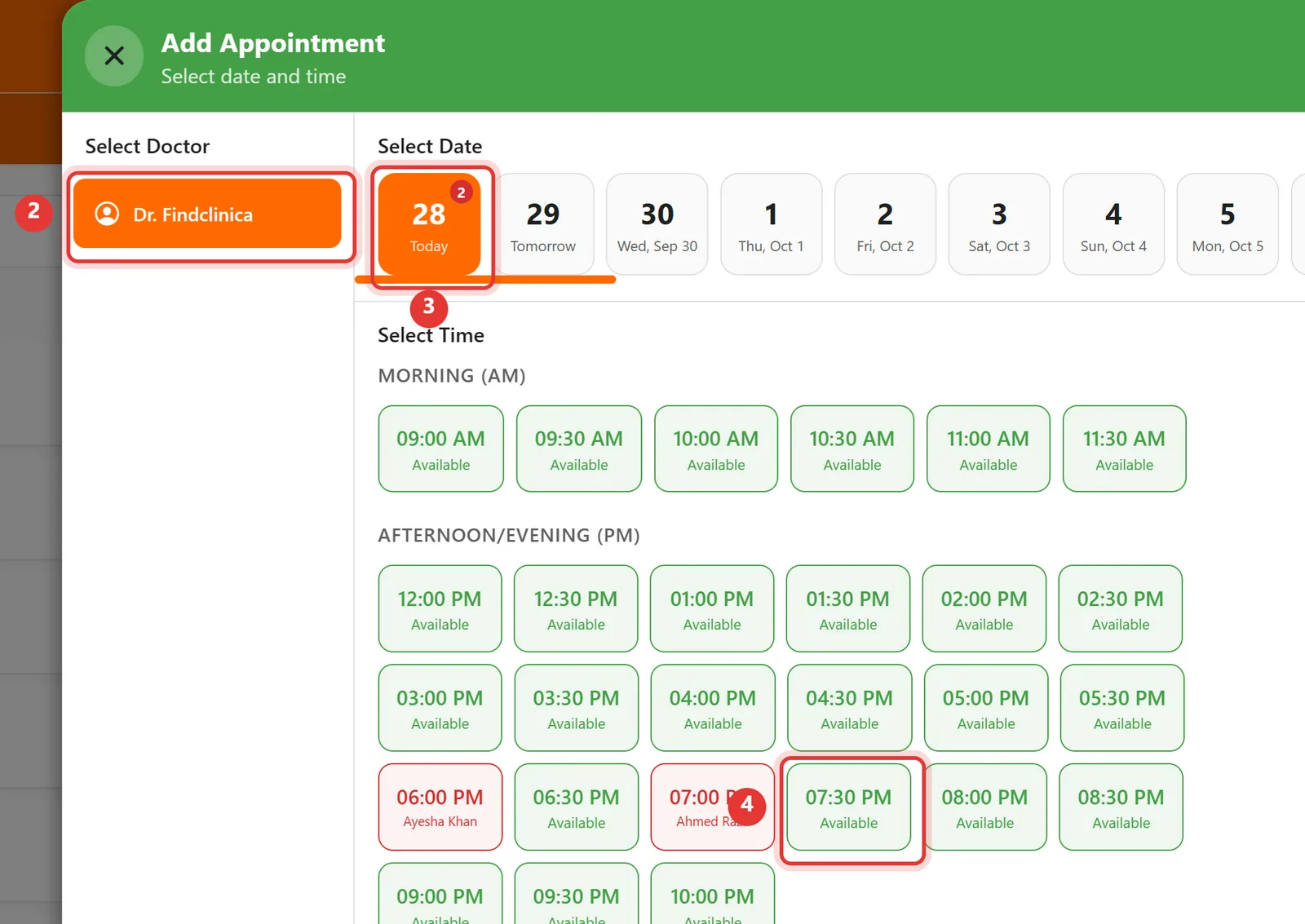
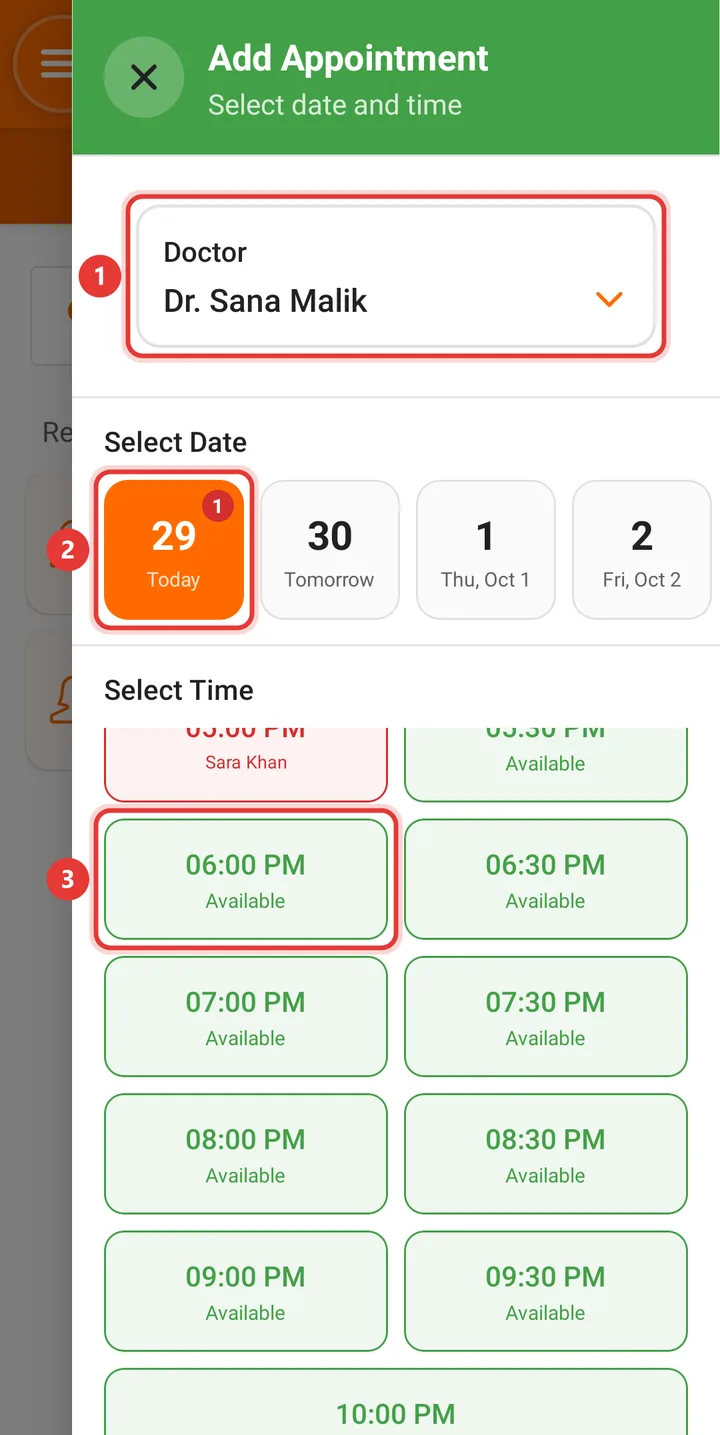
Step 2: Choose the doctor, the date, and a time slot marked Available. Booked slots are shown in red with the patient's name.
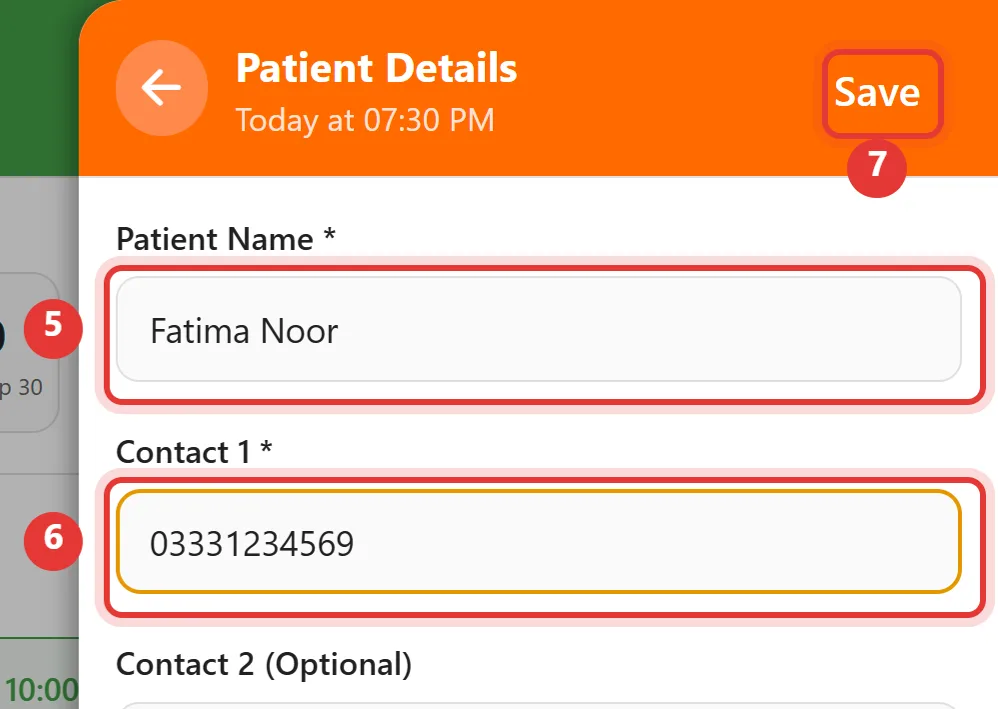
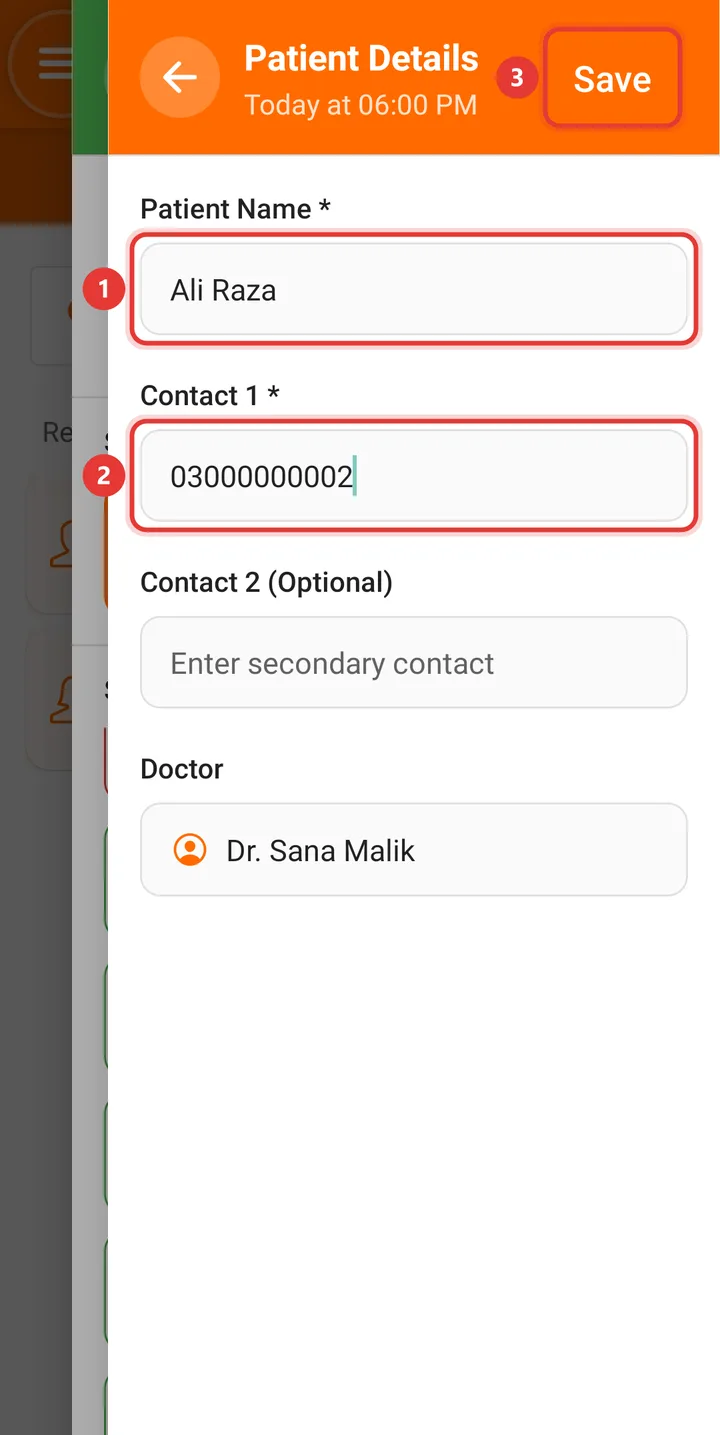
Step 3: Enter the Patient Name and Contact 1, then click Save.
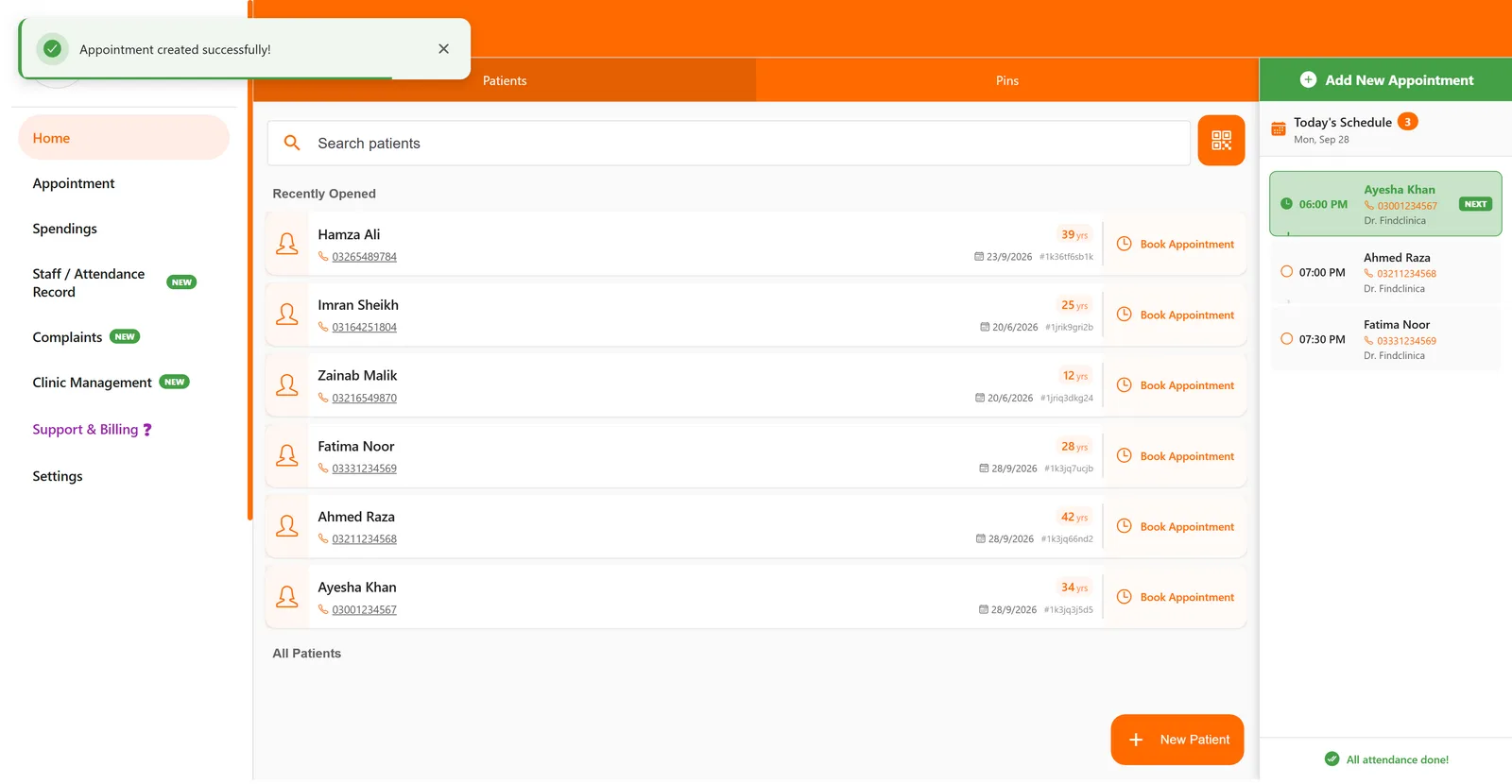
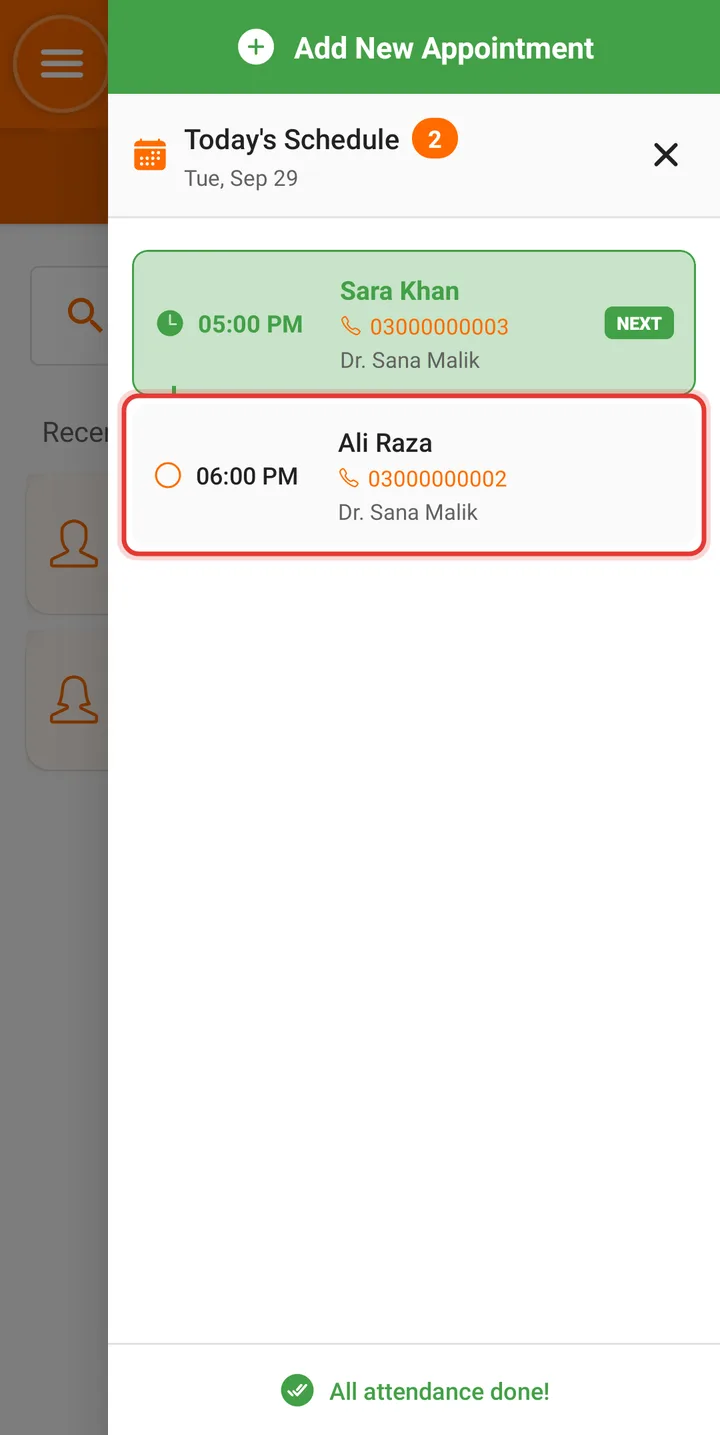
Step 4: You'll see Appointment created successfully!, and today's appointments appear in Today's Schedule on the right.
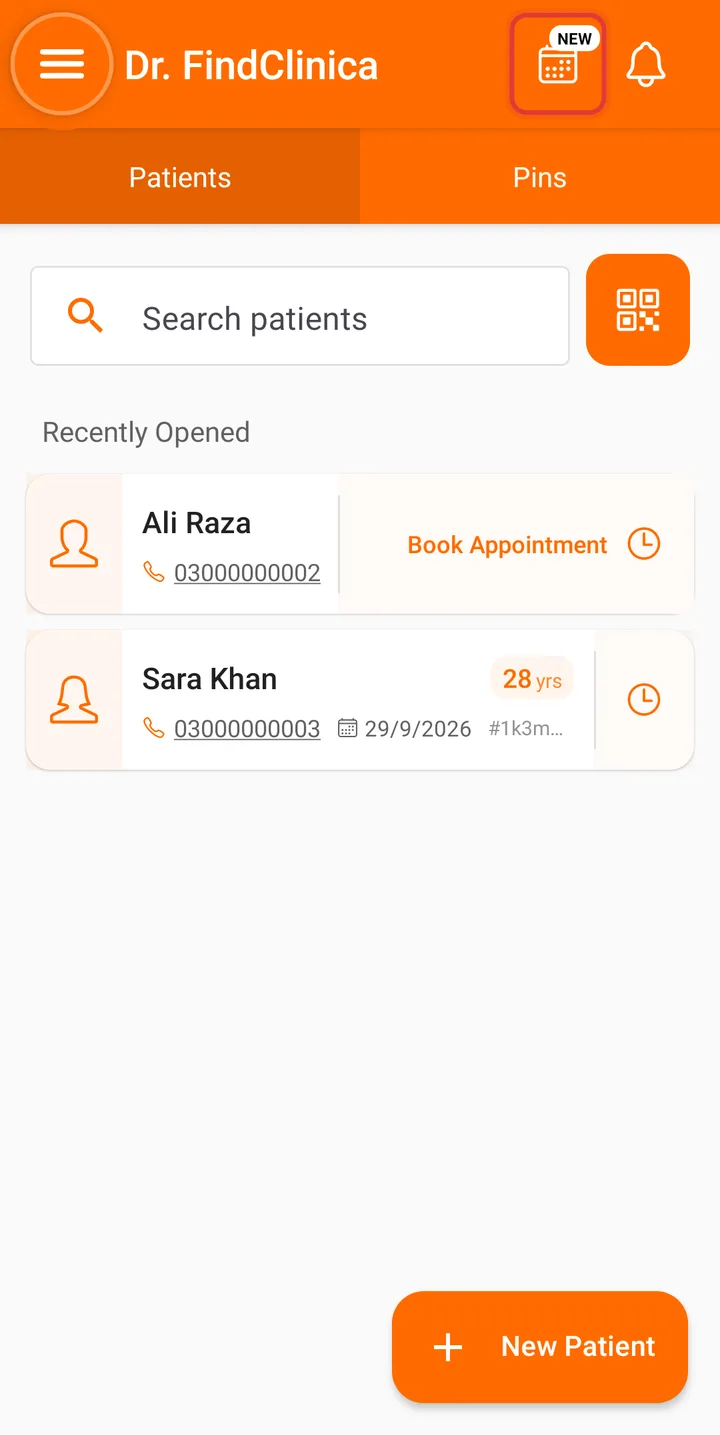
Step 1: On the home screen, tap the calendar button at the top right.
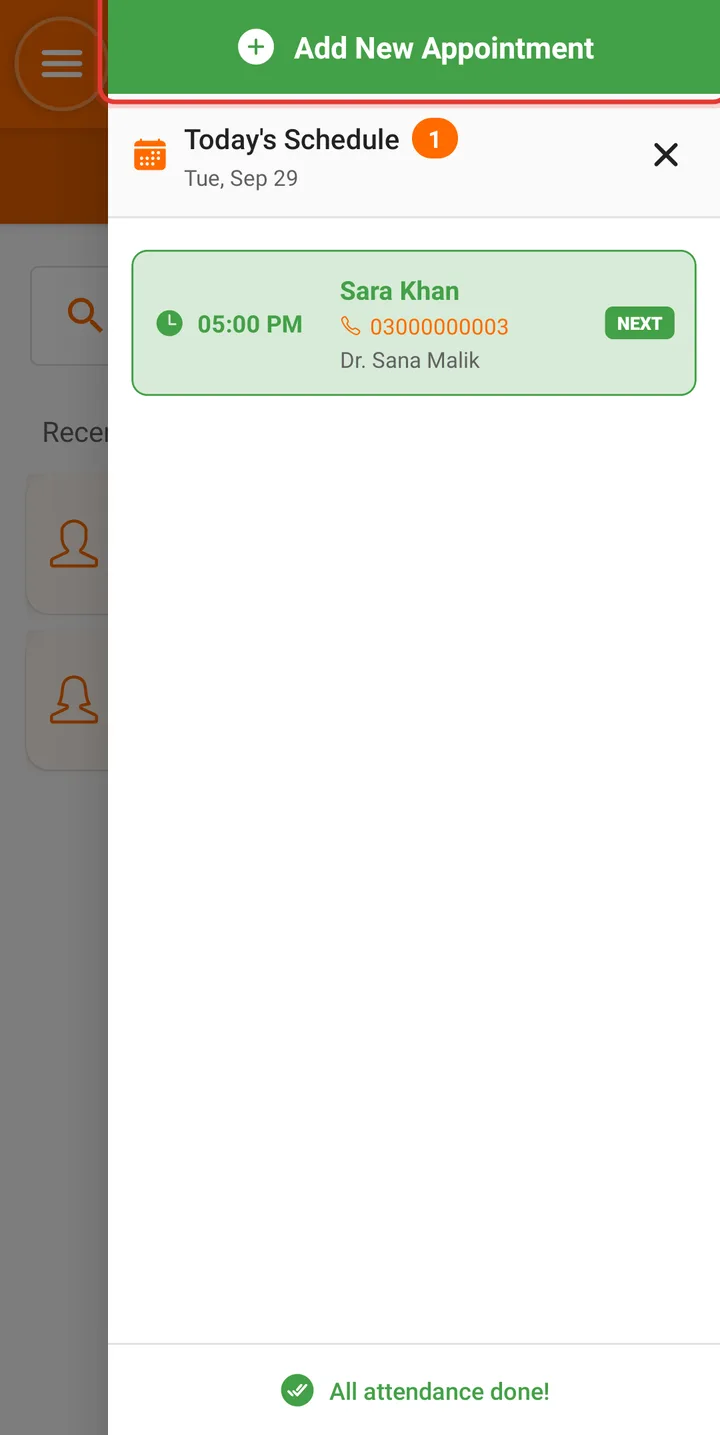
Step 2: Tap the green Add New Appointment button.
Step 3: Check the Doctor, pick the date, then tap a green Available time. Booked times are red with the patient's name.
Step 4: Enter the Patient Name and Contact 1, then tap Save.
Step 5: The appointment appears in Today's Schedule.
Good to know
- Earlier times today are shown as Passed and can't be booked.
Prefer video?
Related guides
Still stuck? Contact us or browse all guides.