How do I add a follow-up visit or payment?
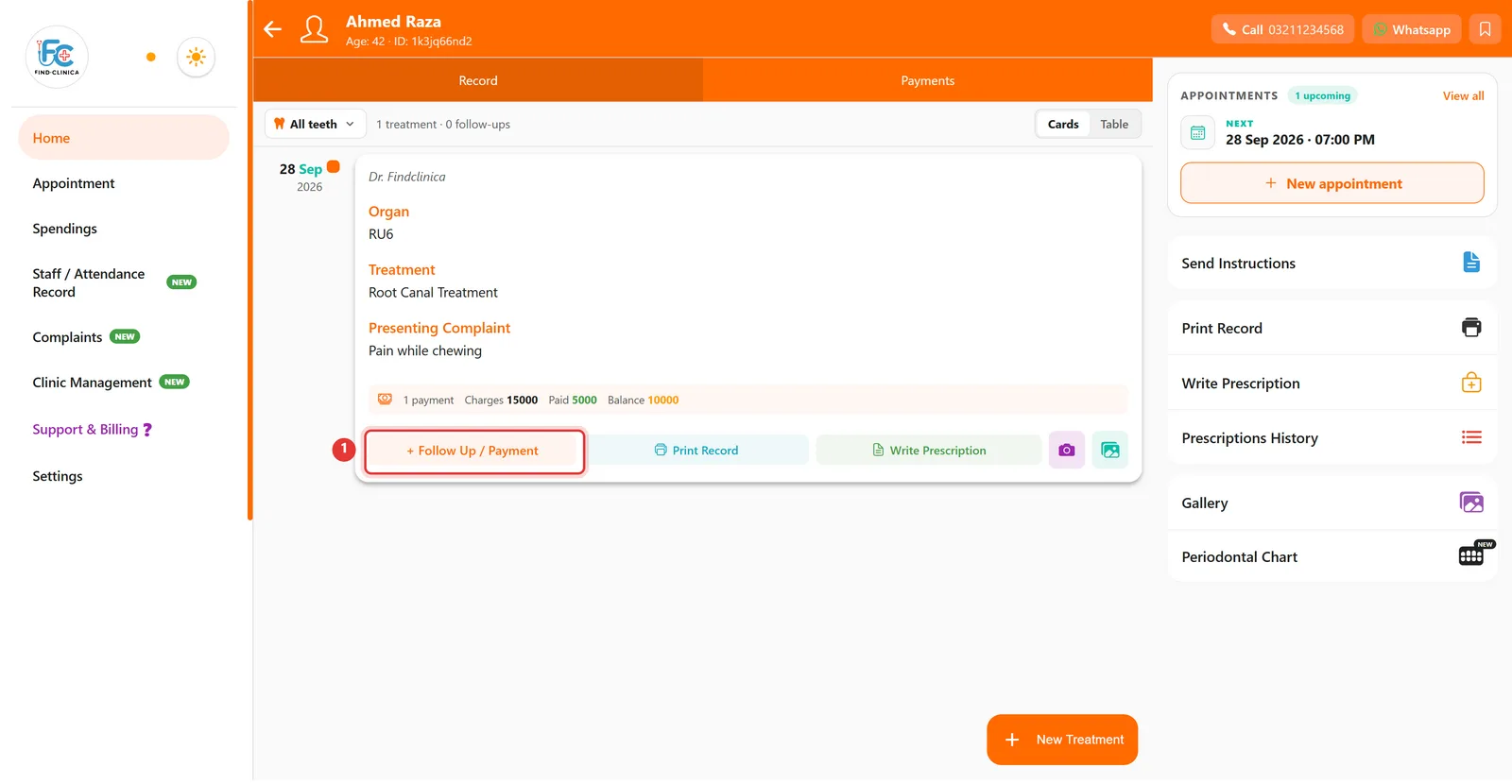
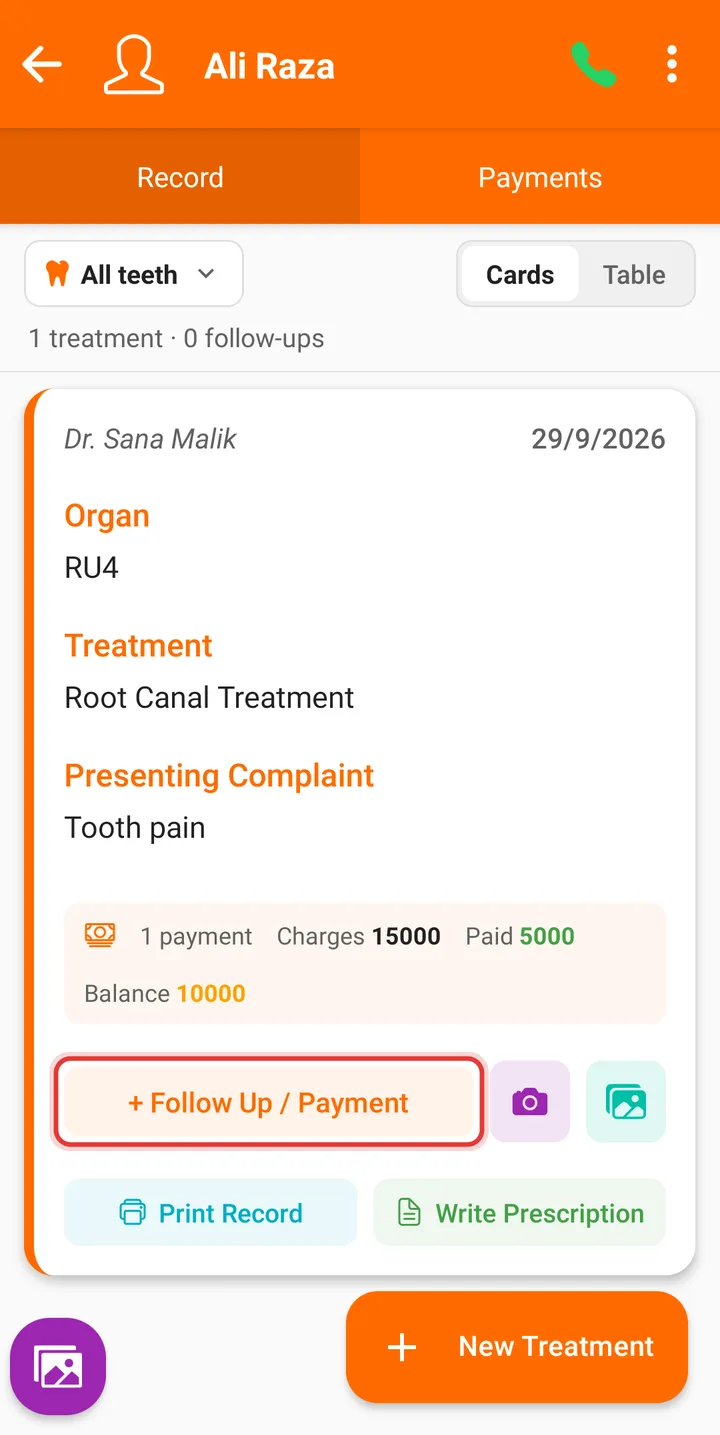
On the treatment card, click Follow Up / Payment, note what was done, enter the Amount Paid, then click Save. The card's balance updates automatically.
5 steps · Desktop and mobile · Updated
Step 1: Open the patient and, on the treatment card, click + Follow Up / Payment.
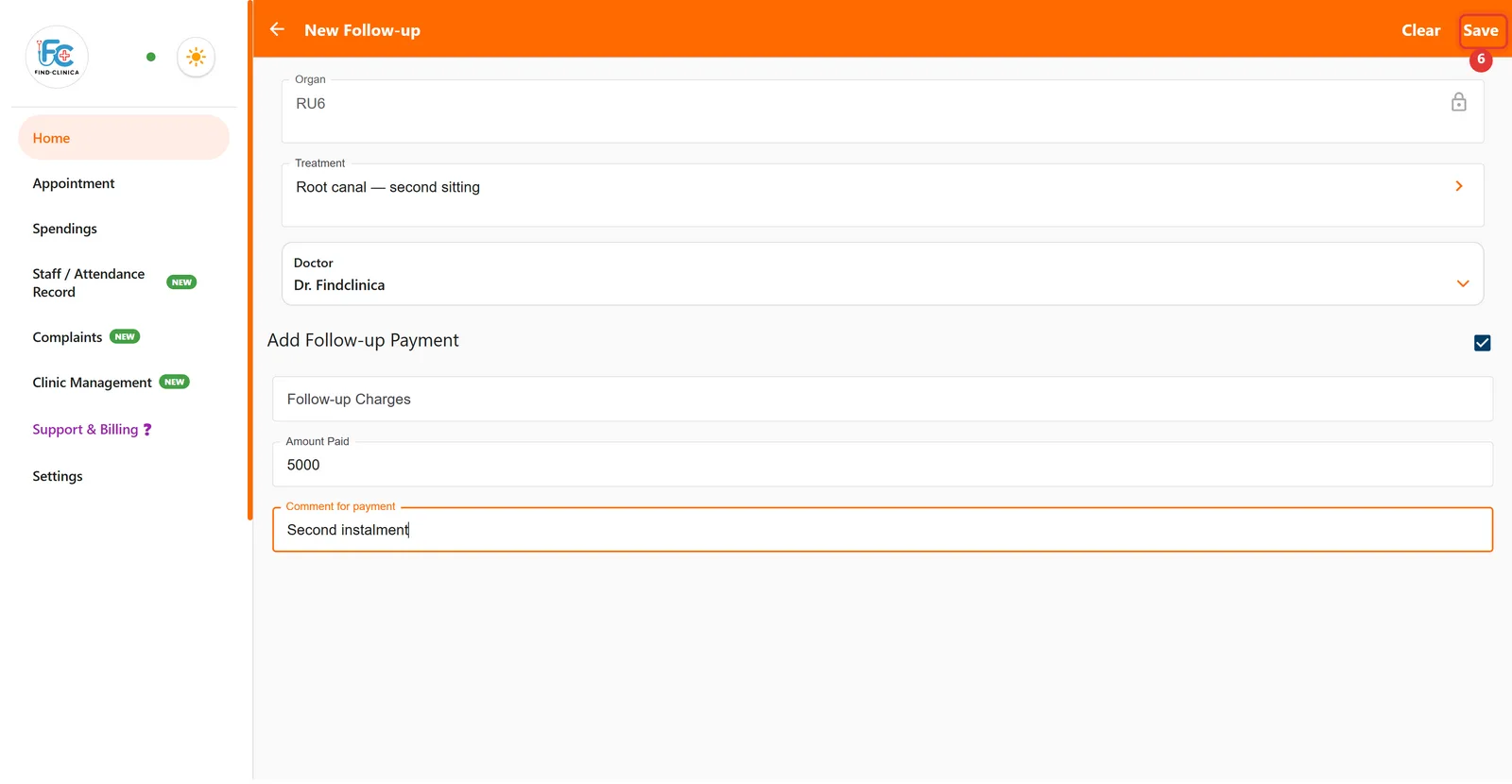
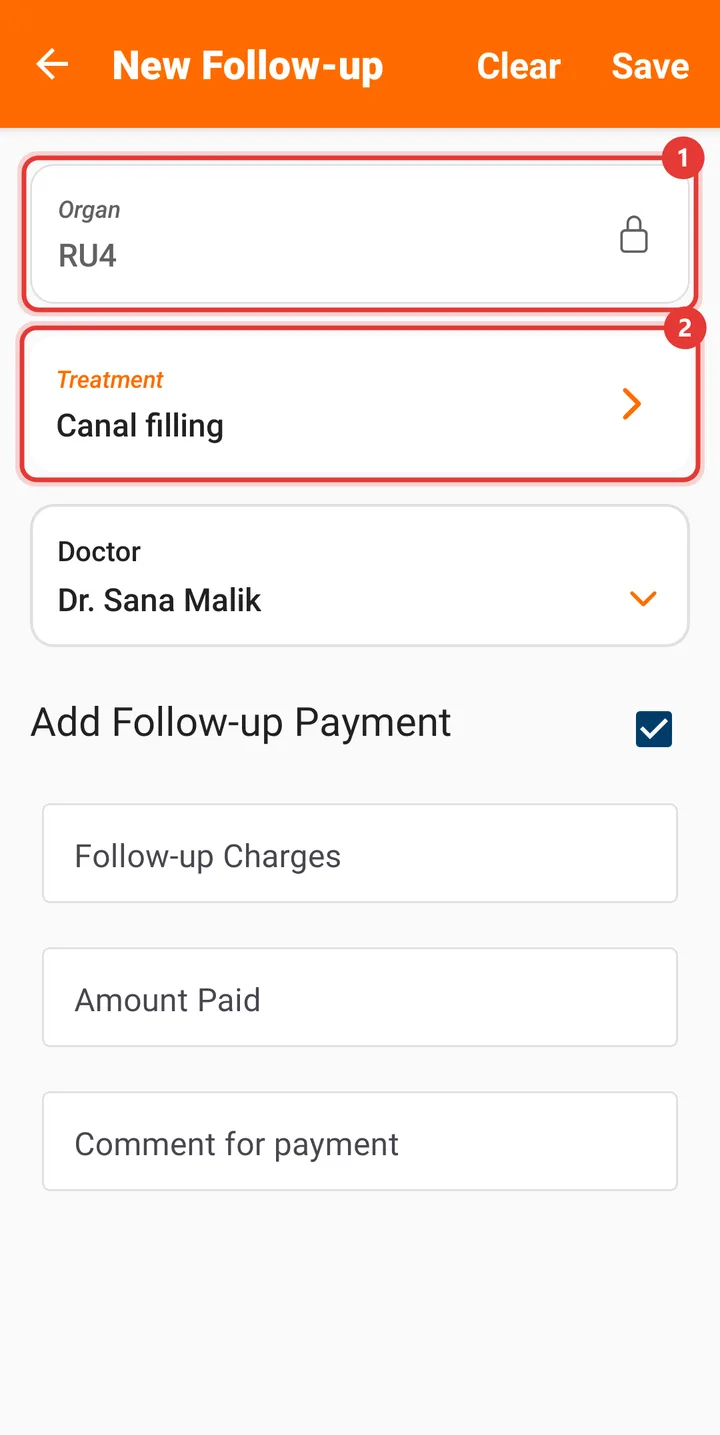
Step 2: The Organ is filled in from the original treatment. Type what was done at this visit in Treatment.

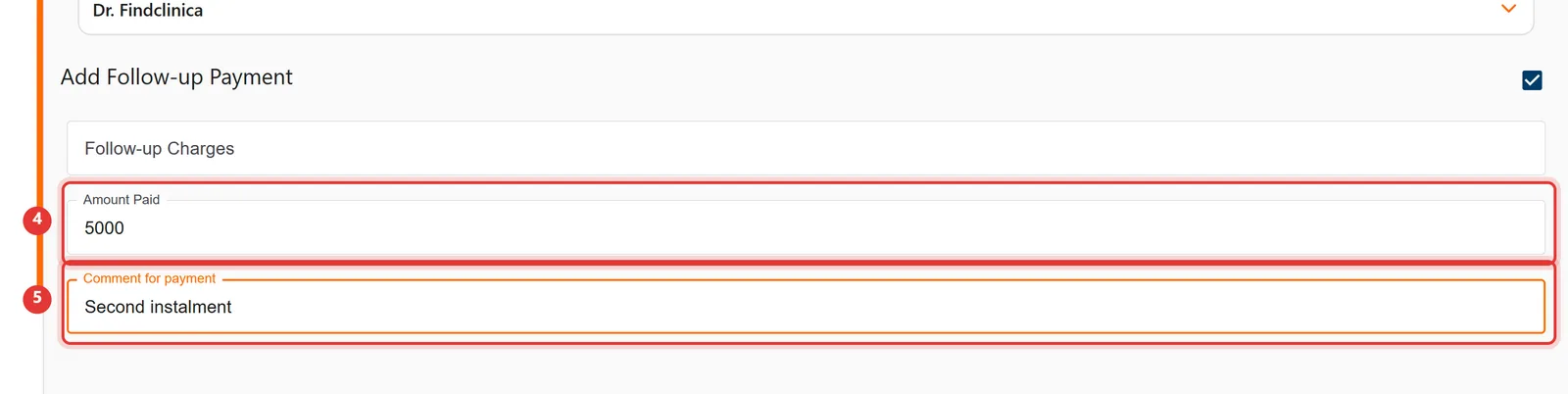
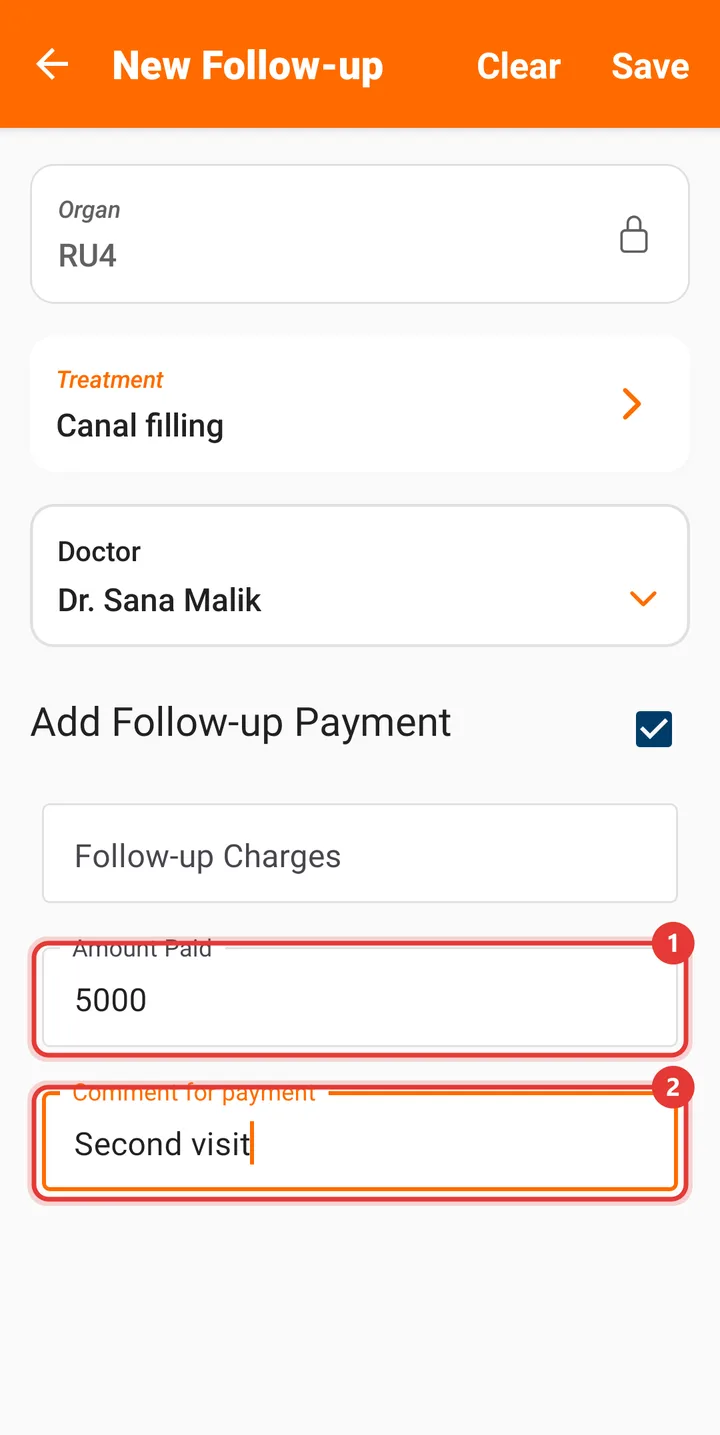
Step 3: Enter the Amount Paid today. Add a Comment for payment if you like.
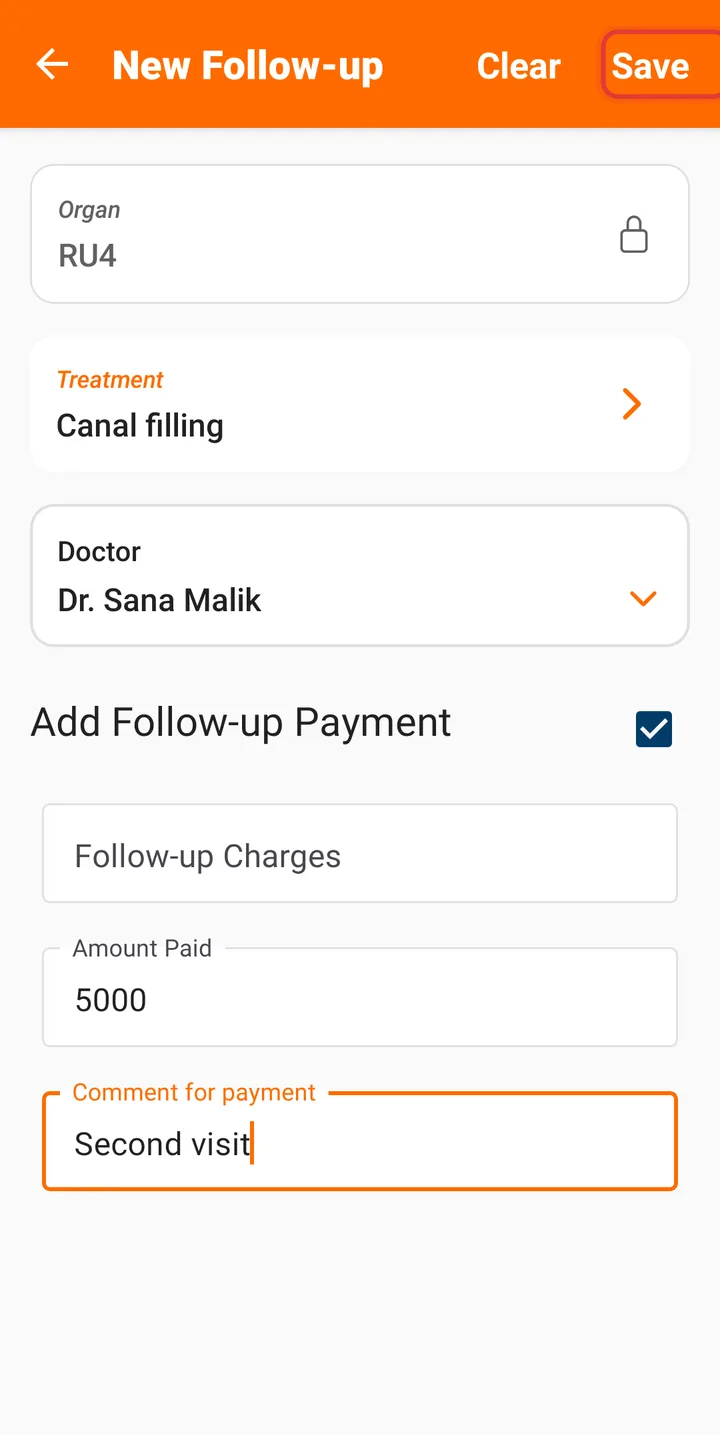
Step 4: Click Save at the top right.
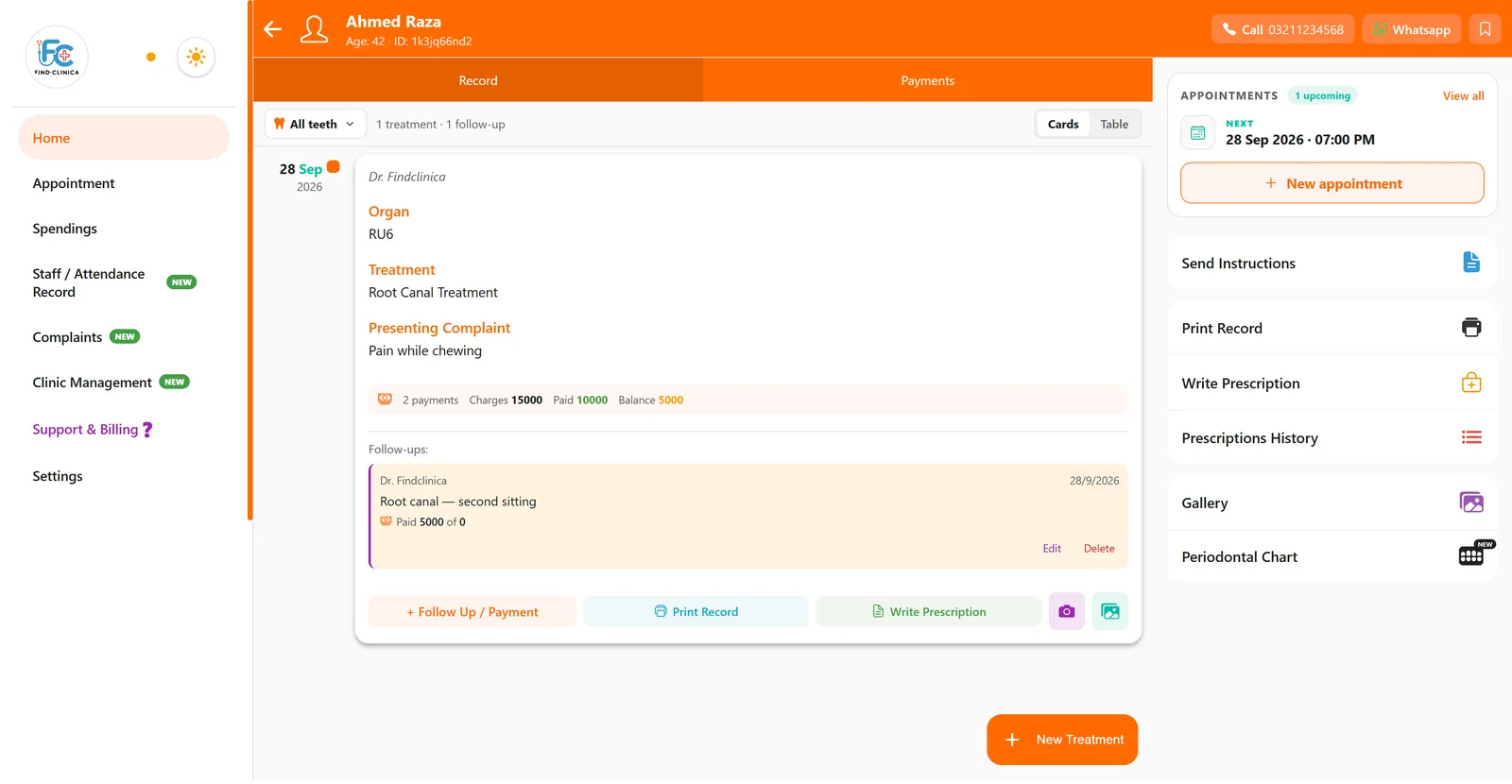
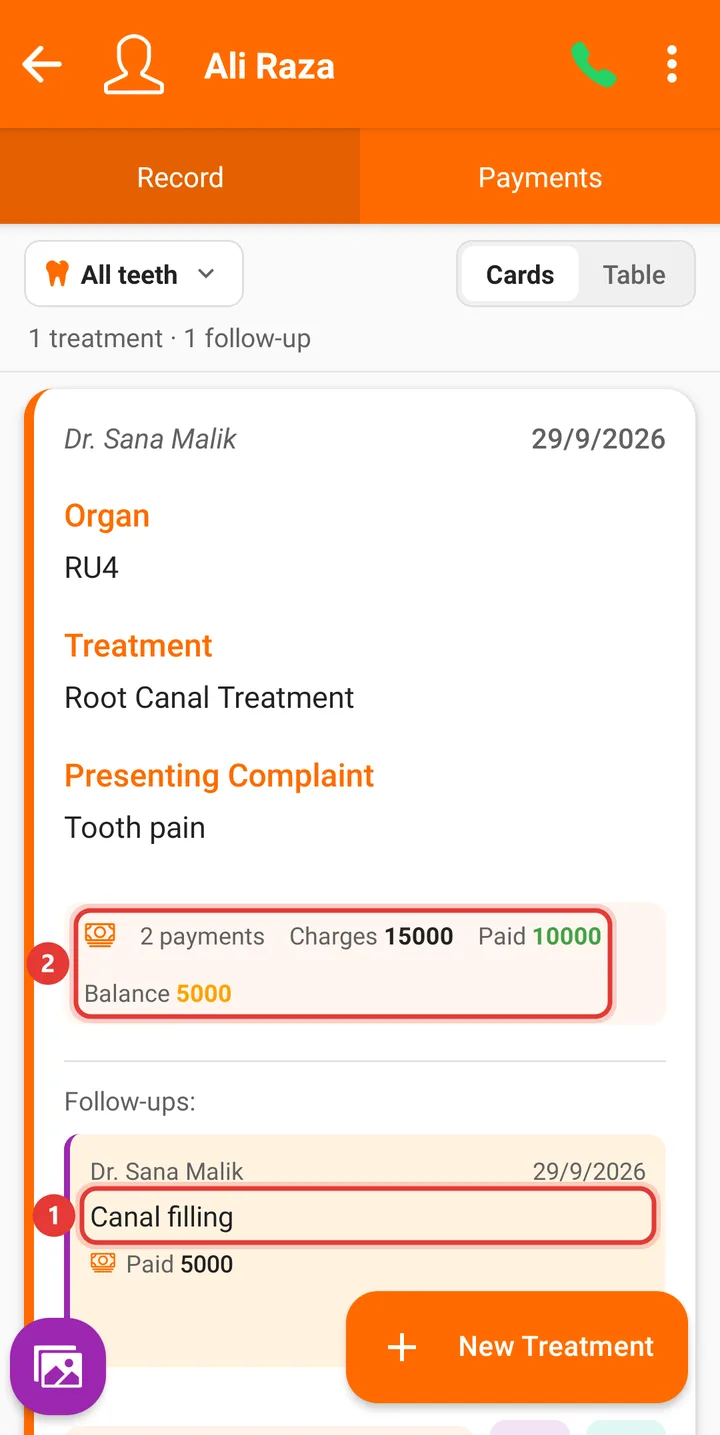
Step 5: The follow-up appears under the treatment, and the card's Paid and Balance totals update.
Good to know
- Use Follow-up Charges only if this visit adds a new cost on top of the original charges.
- Each follow-up has Edit and Delete links on the card.
Step 1: On the treatment card, tap + Follow Up / Payment.
Step 2: The Organ comes from the treatment. Tap Treatment and type what was done at this visit.
Step 3: Enter the Amount Paid today and, if you like, a Comment for payment.
Step 4: Tap Save.
Step 5: The follow-up appears under the treatment, and the card's Paid and Balance update.
Related guides
Still stuck? Contact us or browse all guides.