How do I record a periodontal chart?
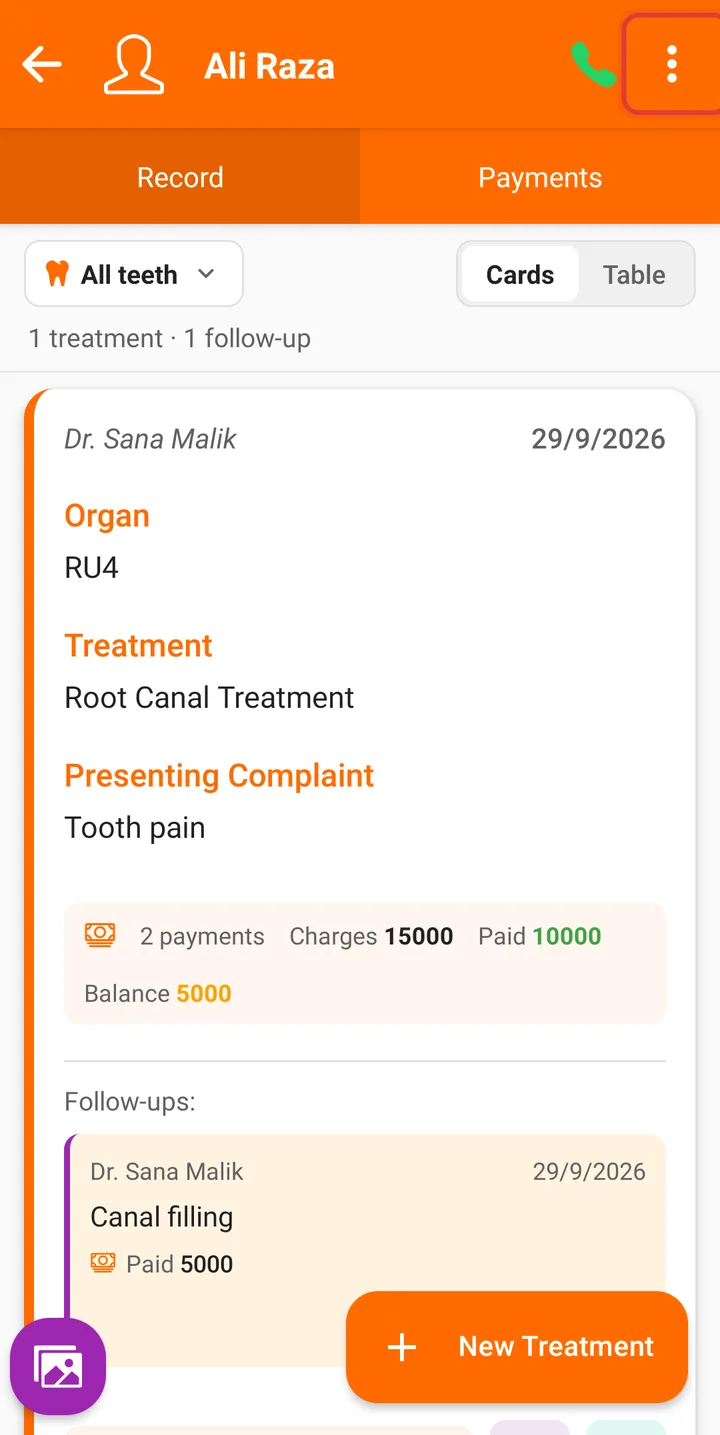
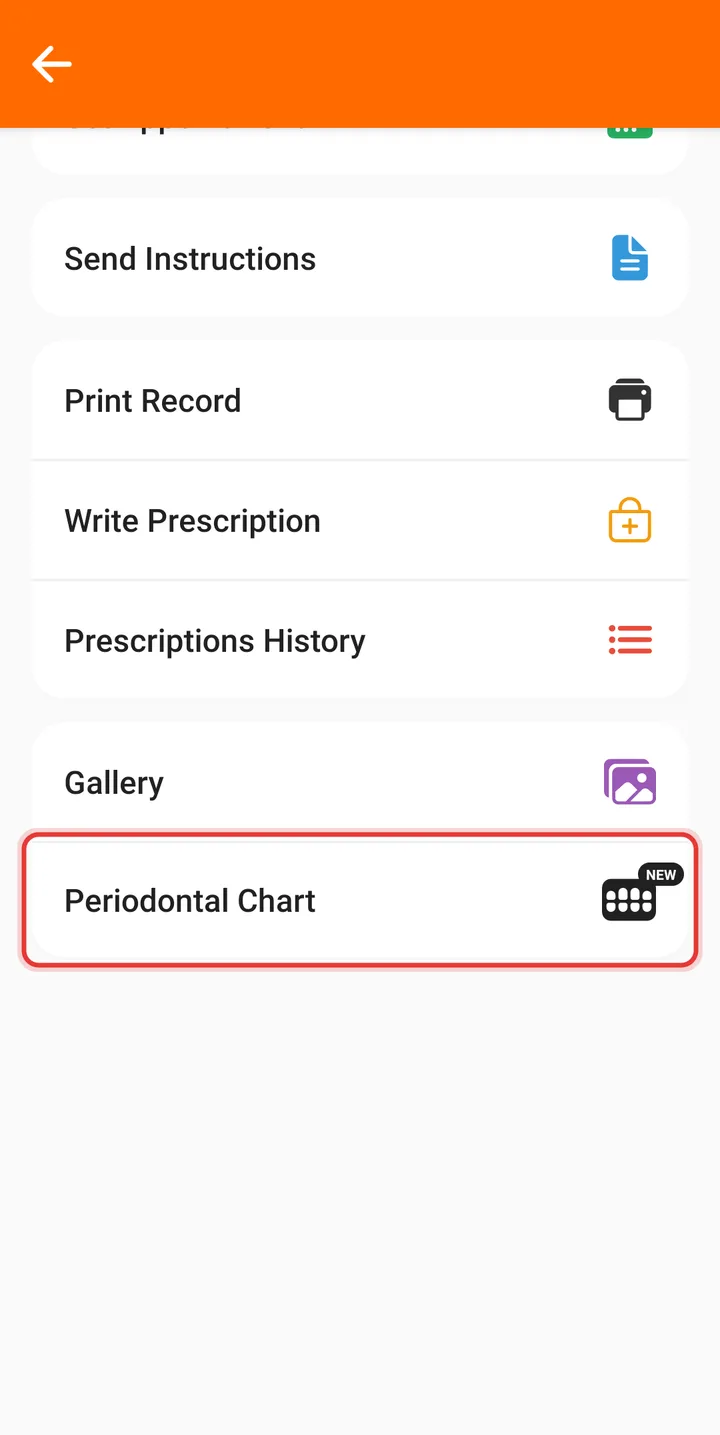
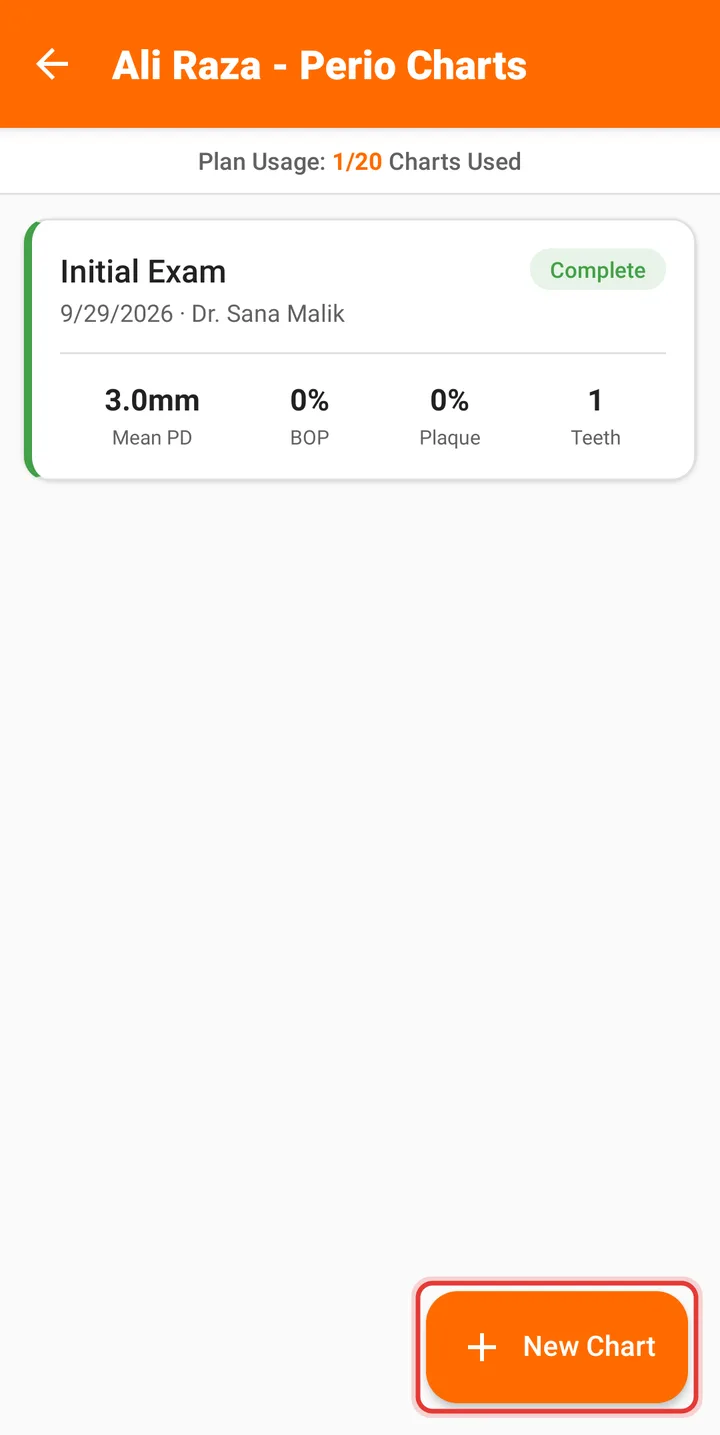
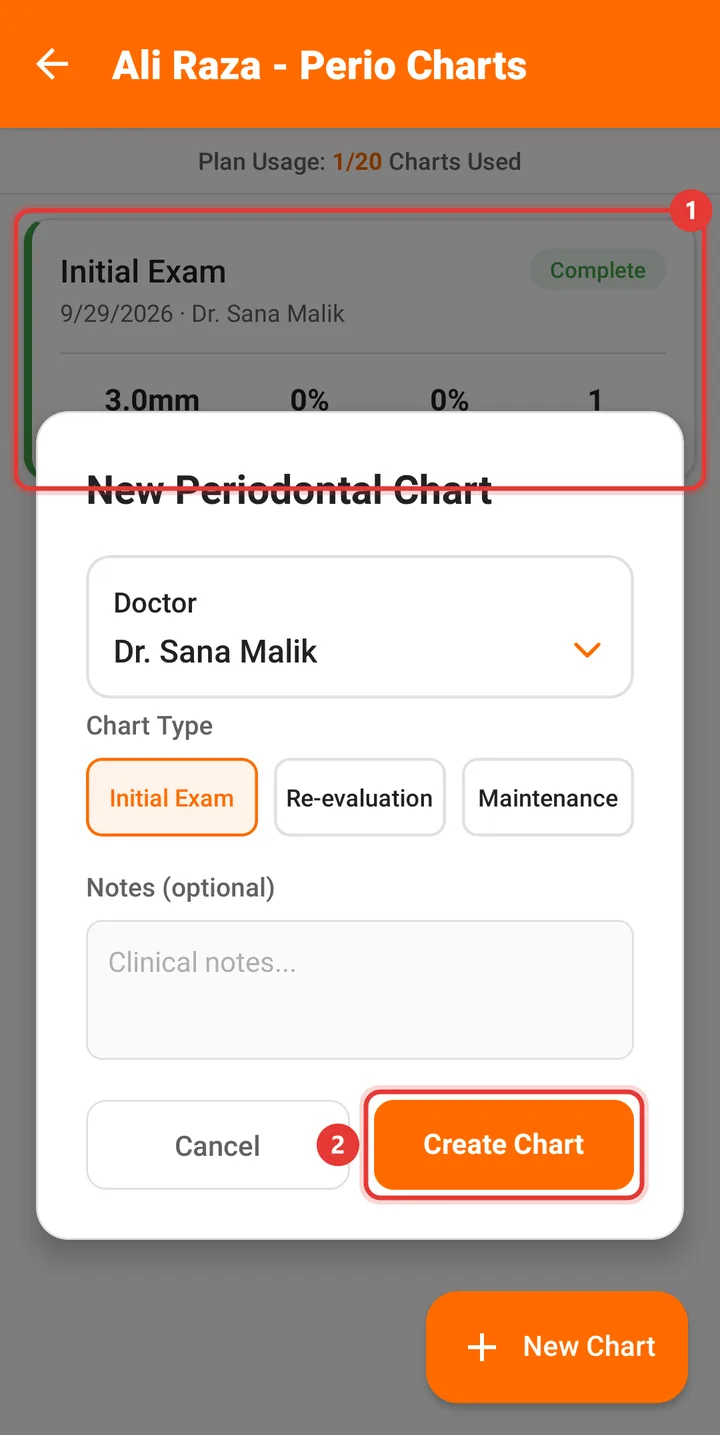
Open the patient, tap ⋮ → Periodontal Chart, tap New Chart, choose the chart type and tap Create Chart. Tap any box to enter a value from the colour-coded picker, then tap Save.
7 steps · Mobile app · Updated
Step 1: Open the patient and tap ⋮ at the top right.
Step 2: Tap Periodontal Chart.
Step 3: Tap New Chart.
Step 4: Choose the Chart Type — here Initial Exam — and tap Create Chart.
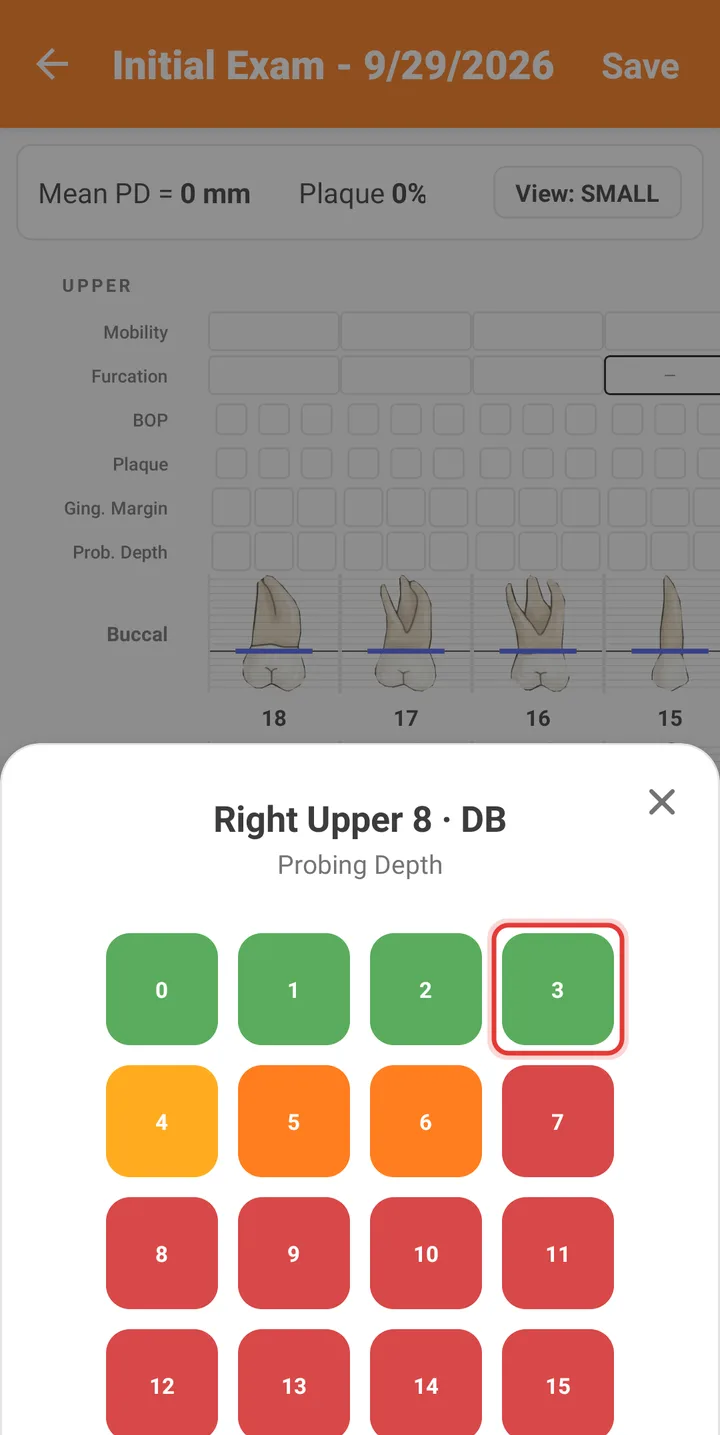
Step 5: Tap a box and pick the value. Green is healthy; orange and red need attention.
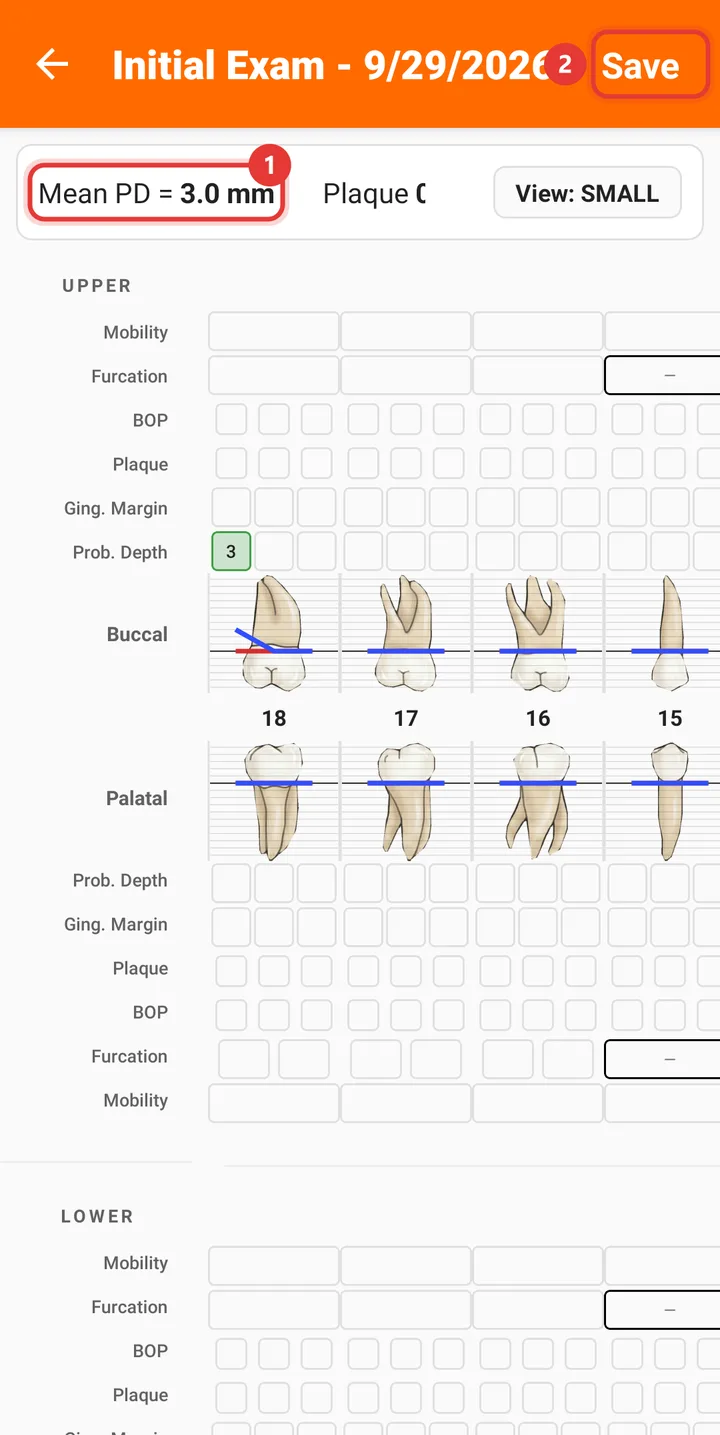
Step 6: Mean PD and Plaque update as you go. Tap Save when you're done.
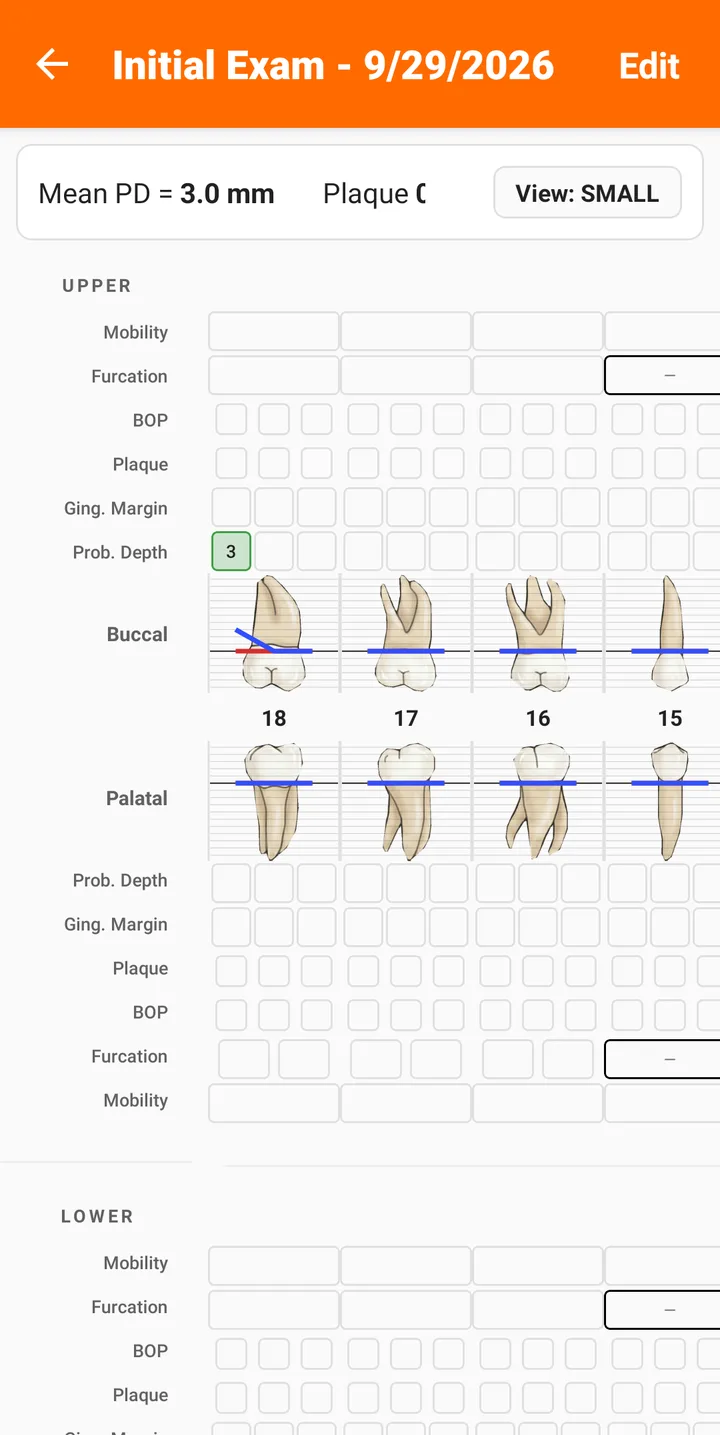
Step 7: The chart is saved. Tap Edit to change it later.
Good to know
- Swipe the chart sideways to reach the other teeth.
- The chart list shows how many charts your plan has used, e.g. 1/20 Charts Used.
Related guides
Still stuck? Contact us or browse all guides.