How do I add a staff member?
Open Staff / Attendance Record, click New Staff, enter the name and contact number, choose the role and weekly off days, enter the salary, then click Save.
7 steps · Desktop and mobile · Updated
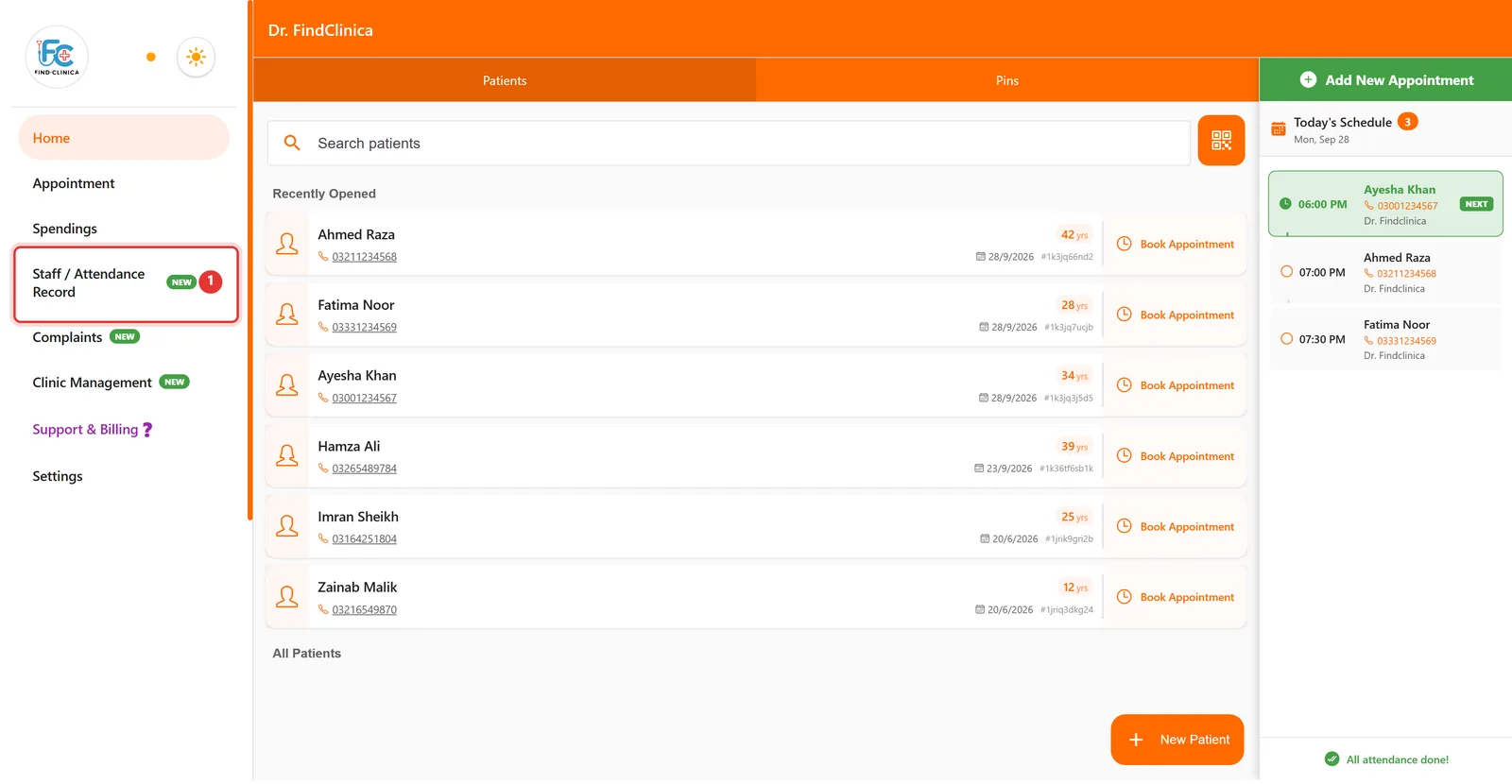
Step 1: Click Staff / Attendance Record in the left menu.
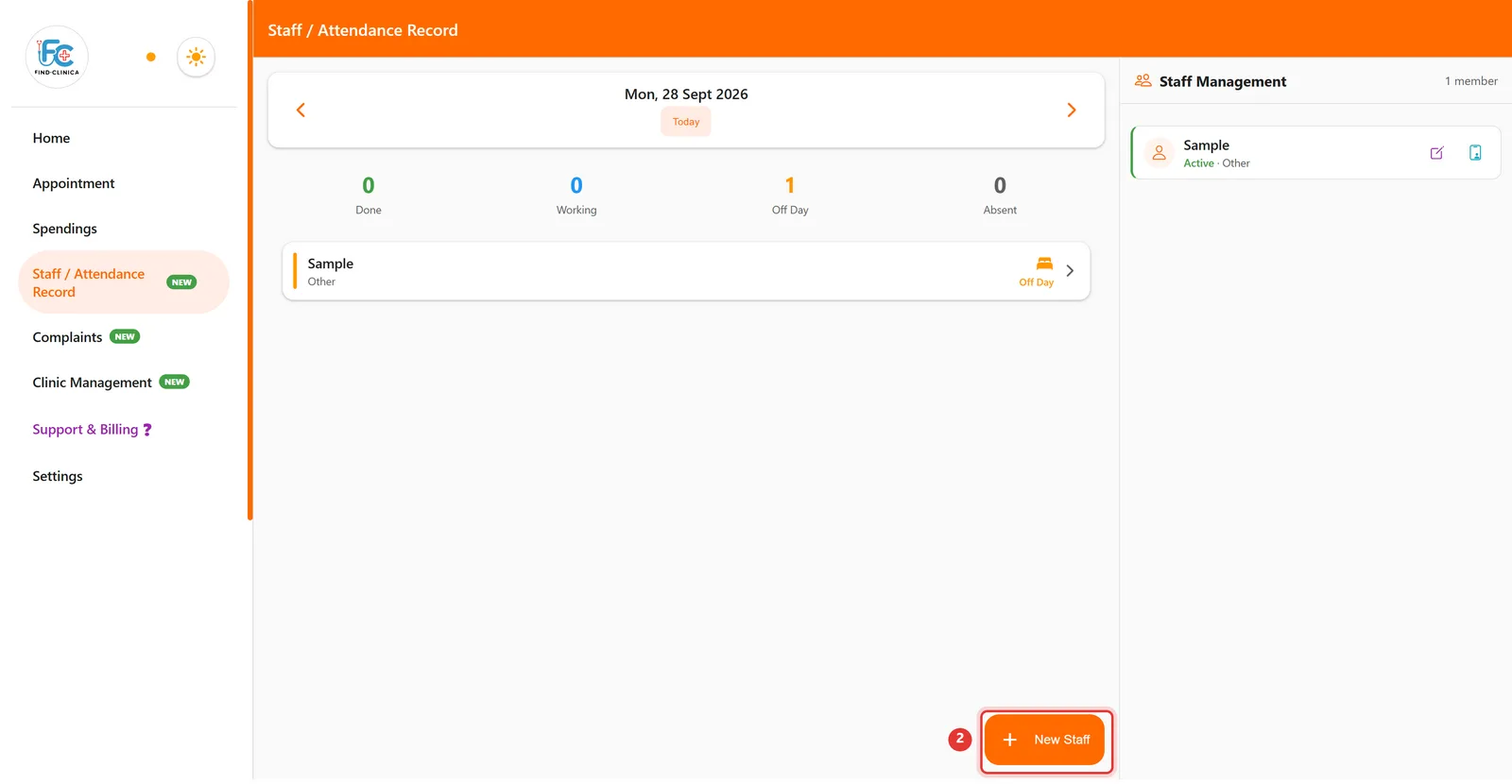
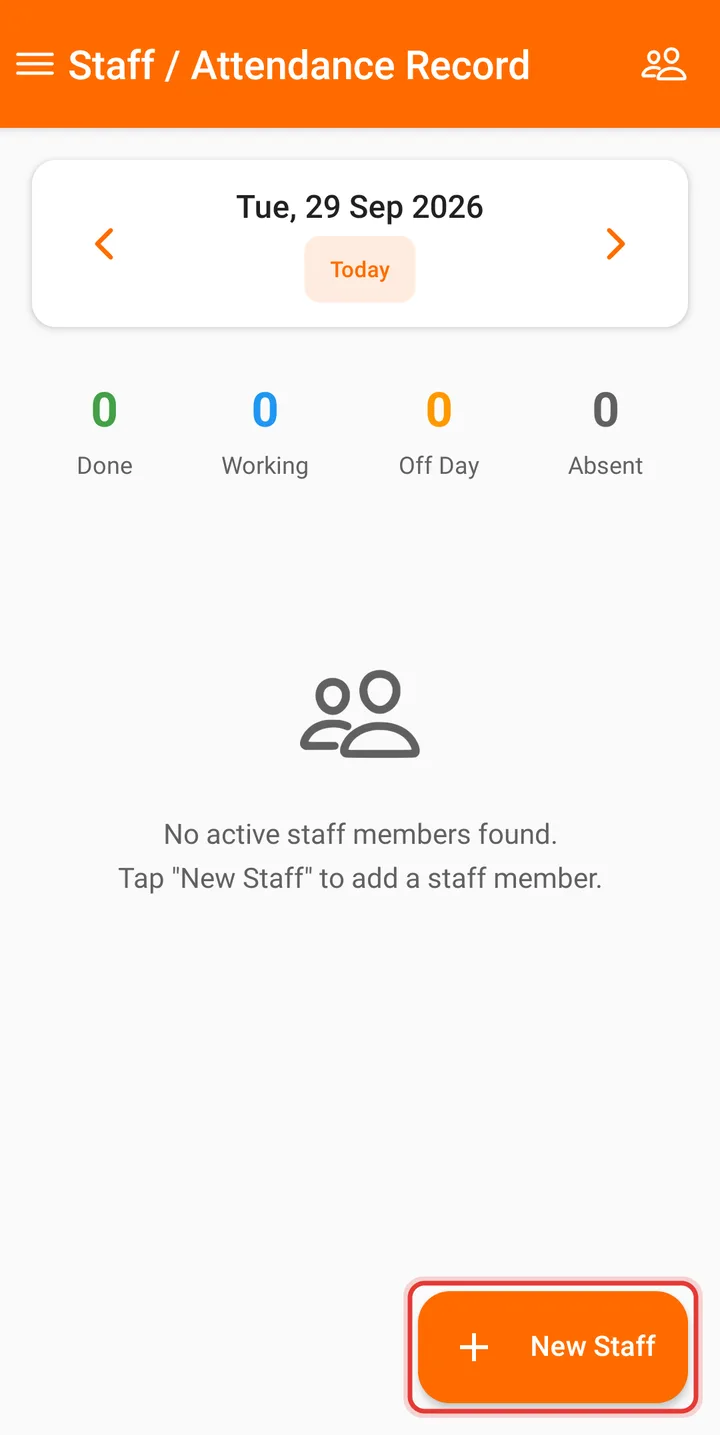
Step 2: Click New Staff at the bottom right.
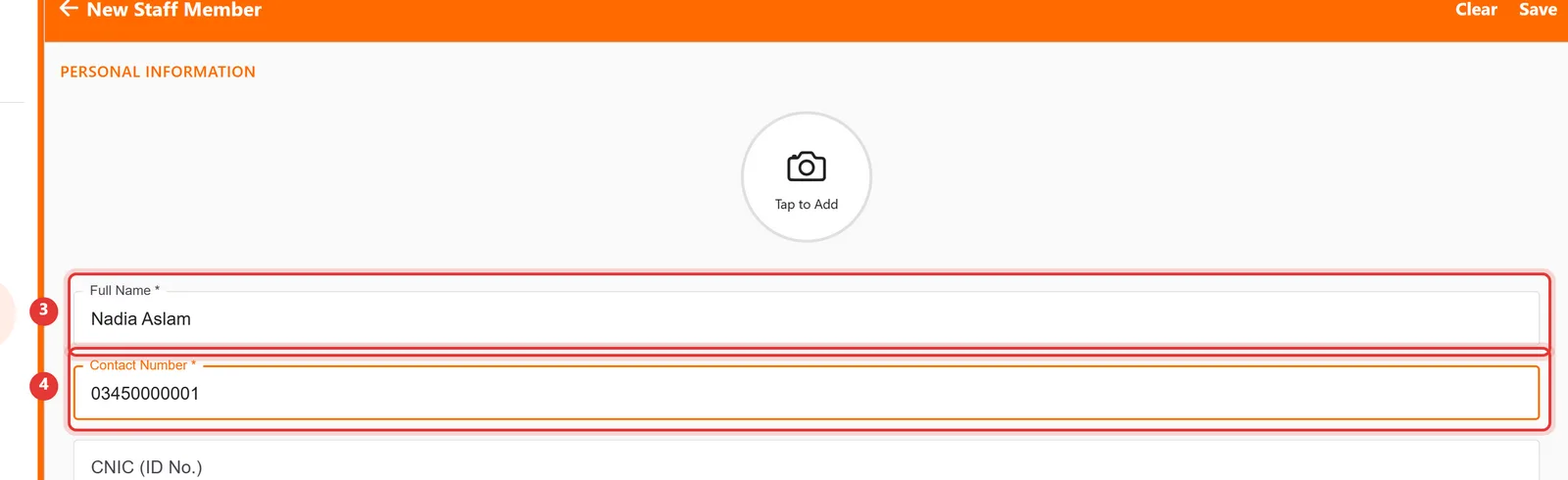
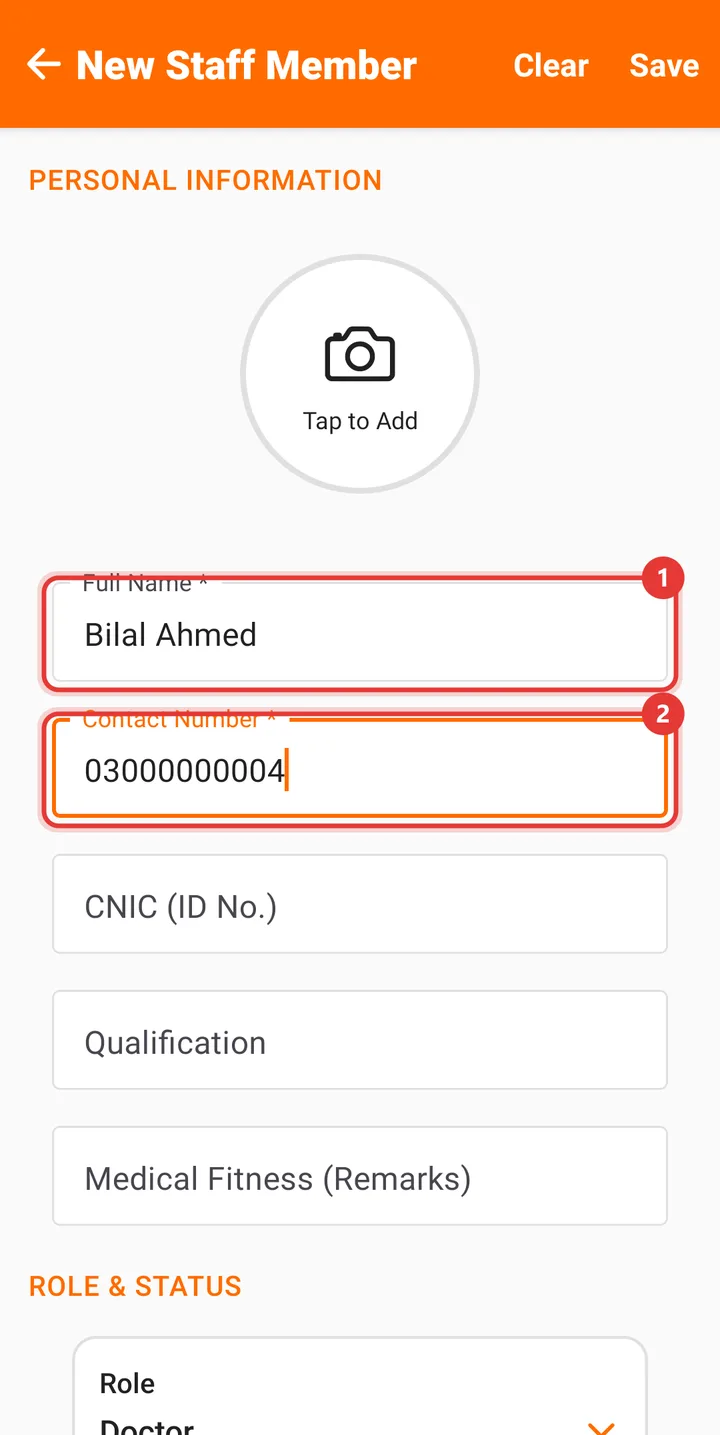
Step 3: Enter the Full Name and Contact Number.
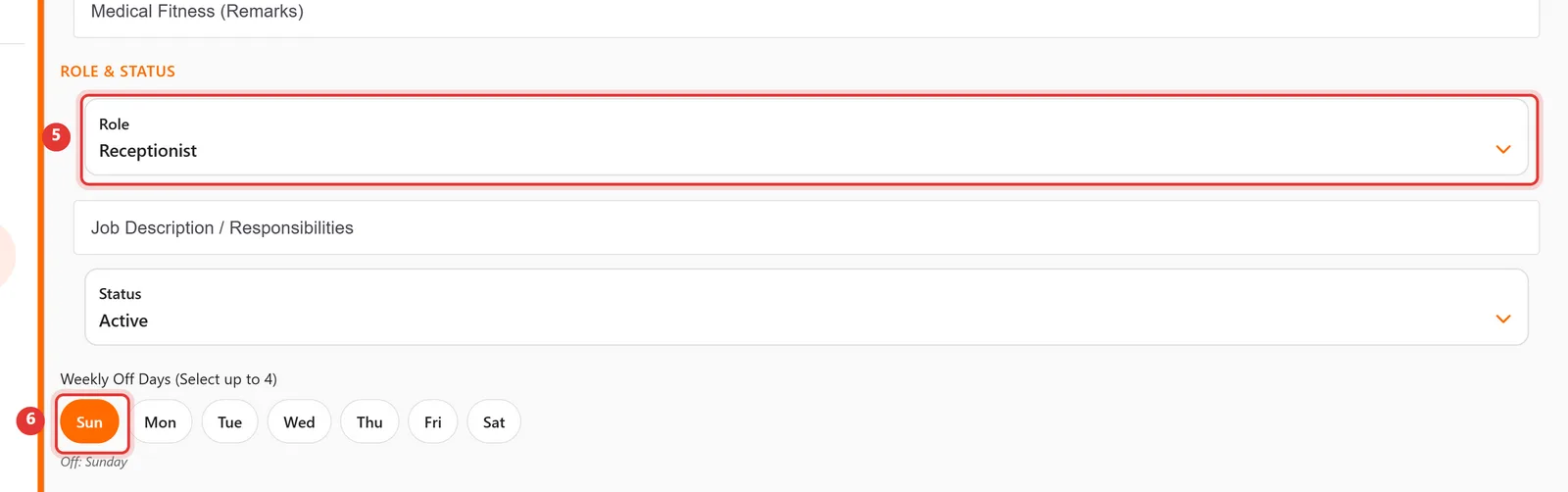
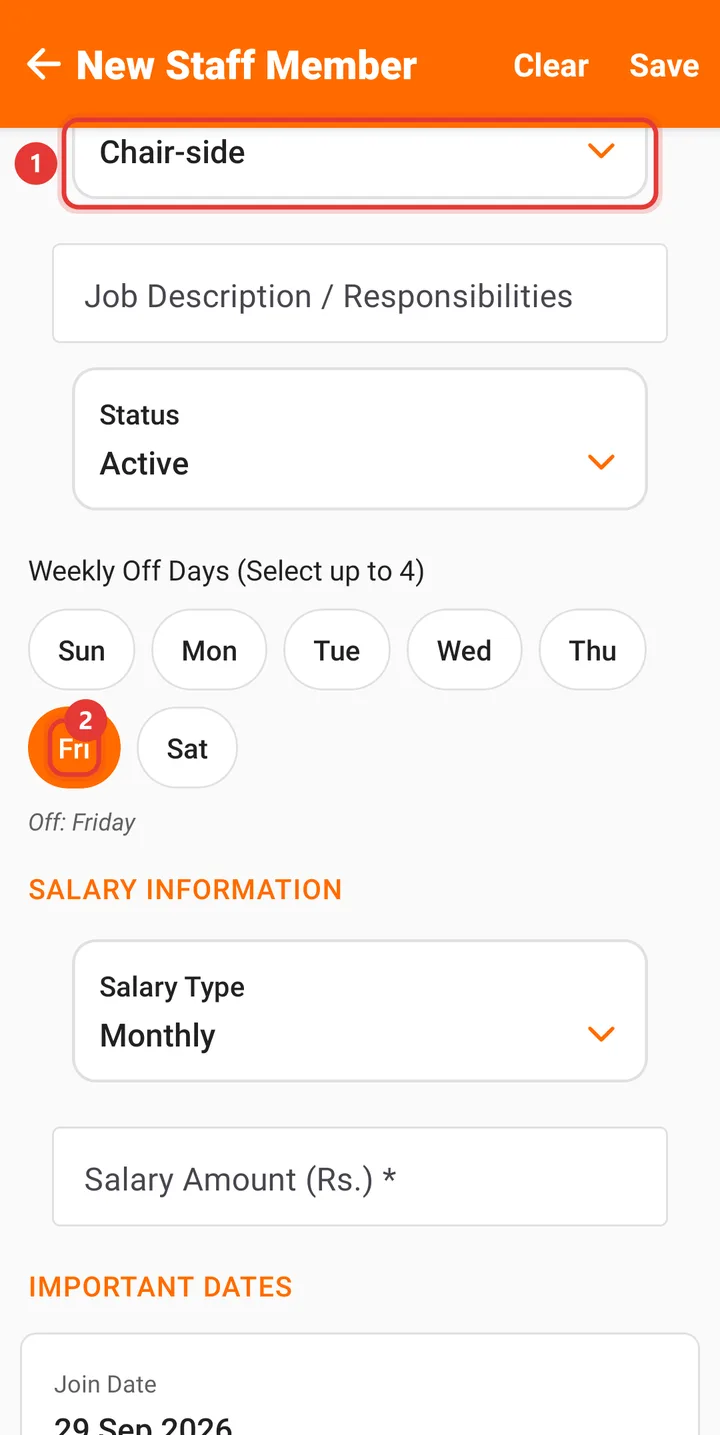
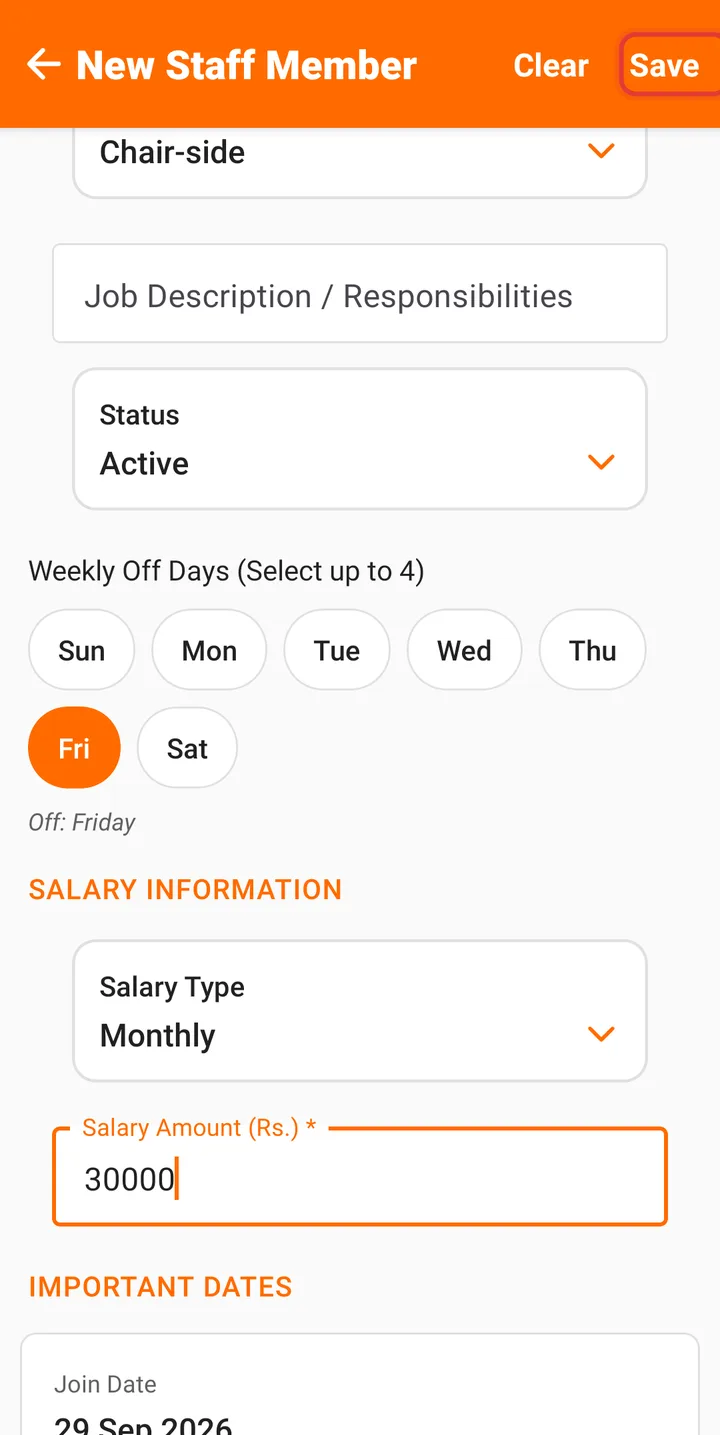
Step 4: Choose the Role and tap the Weekly Off Days (up to 4).
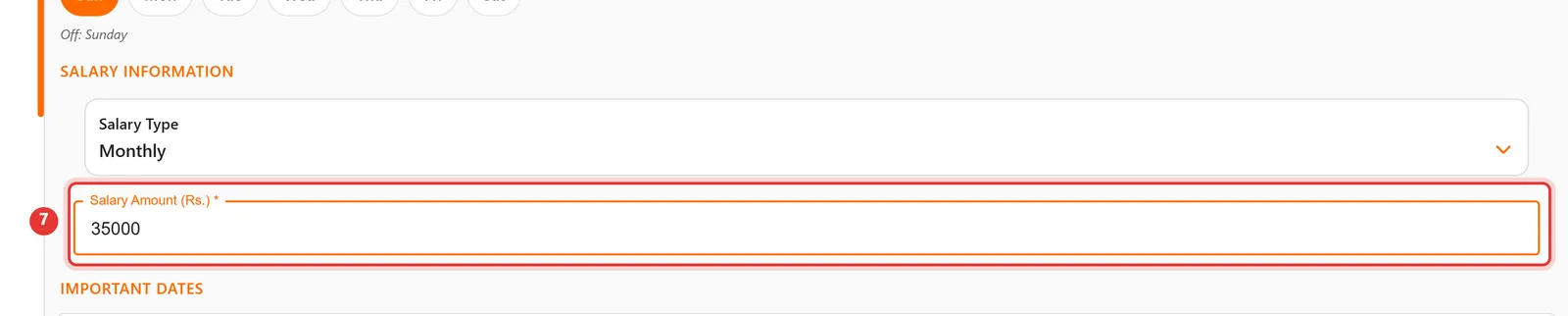
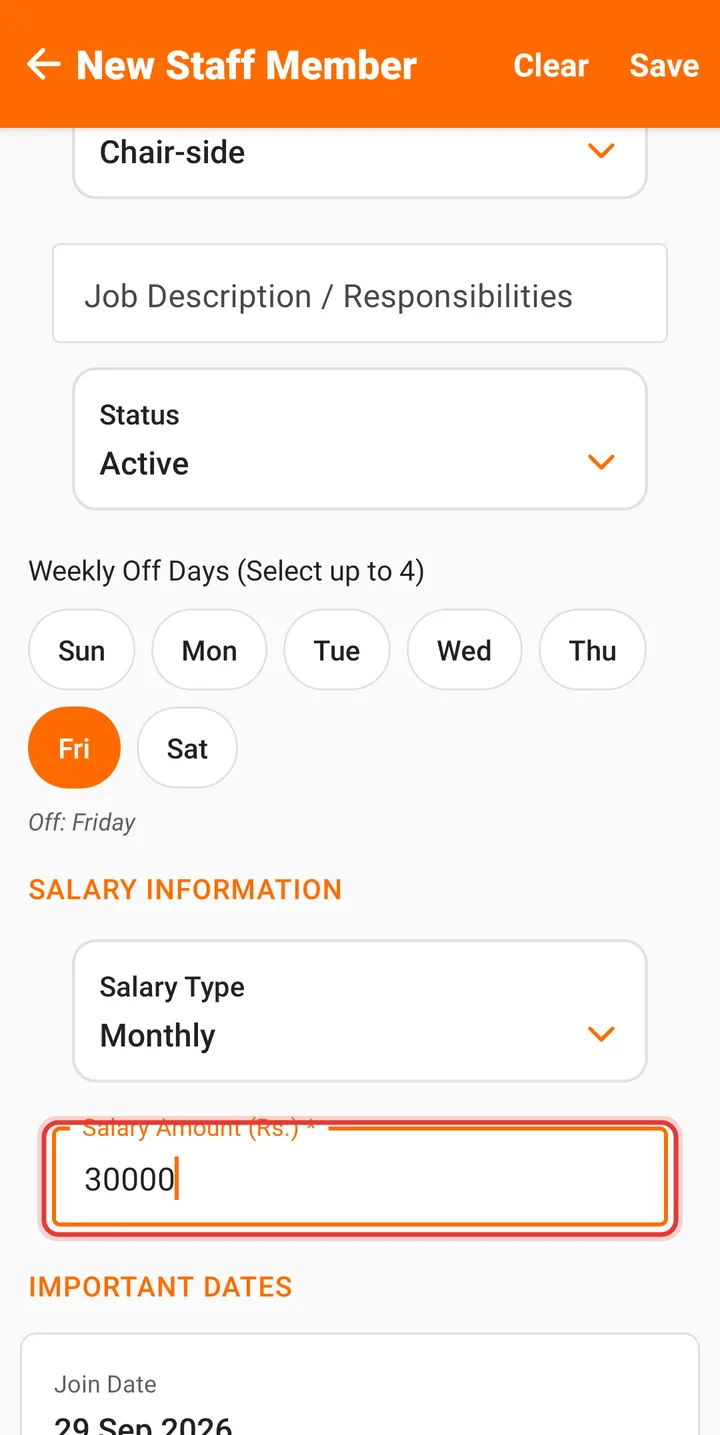
Step 5: Enter the Salary Amount. Change Salary Type if they're paid per day or per procedure.
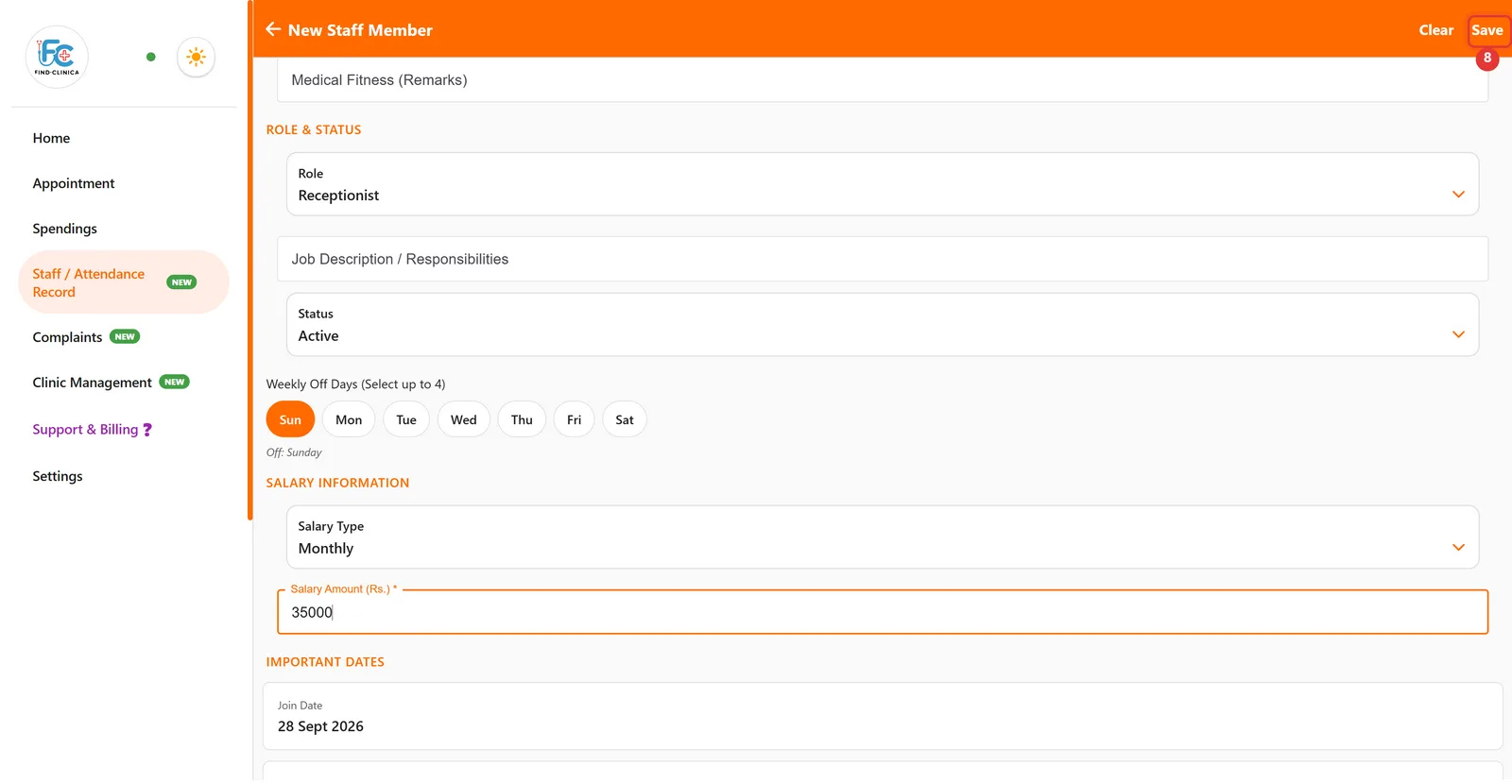
Step 6: Scroll up and click Save at the top right.
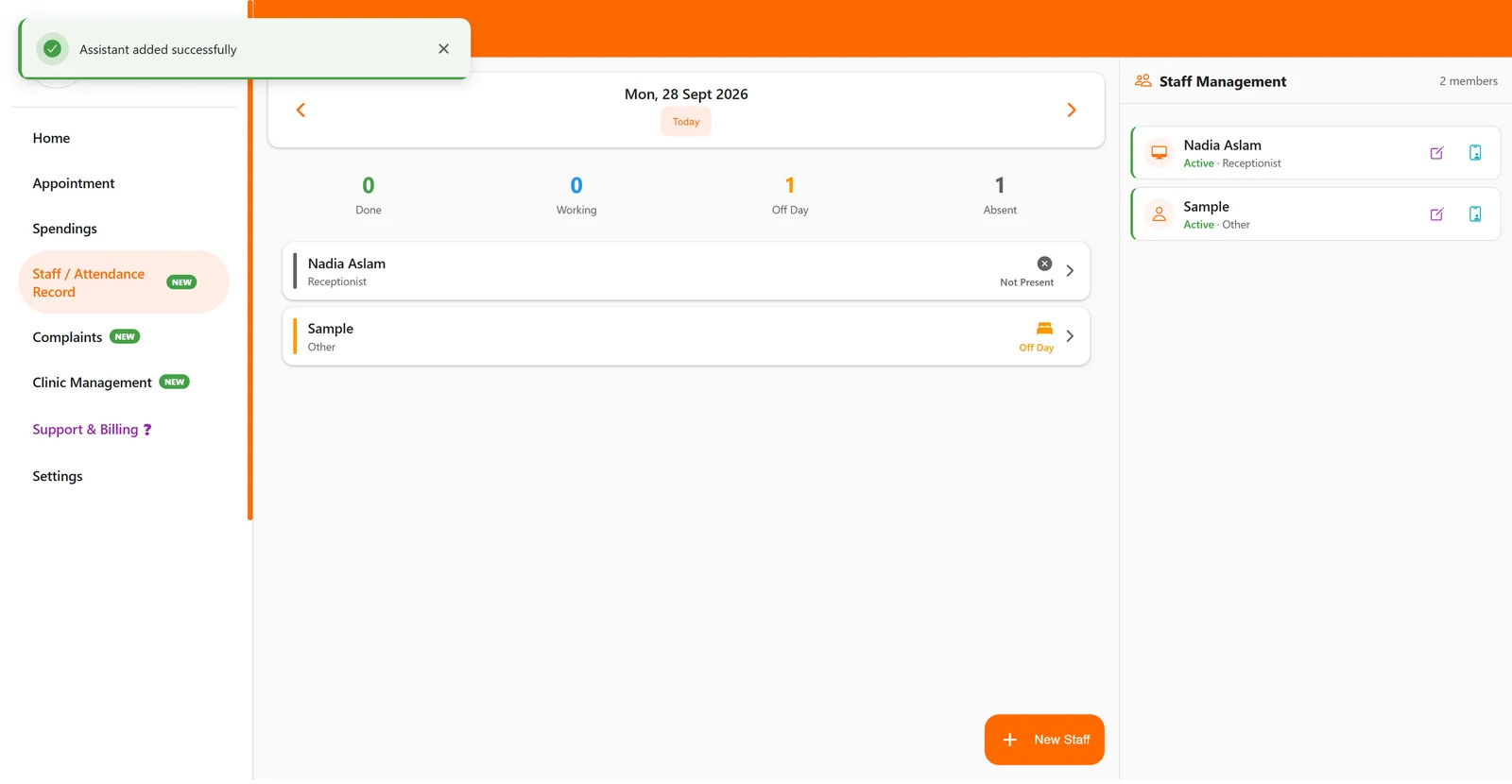
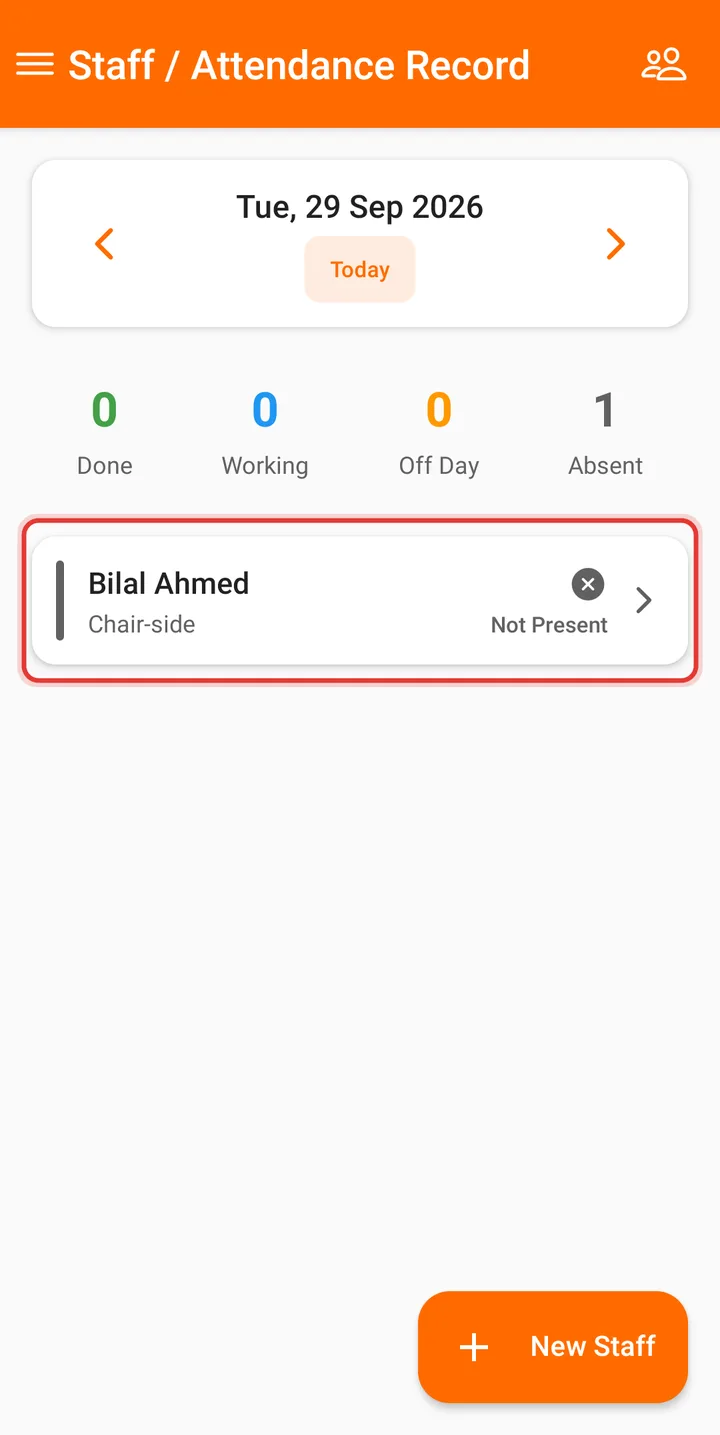
Step 7: The staff member now appears in today's attendance list and under Staff Management.
Good to know
- Name, Contact Number and Salary Amount are required; everything else is optional.
- Set the Start Time and End Time under Working Hours to match their shift.
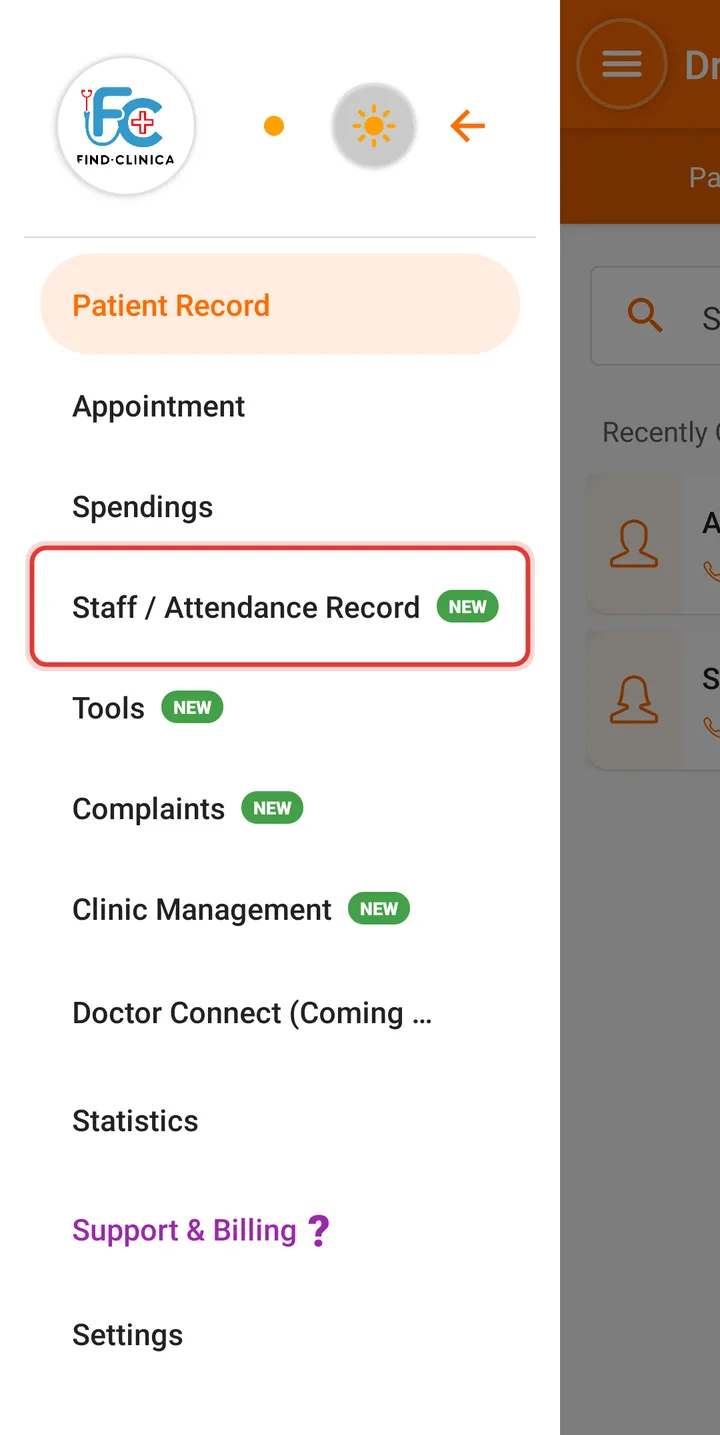
Step 1: Open the menu and tap Staff / Attendance Record.
Step 2: Tap New Staff at the bottom right.
Step 3: Enter the Full Name and Contact Number.
Step 4: Choose the Role and tap the Weekly Off Days (up to 4).
Step 5: Enter the Salary Amount.
Step 6: Tap Save at the top right.
Step 7: The staff member appears in today's attendance list.
Related guides
Still stuck? Contact us or browse all guides.